6 min read
You've got a Word file, a PDF from Canva, and a paste box staring at you. They're not interchangeable copies. They're three different extraction paths into Workday or Greenhouse.
Most silent failures aren't "wrong keywords." They're the PDF where page two never imported, or the paste where skills landed above the employer block.
That's fixable tonight if you'll pick a master format and stop emailing whichever attachment was open last.
Check your resume for free on the exact file you plan to upload. Compare plain-text order to what you see in Word before you batch apply.
Need a clean spine first? Build your resume in single-column layout, then save versions from that export instead of redesigning per portal.
What recruiters mean by resume versions in ATS
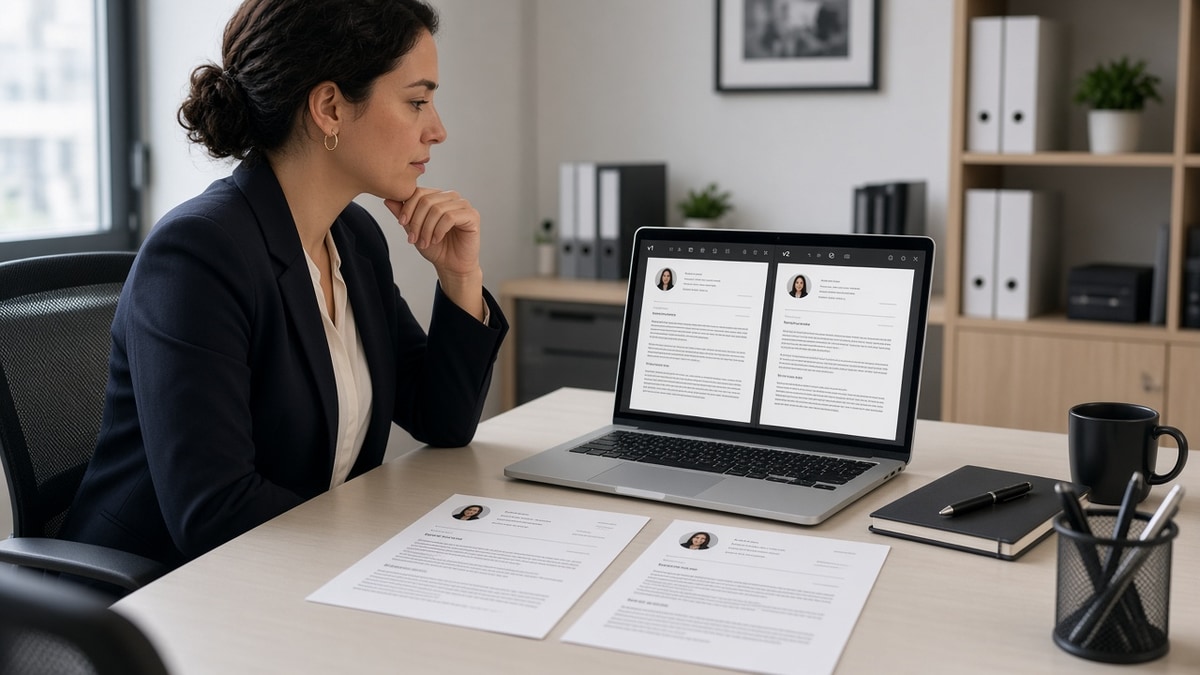
A version isn't a new design every Monday. It's any file the parser touches: DOCX upload, PDF export, or text pasted into a field. Each path can reorder sections even when the words look identical on your screen.
The master file is the contract. Everything else is a delivery format. When dates on the PDF lag the Word file, recruiters see a gap that doesn't exist.
Before: Master DOCX lists "Analyst, June 2021 to March 2024." PDF still open from last month shows "June 2021 to Present."
After: One save updates the DOCX, then you export PDF and refresh the paste buffer from the same session.
Format debates pair with PDF vs Word resume for ATS . This page compares how many files you should run, not which font wins.
Track the last save date in your folder name if you must, but never send a file whose internal content you have not opened this week. Version control is about dates on roles, not integers in the filename.
| Criterion | Master DOCX | PDF export | Plain paste |
|---|---|---|---|
| Best default upload | Yes | When label requires PDF | Paste-only forms |
| Keeps bold headers | Yes | Usually | No |
| Risk if designed in a layout tool | Low in Word | Higher | Medium if copied from PDF |
| Nightly verify step | Save master | Plain-text export | Read portal preview |
How resume versions affect ATS: pick a delivery path
Path A: Master DOCX (default)
Build in Word or export DOCX from your builder. Single column, 11-point Calibri or Arial, Month Year on every role. Save as Lastname_RoleKeyword.docx without version numbers in the name recruiters see.
Upload this file when the portal accepts Word. After upload, open the parser preview if the employer shows one. Employer rows should match top-to-bottom order in your master.
Path B: PDF export (label-driven)
Export PDF from the same Word session as the master, not from a separate design file. Image-only PDFs fail silently: the preview looks fine to you and empty to the extractor.
Before: PDF from a two-column template; plain text lists skills, then education, then jobs from 2016.
After: PDF from single-column DOCX; plain text shows current employer first with two bullets under it.
Path C: Plain-text paste (forms)
Copy from the master using paste-special to unformatted text, or save a .txt once per edit. Replace fancy bullets with hyphens. Keep section headers on their own lines so parsers can guess boundaries.
Copy-paste naming line for your versions folder:
Master: Lastname_RoleKeyword.docx (edit here only)
Upload: Lastname_RoleKeyword.pdf (export same day as master save)
Paste buffer: Lastname_RoleKeyword.txt (regenerate after every master edit)
Decision rule for tonight
Read the upload label. If it says PDF only, export from master and run plain-text check. If it offers Word, send DOCX. If there's only a paste box, use Path C and still keep the master for the next req.
I've passed on candidates in Greenhouse where the PDF résumé showed a promotion the DOCX on file didn't include. The parser wasn't wrong. The versions were.
Tailoring still happens inside the master. Swap bullet one for posting nouns, save, then regenerate PDF and txt in one sitting. Don't keep a "creative PDF" and a "ATS Word" that diverge on dates.
Edge case: academic CVs may stay long in a separate file. Corporate portals still want the shorter master. Upload the file the req asks for, not the full publication list unless the posting requests it.
Referral loops add another version: your friend forwards last month's PDF while you already edited the DOCX. Before you ask for a warm intro, re-export and attach the file saved today so the referrer does not send stale dates.
Mobile uploads tempt quick fixes. Editing on a phone viewer does not update the master on your laptop. Wait until you're at the desktop file, then sync every export in one pass.
When a portal re-parses an old upload on reapply, delete the attachment and upload fresh from master. Cached extracts sometimes keep the first broken layout even after you fixed Word.
Contract and temp roles confuse version control when the agency asks for a redacted PDF while the client portal wants full employer names. Maintain two masters only when legally required, and label folders so you never upload the redacted file to a full-disclosure req.
Version drift that breaks parsing
- Editing the PDF in a viewer instead of the master DOCX.
- Keeping a Canva PDF and a Word file with different job end dates.
- Pasting from an old email attachment while the master already shows a new role.
- Saving .doc instead of .docx on legacy settings without retesting upload.
- Renaming files but not updating content before a referral forwards the old PDF.
- Using headers and footers for contact info on one version but body contact on another.
Upload failures tie back to iCIMS resume upload problems . Fix the master once, then re-export every delivery format.
Test the file you will submit
Upload the candidate file, not the master, into your checker session. If plain text scrambles employers, fix layout in DOCX before you export again. Repeat the check after every tailoring session so PDF and paste buffers never drift from the master you just saved.
Run the ATS check on DOCX and PDF from the same save when you're split between portals. Pick the export where every job row imported.
When the req also wants a letter, generate a cover letter after versions align so titles match the master dates.
One master, deliberate exports
How resume versions affect ATS is really a storage problem. Recruiters see one timeline in the grid. You should only maintain one source of truth for dates and titles, then ship DOCX, PDF, or paste from that save.
Job search pressure pushes people to grab whatever file sends fastest. Slow down once per edit: save master, export, paste-test, then apply. You'll spend less time explaining gaps that were just version skew on the phone screen.
Read more
Frequently asked questions
Keep one master DOCX and tailor content inside it. Export PDF or copy plain text from that master for each portal. Do not maintain three unrelated Word files with different dates on the same role.
No. Parsers read structure inside the file. A clean filename helps humans in email, but columns and text boxes still scramble employer rows after upload.
When the application only offers a paste field or when your PDF preview shows jobs out of order. Paste from the master after you strip bold and tables, then scan the preview for employer names.
Only if every portal accepted PDF last time and plain-text export looked correct. Some Workday tenants prefer DOCX. Read the upload label and keep the master ready to export either way.