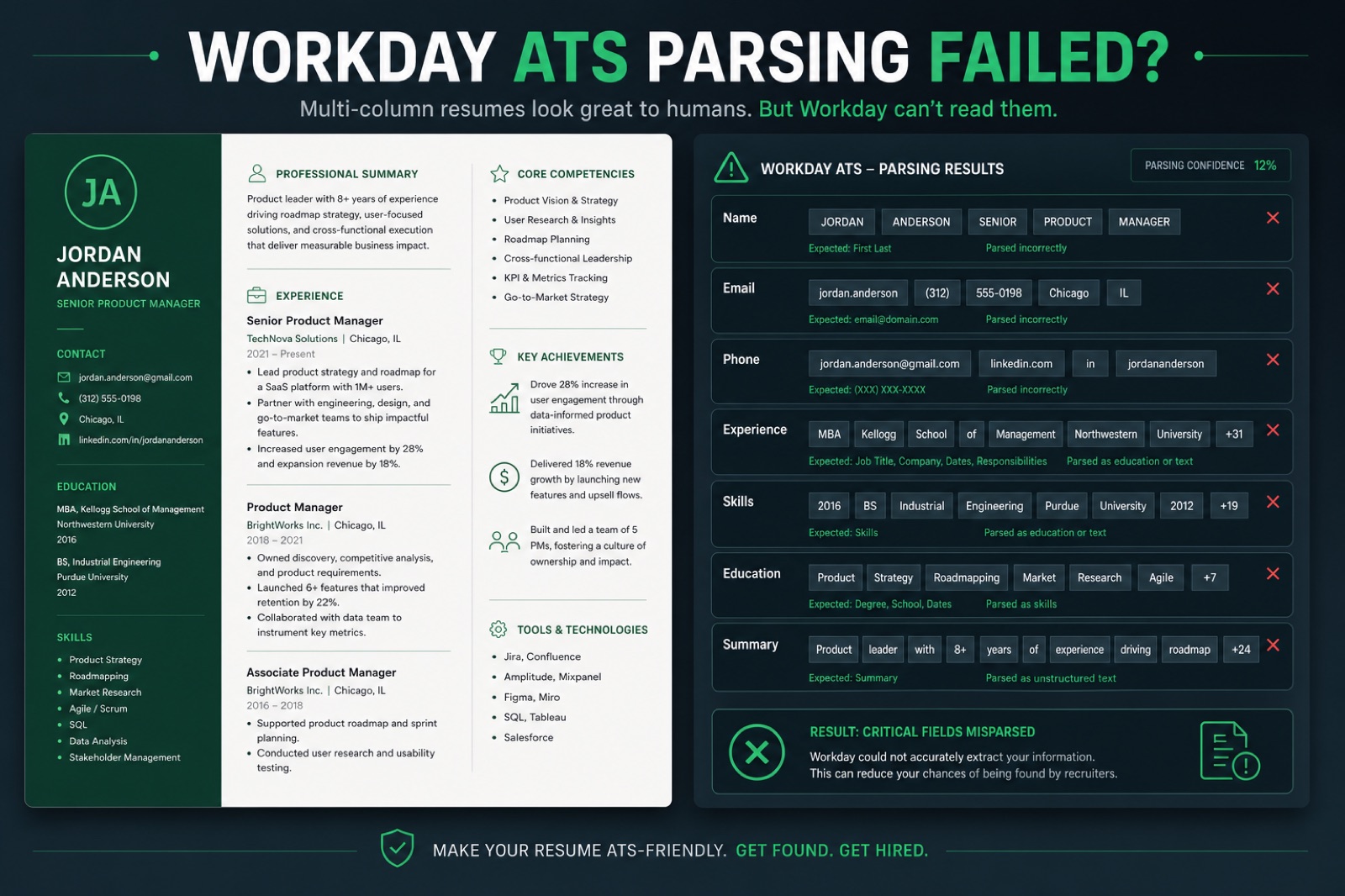
Workday isn't just another applicant tracking system with different branding—it behaves differently from Greenhouse, Lever, or iCIMS in ways that actually change how you should build your resume. Because Workday is deployed almost entirely by large enterprises with heavily customized configurations, the same file can parse cleanly at one company and fall apart at another running the identical software.
This is a platform-specific playbook, not a generic ATS checklist. Everything below is scoped to how Workday's parser and candidate-profile importer actually behave in 2026: the quirks unique to its architecture, the layout rules that matter more here than anywhere else, file format guidance by deployment age, and a do/don't table you can run your resume against before you hit submit.
Key Takeaways
- Why Workday's candidate-profile importer is stricter than a typical resume parser
- A Workday-specific quirks checklist most candidates have never heard of
- DOCX vs PDF guidance broken down by how old the employer's Workday instance looks
- A do/don't table for layout, headers, dates, and file naming
- The table and column failures that quietly scramble your resume data
- A pre-submit checklist built specifically for Workday career sites
How Workday actually processes your resume
Most candidates assume every ATS just "scans for keywords." Workday does something more specific: it runs your file through a candidate-profile importer that tries to auto-populate structured fields—job title, company, location, start date, end date, degree, institution—directly from the document, before you ever touch the manual application form. This is different from platforms that simply extract raw text for a recruiter to search later.
That importer is what makes Workday unusually format-sensitive. It isn't just deciding whether your resume is readable—it's trying to slot your experience into a rigid data model. When your layout doesn't match what it expects, the importer doesn't politely fail; it produces wrong or blank data that gets attached to your application, and in many configurations, that raw imported data is what a recruiter sees first, not your carefully designed file.
Two more things make Workday behave differently from other systems:
- Every company's Workday is configured separately. IT teams customize field mappings, required questions, and sometimes the parsing rules themselves—so results genuinely vary between two companies on the same software.
- Older deployments are common. Workday has been sold to large enterprises for well over a decade, so you'll encounter career sites running configurations that predate modern parsing improvements, especially in banking, insurance, healthcare, and manufacturing.
Expert tip: If you've ever submitted a Workday application and then had to manually retype your entire work history because the "auto-fill from resume" step imported nothing—or imported it backwards—that's the importer failing, not a bug specific to that one employer. It's a predictable outcome of a resume format the importer can't map correctly.
Key Takeaway: Workday tries to slot your resume into structured fields, not just index raw text—when your layout doesn't match, it produces wrong data instead of failing cleanly.
The Workday quirks checklist
These are quirks specific to Workday's importer and career-site flow—not general ATS advice. Most resume guides never mention them because they don't apply to other platforms.
- "Auto-fill from resume" can silently fail. If the import step doesn't populate your work history after upload, don't assume it worked in the background—check every field before moving to the next page.
- Duplicate candidate profiles across companies. Workday sometimes recognizes returning applicants by email across different employer instances, pulling in stale data from a previous application. Always review pre-filled fields.
- Multi-page application flow re-asks for parsed data. Even a perfect import often gets followed by manual fields for the same information—treat the resume upload as step one, not the whole application.
- Referral and requisition fields can override resume data. If a recruiter or referral link pre-populates fields, mismatched information between that and your resume can look inconsistent during review.
- Some instances ignore header/footer regions entirely. Contact details placed only in a header or footer can vanish from the imported profile even though they're visible on the page.
- Older instances cap file size and page count more aggressively. Enterprise IT teams sometimes set conservative upload limits inherited from years-old configurations—keep files under 2–3MB and within two pages when possible.
- Resubmitting a "fixed" resume doesn't always re-trigger parsing. Some Workday flows cache the first successful import; if you update your file mid-application, verify the profile fields actually changed.
None of these are things you can fix from the outside—they're quirks of the platform itself. What you can control is building a resume that gives the importer the best possible chance of reading your data correctly the first time.
Key Takeaway: always verify every auto-filled field after uploading—a silent import failure or stale duplicate profile is easy to miss if you click straight through.
The single-column playbook
The single most reliable fix for Workday parsing problems is a strict single-column layout. Because the importer maps content into structured fields rather than just indexing raw text, reading order matters more here than on almost any other platform.
- No side-by-side columns. Skills lists next to a timeline, or a sidebar with contact info, force the importer to guess reading order—and it often guesses wrong, attaching a skill to the wrong job entry.
- No text boxes. Text placed in a floating box (common in Canva and some Word templates) can be skipped entirely by the parsing engine, meaning that content simply never reaches the candidate profile.
- No tables for layout. Tables used to align dates on the right margin are a frequent cause of missing or reordered content (covered in detail below).
- Section order flows naturally. Contact info, then summary, then experience, education, and skills—stacked vertically with standard spacing and no overlapping elements.
- One job entry per block. Keep title, company, dates, and bullets grouped together with nothing else interrupting that block before the next role starts.
If you want a starting point that already follows these rules, HireFlow's ATS-friendly resume templates use single-column structure by default, so you're not fighting the layout while trying to fix content.
Key Takeaway: a strict single-column layout, top to bottom, is the single most reliable fix for Workday parsing problems.
File format guidance: DOCX vs PDF for Workday
This is one of the most common questions candidates ask, and the honest answer is: it depends on how the specific company configured Workday—but there are patterns worth knowing based on how modern or legacy that instance looks.
| File type | Workday behavior | When to use it |
|---|---|---|
| DOCX | Generally parses text and structure reliably; older Workday configurations were originally tuned around Word documents | Default choice if you are unsure, or if the posting is from a legacy enterprise deployment |
| PDF (text-based) | Parses well as long as it is a true text-selectable PDF exported from Word or Google Docs—not a scanned or flattened image | Safe when you need to preserve exact formatting across devices and the PDF is genuinely text-based |
| PDF (image/flattened) | Frequently fails to extract any text at all; fields import blank and the candidate profile ends up empty | Avoid for any ATS, not just Workday |
| .pages / .odt / .rtf | Inconsistent support; some Workday upload widgets reject these formats outright before parsing even begins | Convert to DOCX or PDF before uploading |
Practical rule: if a job posting is hosted on an older-looking Workday portal (common in banking, insurance, and manufacturing), lean DOCX. If the portal looks modern and the company is tech-forward, a clean text-based PDF is usually fine. When in doubt, test both—see the testing section below on verifying selectable text before you submit either one.
For a deeper breakdown of file-type tradeoffs across different ATS platforms beyond Workday, see PDF vs DOCX for ATS: which resume file type should you submit .
Key Takeaway: lean DOCX for older-looking enterprise Workday portals, and a verified text-based PDF for modern, tech-forward career sites.
Not sure which category your target company falls into? Run your file through HireFlow's free ATS checker to see exactly what gets extracted before you commit to a file type.
Do / don't table for Workday resumes
A quick reference you can hold your resume up against before applying through any Workday career site.
| Category | Do | Don't |
|---|---|---|
| Layout | Use one column, top to bottom, standard spacing | Use sidebars, columns, or floating text boxes |
| Dates | Write "Jan 2023 – Present" inline with the job title | Put dates in a separate table column or cell |
| Headers | Use plain, standard labels: Experience, Education, Skills | Use creative labels like "My Journey" |
| Contact info | Place name, email, and phone in the body text | Rely only on a header or footer region |
| Skills | List skills as a plain stacked or comma-separated line | Arrange skills in a multi-column grid |
| File type | Use DOCX or a verified text-selectable PDF | Use a scanned image or design-tool export |
| File name | FirstName-LastName-Role-Resume.docx | Resume_final_v3_USE_THIS.pdf |
| After upload | Verify every auto-filled field before continuing | Assume the import worked and click through |
Key Takeaway: hold your resume up against this table before every Workday application—most import failures trace back to one row on this list.
Date formats and headers Workday maps correctly
Dates
- Use a consistent format throughout: "Jan 2023 – Present" or "01/2023 – Present"
- Keep start and end dates on the same line as the job title/company, not in a separate table column
- Spell out "Present" for current roles instead of leaving it blank
- Avoid combined ranges like "2021–2023, 2024–Present" for the same role—list them as two entries if needed
- Don't abbreviate years as two digits ("23" instead of "2023")—the importer expects a full four-digit year
Headers
- Use standard section names: "Experience," "Education," "Skills," "Summary"
- Avoid creative headers like "My Journey" or "Where I've Been"—Workday's field mapping looks for recognizable keywords
- Keep headers as plain text, not inside styled boxes or graphics
- Use one heading level consistently (don't mix H2-style and bold-only headers)
- Don't merge sections under one header, like "Skills & Certifications"—split them so each maps to its own field
Key Takeaway: use a full four-digit year and standard section names—Workday's field mapping looks for recognizable keywords, not creative phrasing.
Tables and columns: how they actually break Workday parsing
Most candidates don't realize their resume uses a table until they inspect it closely—many Word and Canva templates hide tables behind invisible borders. Here is what commonly goes wrong once that hidden structure meets Workday's importer:
- Right-aligned dates in a table cell. The parser may read the entire row left-to-right, cell by cell, dumping the date before the job title, or skip the cell entirely—resulting in a job entry with no dates in your profile.
- Two-column skills + experience layout. The parser can interleave lines from both columns, producing nonsensical bullet fragments attached to the wrong role.
- Header/footer contact info. Some Workday configurations do not read header or footer regions at all, so a name-only header with contact details in the footer can result in a profile with no phone number or email captured.
- Icons instead of text labels. A phone icon next to a number without a text label can cause the parser to drop the field or misclassify it entirely.
- Multi-column "Core Competencies" grids. Nine skills arranged in a 3x3 grid often parse as a single garbled string, or not at all.
- Nested tables inside a "modern" template. Some templates use a table just to control margins, invisibly, which is enough to disrupt the importer's linear reading order even without visible gridlines.
Expert tip: To check if your resume uses a hidden table, open it in Word and toggle "View gridlines" or "Show formatting marks." If you see any grid structure around your dates or skills, rebuild that section as plain stacked text before uploading it anywhere.
Key Takeaway: check for hidden tables using Word's gridline view—many templates hide table structure behind invisible borders that break Workday's reading order.
What Workday's importer is actually trying to extract
Understanding the specific fields Workday's importer looks for helps explain why some resumes that look perfectly normal to a human still import badly. The candidate profile it tries to build typically includes:
- Full name, email, phone number, and location (city/state or city/country)
- Each employer name, job title, and start/end date as discrete data points
- Degree, institution, and graduation date for each education entry
- A flat list of skills, often matched against internal taxonomy keywords
Every one of these maps to a specific field type, not a block of free text. A job title buried inside a paragraph, or a degree written as "B.S., Computer Science, magna cum laude, 2019" all in one run-on line, is harder for the importer to split cleanly than the same information broken into clearly separated, consistently formatted lines. When you write each entry the way you'd fill in a form—one clear value per line—you're effectively pre-formatting your resume the way the importer wants to read it.
Key Takeaway: write each field the way you'd fill in a form— one clear value per line—instead of burying dates or degrees inside a run-on sentence.
How to test your resume before applying
- Copy-paste test. Select all text in your resume and paste it into a plain text editor. If the order is jumbled or content is missing, Workday's importer will likely see the same thing.
- Search test. Use Ctrl/Cmd+F to search for your phone number, email, and each job title in the PDF. If any don't appear, the text isn't selectable in that spot.
- Gridline test. Open the file in Word and toggle on gridlines and formatting marks to reveal any hidden tables or text boxes around dates and skills.
- Run a full ATS check. Upload your resume to HireFlow's free ATS resume checker to get category-level parsing and formatting feedback before you submit.
- Rebuild if needed. If your current file fails these tests, start from a single-column base using the free resume builder rather than patching a broken template.
Workday pre-submit checklist
- Single-column layout from top to bottom, no side-by-side content
- No tables used for date or skills alignment, including hidden ones
- Contact info in the body text, not only header/footer
- Standard section headers: Experience, Education, Skills, Summary
- Consistent date format on every entry, with "Present" spelled out
- DOCX or a verified text-selectable PDF—never a flattened/scanned image
- File name: FirstName-LastName-Role-Resume.docx (or .pdf)
- Every auto-filled field checked and corrected after upload
Key Takeaway: run the copy-paste and search tests before every Workday application—they take under two minutes and catch most parsing failures before you submit.
Frequently asked questions
A strict single-column layout with standard section headers (Experience, Education, Skills), dates written inline with the job title, and either a DOCX file or a verified text-selectable PDF. Workday's candidate-profile importer maps content into structured fields, so linear reading order matters more here than on most other ATS platforms.
It depends on the specific company's Workday configuration. Older-looking Workday portals, common in banking, insurance, and manufacturing, tend to favor DOCX. Modern, tech-forward career sites are usually fine with a clean, text-based PDF. When unsure, test both and verify the text is selectable before submitting.
This usually happens when dates are placed in a table cell instead of inline with the job title. Workday's importer can read a table row left-to-right, dumping the date in the wrong position or skipping the cell entirely, which leaves a job entry with no dates in your candidate profile.
Not reliably. Some Workday configurations don't scan header or footer regions at all, so contact information placed only there can be missing from your imported candidate profile even though it's visible on the page. Always place your name, email, and phone number in the main body text.
Yes. Many Word and Canva templates use invisible-border tables to control spacing that you can't see just by looking at the page. Open the file in Word and toggle on gridlines or formatting marks—if you see a grid around your dates or skills, rebuild that section as plain stacked text.
Copy and paste the full resume text into a plain text editor to check for jumbled order or missing content, use Ctrl/Cmd+F to confirm your phone number and job titles are searchable in the PDF, and check for hidden tables using Word's gridline view. Running a full ATS check adds category-level formatting feedback beyond what these manual tests catch.
Each company configures its own Workday instance separately—field mappings, required questions, and sometimes parsing rules vary between employers even on identical software. A resume that imports cleanly at one company can still produce blank or scrambled fields at another running the same underlying platform.