8 min read
Your Canva header looks sharp. Greenhouse might store a candidate with no phone number, a garbled skills block, and your 2019 internship listed above your current role. That's not a keyword problem. It's a parser problem, and icons are a common trigger.
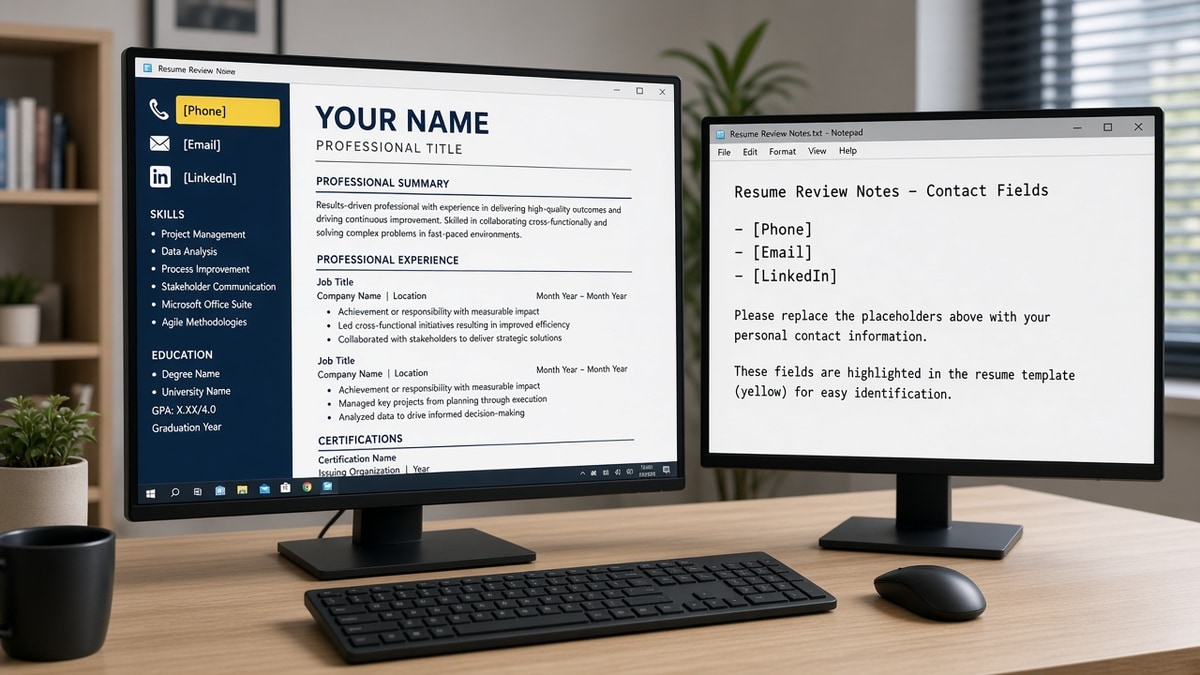
You don't need to guess whether icons hurt you. Paste the export into Notepad and Ctrl+F your phone number. When search fails, the ATS already lost the contact block beside the icon row. Most qualified applicants won't run that test, and they'll keyword-tune a layout the parser never parsed.
Icons aren't evil design. They're unreadable data in Workday. A phone glyph doesn't map to the phone field. A LinkedIn square won't become a clickable URL in the candidate profile. You're fixing field mapping, not aesthetics, and it's faster than rewriting bullets that never get read.
Check your resume for free after you strip icons and rebuild contact as plain text. Parsing must pass before keyword tuning matters, and you can't fix a missing phone row by adding more skills at the bottom.
Quick Wins
- Delete phone, email, and map pin icons. Write Phone: and Email: labels instead.
- Paste your PDF into Notepad. Ctrl+F your number before every batch.
- Remove FontAwesome and Canva icon rows from the contact header.
- Use Word built-in bullets, not copied symbol glyphs, in Skills.
How icons break what the ATS stores
An applicant tracking system maps text to fields: name, phone, email, employer, title, dates, skills. Icons are not text. They are images, font glyphs, or Unicode symbols the extractor skips or misreads.
Symptom: You apply widely and hear nothing. Likely cause: Contact icons dropped your phone field. Fix: Plain text contact block on lines one through four of the body, then re-test paste output.
Icon-font rows look professional in Word. On import they often become question marks, blank boxes, or random characters inserted between your skill names. Recruiters searching for Python see gibberish instead of a clean Skills line.
Three failure modes to recognize tonight. Contact icons drop phone and email fields entirely. Skill icons insert junk tokens between words so Boolean search misses you. Sidebar icon stacks merge with Experience on paste so job order reads backwards. Any one of those kills visibility before a human opens the req.
PDF export does not fix icons. The file still contains images or outline fonts underneath. Lever and iCIMS follow the same extraction rules as Workday: text strings in, fields mapped, everything else skipped.
Most resumes never reach a human when the stored profile is incomplete. The parser reads the file first. A file it cannot read does not get scored against posting keywords you spent an hour adding. For broader parse failures, read common resume parsing errors and how to fix them .
Diagnose icon damage on your resume export
Run these checks on the exact PDF or DOCX you plan to attach. Do not test a browser tab preview.
Step 1: Paste into plain text
Select all, copy, paste into Notepad or TextEdit in plain text mode. What survives is what most parsers store. Empty paste means image PDF. Garbled symbols where icons sat mean icon-font failure.
Before: Contact row shows phone icon plus number in a shape.
After: Line two reads Phone: 555-123-4567 searchable with Ctrl+F.
Step 2: Search phone, email, and current title
Press Ctrl+F or Cmd+F. Search your phone digits, email address, and current job title. Any failed search marks a field the parser likely dropped. Icon headers are the usual reason phone search fails while the PDF looks fine.
Before: LinkedIn icon with URL inside a text box.
After: LinkedIn: linkedin.com/in/yourhandle on its own plain line.
Step 3: Read skill lines for symbol junk
I've screened thousands of Workday imports, and the file that passes uses words, not glyphs: Phone on line two, skills as comma list or standard bullets. When checkmark icons precede each skill, the stored profile often shows empty squares between words.
Scan Skills and Experience for question marks or blank boxes. Delete decorative bullets. Re-type skills as plain lines or Word list bullets.
Step 4: Rebuild header as text-only and re-export
Move name, phone, email, city, and LinkedIn URL into the document body. No shapes, no icon fonts, no sidebar contact column. Save DOCX, export text-based PDF if required, repeat steps one and two.
Copy-paste block: icon strip checklist
ICON STRIP PASS (before upload)

1. Delete all contact icons (phone, email, map, LinkedIn glyph)
2. Contact block plain text:
   Name
   Phone: [number]
   Email: [address]
   City, ST
   LinkedIn: [full URL]
3. Skills: standard Word bullets OR comma line (no icon font)
4. Select all → paste Notepad → Ctrl+F phone + email + title
5. If any search fails → rebuild single column → re-export → re-test
When the portal shows an upload preview, compare it to your Notepad output. Mismatches mean the hosted parser applied extra rules. Trust the preview when it disagrees with your local paste.
Icon patterns that fail on import most often
FontAwesome or Flaticon contact rows. Render as symbols in design tools. Paste as garbage in Taleo and iCIMS. Use text labels only.
Canva sidebar with icon stack. Two-column contact beside Experience merges on paste. Current title lands under an old employer. Collapse to one column.
Checkmark or star icons before each skill. Parser inserts junk between tokens. Skills search breaks. List tools as comma-separated text or built-in bullets.
QR codes and profile photos. Ignored as images. Can push text out of read order. Omit unless the posting requires a photo.
Assuming PDF fixes icons. PDF preserves the visual. It does not teach the parser to read pictures. See how to run a resume parsing test for the full paste workflow.
Keeping icons for creative roles. Portfolio sites can show design taste. The Workday upload still needs a plain text version for the initial apply. Bring the designed PDF to the interview, not to the corporate portal.
Mixing Unicode symbols copied from the web. Fancy bullets and checkmarks from blog posts paste differently than Word list bullets. Re-type contact and skills in a blank DOCX when symbol junk appears in Notepad.
Rebuild and verify before upload
After icons are gone and paste test passes, upload the same file to a checker with the job description pasted in. You are confirming required skills land in Experience rows the parser stored, not only beside icon bullets.
Use HireFlow's free ATS resume checker against the posting you are targeting. Fix layout before you chase keyword density on a file the machine never read correctly.
If the role also asks for a letter, generate a cover letter with plain Calibri or Arial text. Icon headers on letters fail the same paste test.
Plain text beats pretty glyphs
Why resume icons cause rejection is simple: parsers cannot read them reliably. Contact disappears, skills scramble, and search never finds you. Strip icons, label contact in plain text, paste test, then upload.
A clean one-column file without glyphs beats a designed template that dies in the parser. Run the checklist tonight before your next Workday batch.
Read more
Frequently asked questions
Icons still break parsing in most corporate ATS flows. PDF does not make images readable to Workday or Greenhouse extractors. Phone, email, and LinkedIn glyphs often disappear on import, leaving empty contact fields. Replace every icon with a plain text label before you upload.
Yes when you use the bullet feature built into Word or Google Docs. Avoid copying special Unicode bullets from websites or icon packs. Built-in round bullets paste reliably. Icon-font checkmarks beside skills do not.
Different employers run different ATS products and parser versions. One portal might tolerate a light icon row while another drops the whole header. Relying on luck across fifty applications is risky. Plain text contact lines work everywhere.
Write LinkedIn: linkedin.com/in/yourhandle on its own line in the contact block. Most parsers recognize URLs in plain text. Icon links inside shapes often paste as blank space.