8 min read
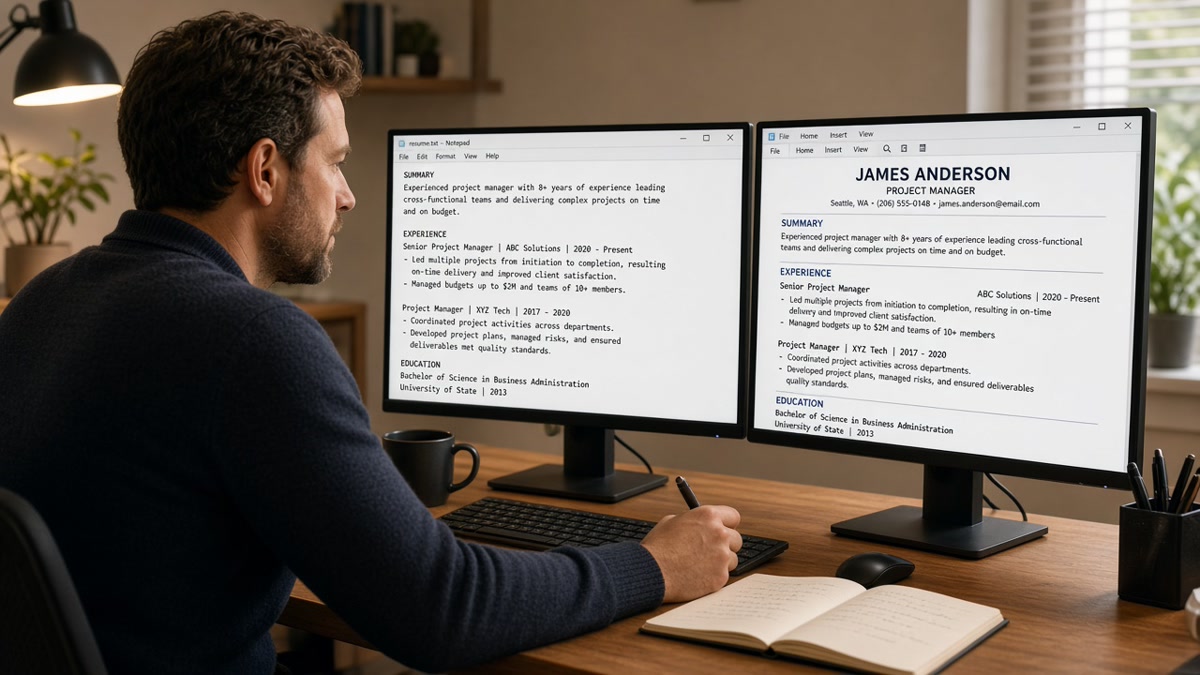
Your resume looks sharp in Word. Workday imported it with your latest job title under education and no phone number. You didn't fail screening on fit. You failed on extraction, and you could've caught it in ten minutes on your couch.
Start here: check your resume for free after the Notepad test below. You'll see the same gaps the portal sees before you burn another application slot.
Previewing isn't paranoia. It's the cheapest quality gate between you and a silent rejection. You don't need a second template. You need to see the file without the design layer.
Most candidates skip this because the Word version looks fine. Recruiters never see that version first. They see the import. Train yourself to love the ugly plain-text pass because it is the only honest mirror you get before submit.
Quick wins
- Paste into Notepad and read top to bottom once.
- Ctrl+F your phone number in the PDF you will upload.
- Confirm your current employer is the first job block in plain text.
What parsers actually extract
Applicant tracking systems do not see your margins, colors, or icons. They pull text in reading order and map it into fields: name, contact, experience blocks, education, skills. Anything outside that flow may land in the wrong field or disappear.
Preview means stripping the design layer. If the plain version is scrambled, the upload will be too. Fixing order beats adding keywords every time.
Before: Two-column layout puts skills on the right; Notepad shows skills between two job entries.
After: Single column with Skills after Experience; Notepad reads employer, dates, bullets, then skills in one pass.
Before: Phone number only in a Word header; Ctrl+F in PDF finds nothing in the body.
After: Phone on line three of the body; search highlights it on page one.
Parsers also care about standard headers. Creative section names sometimes import as plain paragraphs, which pushes your experience down in the profile view recruiters open first.
Think of preview as a rehearsal for field mapping. Workday wants employer, title, start date, end date in predictable slots. Greenhouse is similar. When Notepad shows your degree before your current job, the importer may classify you as a new grad regardless of years of experience.
Icons and rating bars never import as skills. Neither do chart images. If a skill only appears inside a graphic, rewrite it as a typed line under Skills or inside a bullet where you used the tool on a real project.
Five-step preview workflow
Step 1: Export plain text
In Word, Save As Plain Text (.txt). On Google Docs, Download as Plain Text. Open the file in Notepad or any editor without formatting. Read from line one. Your name and email should appear before any section header.
Step 2: Search contact in the PDF
Open the PDF you'll upload. Press Ctrl+F (Cmd+F on Mac) and search your phone number and email. If search finds nothing, the parser may not either. Move contact lines into the body and export again.
Step 3: Verify employer order
In Notepad, your current job should appear before older roles. Dates should sit on the same line as the company or directly under the title. Month Year format is safest: March 2022 to Present.
Step 4: Hunt hidden tables
Toggle gridlines in Word. If dates or skills sit inside table cells, rebuild as stacked text. Tables are the top reason preview order differs from what you see on screen.
Step 5: Run a posting match
Upload the fixed file against the job description. Parsing must pass before keyword work matters. Note which employers imported with dates attached. Missing end dates on older roles sometimes flag as current employment when you meant to show you left two years ago.
Step 6: Compare Word vs PDF when allowed
Export both formats from the same source file. Run Notepad on each. Some portals parse DOCX cleanly and scramble PDF columns. Others prefer PDF. Keep the version where contact, employers, and skills stay in order. Delete the loser from your apply folder so you do not upload the wrong one under pressure.
Step 7: Re-preview after every layout change
One fix can shift another block. After you move phone into the body or kill a table, paste into Notepad again. Ten minutes of double-check beats a week of silence from a parser that never saw your email.
Copy-paste section header check:
Use these headers in Notepad (exact spelling):
Experience
Education
Skills
Certifications
I've watched Greenhouse profiles where a designer resume looked perfect until Notepad showed the summary at the bottom. Same candidate, single-column rebuild, contact fields filled on import. Preview caught it; the posting didn't.
For deeper layout fixes, how to convert a designed resume into ATS format walks the full teardown when columns and icons both break.
Keep a plain-text version in your apply folder named with the date you last previewed. When you panic-apply at midnight, you open the tested file, not the draft with the new Canva border you forgot to check.
Bullet characters matter in preview. If Notepad shows hollow squares where bullets should be, replace them with standard hyphens or asterisks. Some parsers treat broken bullets as line breaks that split your achievements across unrelated fields.
Date ranges deserve their own preview pass. Search for Present and confirm only one role uses it. Search for each four-digit year and confirm none appear without a month unless you intentionally list only graduation year in education.
Preview traps people skip
- Previewing only on screen: WYSIWYG lies when tables are involved.
- Testing the wrong file type: preview PDF, upload Word, get a different parse.
- Ignoring special bullets: fancy Unicode bullets become question marks in plain text.
- Assuming LinkedIn PDF is safe: export and run Notepad anyway.
- Skipping re-preview after one fix: moving contact often shifts another block.
Header and footer zones cause silent drops. How ATS reads headers and footers explains why body-only contact is non-negotiable.
Another trap is saving a Canva or design export without testing text select. Highlight a sentence in the PDF. If you cannot highlight it, the parser probably cannot read it either. Rebuild in Word or Google Docs, preview again, then apply.
Do not trust print preview. Paper layout hides extraction order. Notepad is ugly and honest. That is the point.
Confirm with a checker
Notepad catches order. A checker catches category gaps against a live posting. Run both on the file you will actually submit.
Check your resume for free with the job description pasted in. If you need a letter after the parse is clean, generate a cover letter that references the same employer names the preview showed.
Save a screenshot of the checker output next to the posting title in your tracker. When a recruiter calls six weeks later, you will remember which file version actually parsed. That habit alone prevents resubmitting an old two-column draft by mistake.
Upload the file you tested
How to preview your resume the way ATS sees it is not a mystery: strip formatting, search your own contact info, fix order, then match the posting. You keep the same career story. The import finally tells it in the right sequence.
Run the free ATS check on the previewed file, not the draft still sitting in a two-column template.
Build the habit once and every tailored version inherits it. Preview is not extra homework. It is the step that tells you whether the rest of your job search effort can even be read.
When you are done tonight, rename the final file with the role company in the filename and store the Notepad paste beside it. Next week you will thank yourself when you reuse the same clean base for a similar posting without repeating the full preview from scratch.
Read more
Frequently asked questions
It is the fastest first pass. Plain text strips layout and shows reading order. It will not catch every PDF quirk, but if your phone number vanishes or job titles land at the bottom, the upload will struggle too. Always pair Notepad with a search for your own digits in the PDF.
Preview whichever file you plan to upload. Word and PDF parsers behave differently on tables and columns. Run the same Notepad paste and Ctrl+F tests on both exports when the posting allows either format.
Hidden tables, text boxes, and header bands often survive on screen but fail on import. Open Word with gridlines on. Rebuild any section inside a table as stacked lines. Then preview again before you resubmit.
About ten minutes once you know the steps: export, paste, search, reorder if needed, run a checker. That is shorter than rewriting cover letters for a role your resume never parsed for.
Preview the base file once after any layout change. For tailoring, you usually only change bullets and skills, not structure. If you only edit text inside existing sections, a full Notepad pass is optional. If you add columns, icons, or a new template, preview again before upload.