8 min read
Your Canva resume looks sharp on Instagram and dies in Greenhouse. That's not a taste problem. Parsers read one column, top to bottom, and they don't decode icon rows. You don't have to abandon design forever. You need a plain upload copy that keeps every fact the designed version shows.
If you're converting tonight, start by duplicating the file so you don't lose the pretty version. Check your resume for free after each export. You'll catch missing text faster than guessing why the portal scored you low.
Most designers I talk to assume ATS hates creativity. It doesn't. It hates unreadable order. Once you've typed the proof into a single stack, the parser and the recruiter see the same story.
Quick wins
- Duplicate the designed file before you strip anything.
- Turn on gridlines in Word and delete hidden tables.
- Run the Notepad test on DOCX and PDF before upload.
What changes when you convert to ATS format
ATS format is not a different career story. It is the same facts in a layout parsers can read. Applicant tracking systems extract text in reading order and map it into fields like Experience, Education, and Skills. Design elements that sit outside that flow vanish or land in the wrong slot.
Conversion means trading layout tricks for typed proof. Columns become one stack. Icons become words. Contact bands in headers move into the first five lines of the body. The goal is a file where Notepad paste matches what you intend recruiters to see.
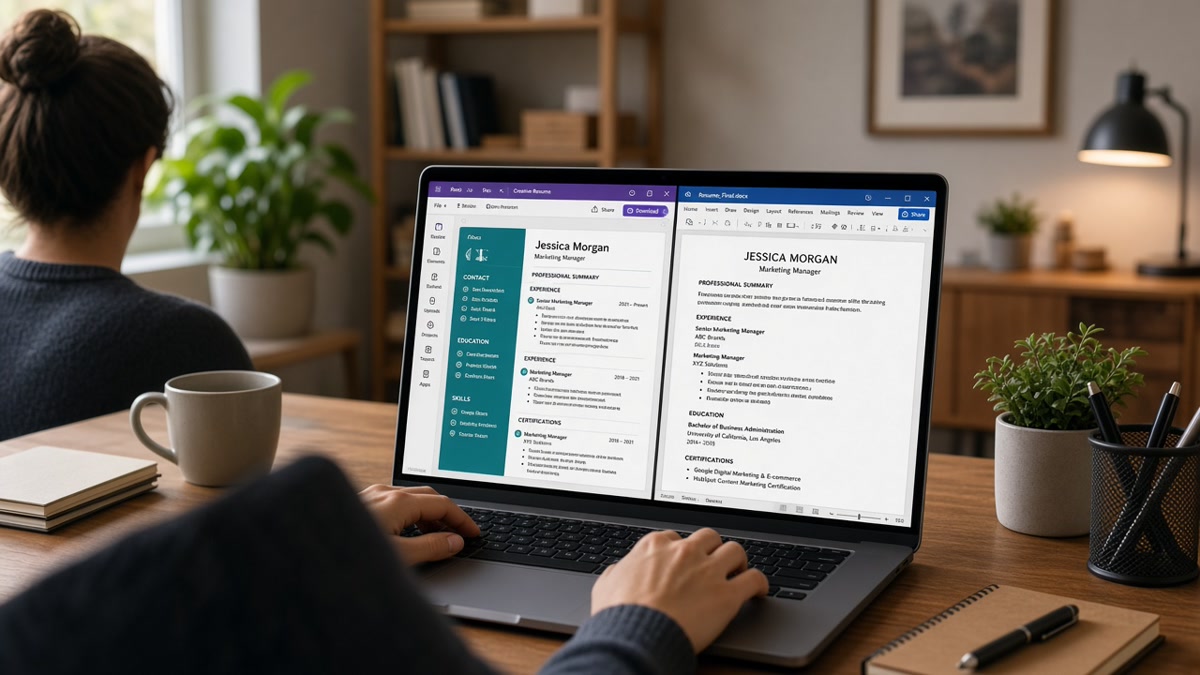
Before: Two-column Canva template with purple sidebar for contact and skills icons for Figma, Sketch, and Webflow.
After: Name and email on lines one and two. Skills: Figma, Sketch, Webflow, HTML/CSS on line eight. Experience bullets stacked below Summary.
Before: Proficiency bars for Adobe CC and Python with no typed labels.
After: Skills line lists Adobe Creative Cloud, Python. One bullet proves Python in a project outcome.
Before: Job dates in a right-hand column separated from employer names.
After: Acme Studio, Senior Designer, Jan 2022 to Mar 2025 on one line, bullets directly underneath.
Keep the designed PDF for handouts. Upload the plain version to Workday, Lever, and iCIMS. Your portfolio URL carries visual work after the screen.
Marketing and product design candidates often fight the same break: brand colors survive export but skill icons do not. Operations and finance candidates hit hidden tables that split dates from employer names. The conversion steps are identical. Strip layout, keep facts, verify with plain paste.
You are not deleting your aesthetic forever. You are building an upload lane the parser can score. Recruiters who care about layout will open your portfolio after the keyword screen passes.
Conversion walkthrough with samples
- Duplicate the designed file. Label one For upload and one For print.
- Open a blank Word or Google Doc. Do not edit the Canva export in place.
- Paste content section by section into one column. Standard headers only: Summary, Experience, Skills, Education.
- Replace every icon and bar with typed words. Certifications need full names.
- Type contact info in the body. Name, phone, email, city, LinkedIn URL on separate lines.
- Export DOCX and PDF. Run the Notepad test on both. Submit whichever paste is complete.
Copy-paste header block (swap your details):
Jane Rivera
[email protected] | (312) 555-0142 | Chicago, IL
linkedin.com/in/janerivera | janerivera.design

SUMMARY
Product designer with six years in B2B SaaS. Shipped onboarding flows that cut support tickets 14% in Q2.

SKILLS
Figma, Adobe Creative Cloud, HTML/CSS, design systems, user research, prototyping, WCAG 2.1
I've screened designer uploads in Greenhouse where the pretty PDF scored fine with humans and imported empty. The plain DOCX from the same candidate landed every skill. Two files, one upload rule: boring wins portals.
Copy-paste experience block (swap employer and metrics):
EXPERIENCE
Northline Health, Product Designer, Mar 2021 to Present
- Redesigned patient intake flow in Figma; cut form abandonment 18% in pilot
- Partnered with engineering on design system tokens adopted across three squads
- Ran eight user interviews per quarter; shipped accessibility fixes for WCAG 2.1 AA
Work role by role. Do not bulk-paste from Canva into one text blob. Parsers use line breaks and headers to slot jobs into Experience fields. A wall of text imports as one mystery paragraph and kills keyword scoring.
Save PDF only after DOCX passes Notepad. Some portals accept PDF when text is selectable. Others prefer DOCX. Test both on the same posting if you are unsure. The file that pastes completely is the file you upload.
For a deeper diagnostic on why design breaks first, read why design resumes fail ATS before you rebuild from scratch.
Design habits that break parsing
- Editing the Canva PDF directly: hidden layers survive export. Rebuild in a text-native doc.
- Leaving contact in a header band: many imports skip header regions. Body text only.
- Saving as image PDF: if you cannot select text, the ATS cannot either.
- Using text boxes for dates: turn on gridlines and flatten to plain lines.
- Uploading the portfolio as the resume: case studies belong on your site, not in the parser path.
Another repeat: shrinking font to keep two columns on one page. Parsers still read out of order. Let the plain file run two pages if proof needs room. Readable beats cramped.
Before: Certification badges as images in a footer row.
After: Certifications: Google UX Design Certificate, 2023; AWS Cloud Practitioner, 2024 typed under Education or Certifications.
Before: LinkedIn icon with no typed URL in the body.
After: linkedin.com/in/yourname on line four of the contact block, full URL spelled out.
Headers and footers trip many conversions. How ATS reads headers and footers shows what to move into the body before you re-export.
Verify the plain file before upload
After the Notepad paste passes, run the upload version through HireFlow. Non-selectable layers and margin cuts show up there even when the screen preview looks fine. Compare the parser view to your designed PDF side by side once. Any skill that appears in the pretty file but not in the plain import belongs in a typed line tonight.
Tailor the plain file per posting after format is stable. Swap summary language and reorder Skills to match the job description. You should not rebuild layout for every application. You should adjust words inside a parser-safe shell.
Check your resume for free on the plain file, then Score your job match once keywords sit in parsed fields. If the posting asks for a letter, Generate a cover letter that names the same tools you typed into Skills.
Two files, one upload rule
Converting a designed resume into ATS format is a layout job, not a career rewrite. Duplicate, collapse to one column, type every skill, and pass the Notepad test. Keep the designed PDF for humans who meet you in person. Upload the plain stack to every portal.
When the paste reads cleanly and your top posting keywords appear in Experience or Skills, you are done converting. Tailor bullets per role from there, not the whole template every Sunday. The designed file stays in your folder for print and networking. The plain file becomes your default upload every time a portal asks for a resume.
Run the free ATS check on the upload file before your next application. One verified plain resume beats three gorgeous uploads the parser never read.
Read more
Frequently asked questions
Yes. Save two files. Use the designed PDF when you hand someone a copy at an event. Upload the plain single-column version to every portal. Your portfolio link carries the visual story after the screen.
Either works when the output is one column and text-selectable. Word makes hidden tables easier to spot with gridlines. Google Docs exports clean DOCX for most ATS uploads. Run the Notepad test on both exports before you pick one.
Boring to a parser is readable. Strong bullets, white space, and one accent color in PDF still look professional when text stays selectable. Recruiters open the plain file first. They click your portfolio when they want pixels.
Most people finish in one sitting once they duplicate the file and work section by section. The slow part is retyping skills from icons, not rewriting experience. Do not upload until Notepad shows every employer and date.