12 min read
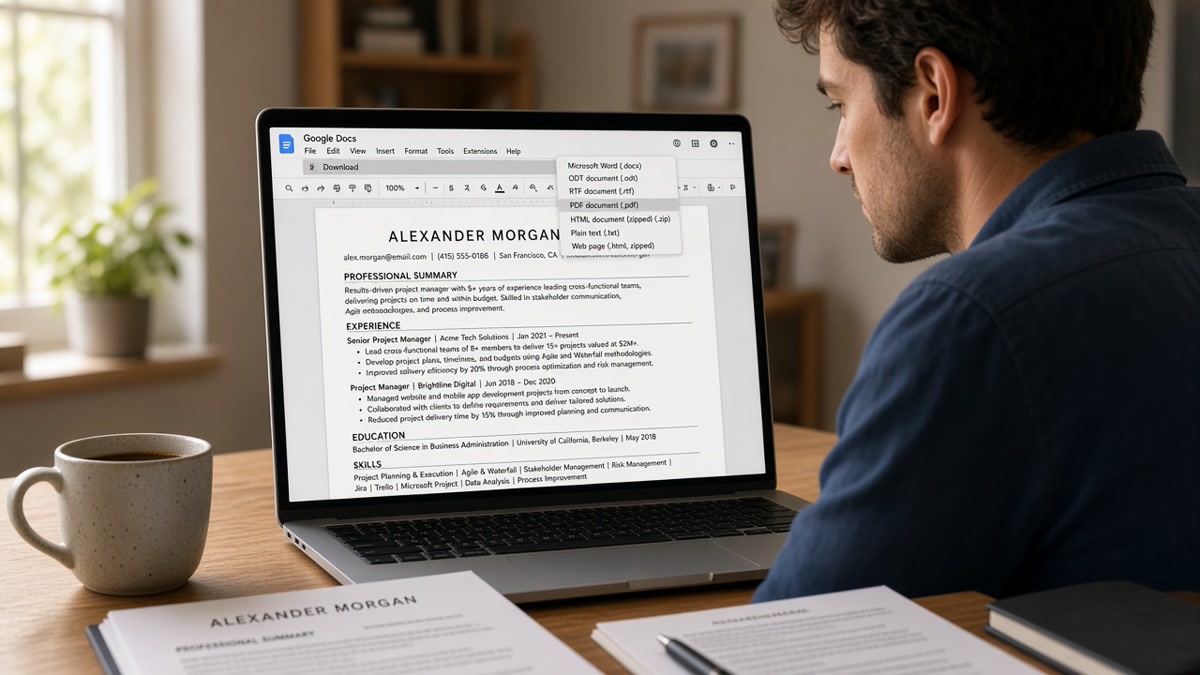
Your Google Doc looks fine on screen. You hit Download as PDF, upload to Workday, and the parsed preview shows hollow squares where bullets were and no phone number anywhere. That's not a keyword problem. Export turned list glyphs into unicode characters parsers can't map, and margin presets shoved your contact block into a header zone most ATS skip on the first pass. You're not failing on keywords. You're failing on export encoding.
You don't need a fifth template from Pinterest. You won't fix unicode squares with a new color palette. You need a clean export path: standard list styles, body-text contact lines, 0.75 inch margins, paste test, then portal preview. Check your resume for free with the posting pasted in only after plain-text paste shows your email in line three, not inside a decorative band.
Below: what a parser-safe export actually looks like, six before/after pairs across roles, what broken exports share, and a copy-paste checklist you can run tonight. Job searching on corporate portals is draining. A boring single-column PDF that parses beats a designed Doc you keep re-exporting without fixing list styles.
Quick Wins
- Replace custom bullet glyphs with standard round bullets or hyphen lines.
- Set all margins to 0.75 inch; keep contact as body text, not a header.
- Export PDF once, select all text, paste into Notepad before upload.
- Skip template swaps until paste order and portal preview both pass.
Google docs resume formatting issues after export: what parsers actually read
US employers store attachments in Workday, Greenhouse, Lever, iCIMS, and Taleo, then run a text extraction pass before a recruiter opens anything. That pass cares about plain character order, not how polished the PDF thumbnail looks. Two export failures show up constantly on Google Docs files: bullet glyphs that become unicode squares, and contact lines that land in header or footer bands parsers deprioritize.
Parsers read body text first, not decorative chrome. When your name and email sit inside Insert > Header because a template told you to, the PDF often tags that block as header metadata. Greenhouse may still show it in preview, but search fields for phone and city stay empty. Recruiters ctrl-f your area code and get zero hits even though the line looks fine on screen.
Bullet issues work the same way. Docs lets you pick arrow bullets, checkmarks, and custom icons. On export, those icons map to private unicode slots. Paste into Notepad and you see □ or � where achievement lines used to be. The experience block parses as three employer names with no proof underneath.
Margin shifts make it worse. Templates with 0.3 inch top margins push the first experience line upward. Combined with tight line spacing, your most recent title can clip into the same vertical band as contact. Parsers then read city and job title as one mashed string: "DenverSenior Analyst" with no date anchor. That failure mode shows up on Lever uploads as often as Workday, even when the on-screen Doc looked centered and professional.
The rubric a clean export must pass is simple. Single column. Eleven-point Arial or Calibri. Standard round bullets or hyphen prefixes. Contact as the first body lines after a blank line, not in a header. Month Year dates beside employer names. No tables splitting label and value across columns. PDF text selectable end to end.
Read DOCX export settings that improve US ATS parsing when PDF paste still fails after you fix list styles. This page stays on the Docs-to-PDF path most US postings accept by default.
Six before/after pairs: export fixes by role
Each pair below failed the Notepad paste test before export fixes and passed portal preview after. Names are composite roles, not clients. Copy the After column structure, not the story.
Pair 1: Marketing coordinator, custom star bullets
Before: Canva-style star bullets from a shared template; PDF paste shows □ before every campaign metric; Workday skills field empty.
After: Format > Bullets & numbering > round bullet; re-export; paste shows "Increased webinar sign-ups 14% in Q2" on its own line under Harbor Media | Coordinator | Jan 2022 to Present.
Pair 2: Registered nurse, contact in header band
Before: Name, RN license, phone inside Docs header; margin top 0.4 inch; parsed preview shows employer blocks, no phone field.
After: Cut contact into body text, margins 0.75 inch all sides; paste line one is name, line two email, line three phone; license number on its own line before Experience.
Pair 3: Operations analyst, two-column skills table
Before: Insert > Table splits Skills and Experience side by side; export scrambles order so SQL appears above current employer.
After: Single column; Skills section after Experience; paste reads Apex Logistics | Analyst | Mar 2019 to Present then bullet lines, then Skills as plain lines.
Pair 4: Software engineer, icon bullets and tight margins
Before: Checkmark bullet glyph plus 0.35 inch side margins; GitHub URL wraps mid-string; paste shows broken link and □ before "Reduced build time 22%."
After: Hyphen bullets, 0.75 inch margins, URL on one line; paste shows github.com/handle on its own line; bullets intact under current role.
Pair 5: Teacher moving to corporate training, decorative divider line
Before: Insert > Horizontal line between sections; export treats line as a row; parser drops everything below Summary.
After: Blank line spacing instead of divider; Summary, Experience, Education parse as separate blocks with dates attached.
Pair 6: Account executive, footer page number eating last bullet
Before: Insert > Footer with centered page number on a one-page resume; final quota bullet sits in footer zone and vanishes from parsed text.
After: Footer removed; bottom margin 0.75 inch; all four quota bullets appear in Notepad paste and Greenhouse preview.
Copy-paste export checklist
"Standard round bullets or hyphen lines → contact as body text → margins 0.75 inch → no tables or text boxes → File > Download > PDF Document → select all in PDF → paste Notepad → fix anything square or out of order → portal parsed preview → keyword pass on bullet one."
Example header block after cleanup:
Jordan Ellis
[email protected] · 303-555-0142 · Denver, CO
Experience
Summit Retail | Account Executive | Jun 2021 to Present
- Grew territory revenue $1.2M to $1.9M while holding gross margin above 41%
Export path when PDF still scrambles order
File > Download > Microsoft Word (.docx), open locally, confirm paste order, upload DOCX when the posting allows Word. Do not reintroduce tables in Word. Same single-column body rules apply.
See resume upload mistakes that instantly disqualify you for habits that fail before export settings even matter.
What broken Google Docs exports share
Template hunting before paste test. Swapping to another free resume skin moves the same bad bullets into new colors. Squares stay squares until list styles change.
Contact inside header or footer. Templates love header blocks. Parsers treat them as page chrome. Body-text contact fixes more uploads than any design tweak.
Decorative bullet icons. Stars, checks, and arrows export as private glyphs. Round bullets or hyphen-space lines survive PDF engines parsers already trained on.
Tables for layout. Two-column skill grids look tidy in Docs and read sideways in Taleo. Stack sections vertically even when it costs half an inch.
Margins below half an inch. Content drift into header and footer bands is invisible in Print layout until paste test exposes it.
Trusting the PDF thumbnail. I've opened exports in Greenhouse where the preview image looked sharp and the experience block was empty because bullets were unicode noise. Thumbnail polish is not parse proof.
Re-exporting without changing source settings. Downloading PDF five times from the same Doc does not fix list encoding. Change bullets, margins, or column layout once, then export once.
Manual symbol bullets typed from emoji keyboard. Emoji bullets paste as multi-byte characters parsers drop. Use Docs list button or ASCII hyphen.
Test the file after every export change
Paste test is step one. Step two is a free ATS check with the job description pasted in: upload the same PDF you will send, confirm must-have terms appear inside Experience blocks, not only in a Skills row parsers weight lower.
Step three is the portal's own parsed field view. When Notepad order, checker output, and Greenhouse preview all show employer lines with dates, keyword tuning on bullet one is worth your time. When any layer shows squares or missing contact, stop and fix export settings before you tailor language.
Run a free ATS check after export fixes. When the posting asks for a letter, generate a cover letter that repeats the same metric from bullet one so human readers see one consistent proof line.
Fix the export path, not the template shelf
Google docs resume formatting issues after export almost always trace to list glyphs and margin bands, not missing keywords. Round bullets or hyphen lines, body-text contact, 0.75 inch margins, one PDF download, Notepad paste, portal preview. That sequence beats another hour browsing templates.
Tonight: strip header contact into the body, reset list styles, kill layout tables, export PDF, paste test, then run a free check with the posting attached. Swap to DOCX only if PDF order still scrambles after an honest layout cleanup.
This won't fix applying to roles you're not qualified for. It does stop qualified candidates from losing searchable bullets and phone numbers to a export setting they never opened.
Read more
Frequently asked questions
Docs often embeds custom bullet glyphs that PDF engines map to missing unicode characters. Parsers then read a hollow square or skip the line entirely. Switch to Format > Bullets & numbering > List styles with a standard round bullet, or type a hyphen and space at the start of each line instead of decorative symbols. Re-export and paste into Notepad to confirm bullets read as plain text.
Yes. When top margins sit below 0.5 inch, contact lines can land in the PDF header band that Workday and Greenhouse treat as decorative chrome. Parsers read the body zone first and may never index your phone or email. Reset margins to 0.75 inch on all sides, keep contact as normal body text, and avoid Insert > Header for your name block.
When the posting allows both, export PDF through File > Download > PDF Document after you fix bullets and margins. If paste test still shows scrambled order, try File > Download > Microsoft Word (.docx) and upload that version instead. Never submit a scan or a Canva-style graphic saved through Docs. The fix is export settings and list styles, not a prettier template.
Open the PDF, select all text, paste into Notepad. Your name, email, and phone should appear in the first few lines of plain text, not buried after page headers. Employer lines should read top to bottom with dates beside titles. If bullets paste as squares or contact lines vanish, adjust list styles and margins in Docs before you re-export. Then upload the same file to a free ATS check with the posting pasted in.
Usually no. Template swaps move the same broken bullets and margin presets into a new skin. Parsers still see unicode squares and header-zone contact lines. Fix list styles, margins, and single-column body text first. Export once, paste test, portal preview. Template hunting after a clean export passes both tests is optional polish, not the repair step.