11 min read
Your resume looks perfect in Word. You upload the DOCX to Workday and half your employer names vanish. Most guides blame font choice, but they don't mention Compatibility Mode. In practice, Word's hidden Compatibility Mode flag and embedded fonts cause more US ATS parse failures than picking Calibri over Arial. The file opens fine on your laptop while the parser reads legacy XML, hidden revision marks, or custom typefaces as noise.
Check your resume for free after you fix export settings, not before. There's no point tuning margins if Compatibility Mode is still wrapping your headings in a format Taleo never upgraded for. You won't catch the failure from Print Preview alone. Paste into Notepad after Save As and you'll see what the parser gets.
The steps below walk through what to click in Word, what to flatten before Save As, and how to confirm plain-text order before you apply again. You'll get five export steps, two edge cases for Mac Word and Google Docs handoffs, mistakes that survive a visual proofread, and FAQ answers on DOCX vs PDF uploads. If the req asks for a letter, export it with the same embed-fonts-off rule using the cover letter generator after the resume passes Notepad. Job searching is hard enough without a qualified file dying because embed fonts was checked by default.
Quick Wins
- Click Convert on File, Info if Compatibility Mode is still active.
- Accept all track changes and delete comments before Save As DOCX.
- Uncheck embed fonts; stay on Calibri or Arial at 11 point.
- Paste the exported file into Notepad to confirm employer order.
Why DOCX export settings beat font choice for US ATS parsing
Parsers in Workday, Greenhouse, iCIMS, and Taleo do not care about your aesthetic. They extract plain text in reading order. A Calibri resume with Compatibility Mode still on can parse worse than an Arial file that was converted to modern DOCX, saved without embedded fonts, and pasted cleanly into Notepad. Font debates are easy. Hidden Word flags are what break uploads silently.
Compatibility Mode means Word is still saving legacy wrappers around your content. The resume looks fine on screen. The parser reads older XML, drops section breaks, or merges two jobs into one block. You won't see it until a recruiter search misses your last employer name.
Embedded fonts inflate the file and tie characters to typefaces that are not on the parser's side. Workday uploads sometimes strip or scramble those glyphs. You end up with square boxes where your phone number used to be while the PDF preview still looked crisp.
A composite operations analyst uploaded the same one-page resume three times: original template DOCX, PDF printout, and a flattened DOCX after converting Compatibility Mode off and removing embed fonts. Only the third pass copied employer names in order in plain text and matched the req in a keyword check. Font never changed. Export settings did.
And if you've been switching between PDF because a friend said ATS hates Word, pause. Many US portals still accept DOCX and parse it well when Compatibility Mode is off. The failure mode is usually hidden markup, not the .docx extension itself.
Read why ATS prefers text-based resumes when you're choosing between DOCX and PDF at the portal. This page stays on Word export clicks that make DOCX predictable.
Five DOCX export settings that improve US ATS parsing
Work the steps in order. Skipping Compatibility Mode conversion and jumping to font tweaks is how qualified files still fail silently.
Step 1: Convert out of Compatibility Mode
Open File, then Info. If you see a Convert button near the top, the document is not in modern DOCX yet. Click Convert, confirm the upgrade, and save immediately. Re-open the file and confirm Convert is gone. If you're working from an old .doc template, this single click fixes more Workday garble than any font swap.
Before: Saved repeatedly as DOCX while Compatibility Mode banner still showed; Workday merged two roles under one employer header.
After: Converted once, saved as Document.docx, plain-text paste showed each Month Year job on its own line.
Step 2: Accept track changes and strip hidden markup
Review tab: Accept All Changes, then Delete All Comments. Turn off markup display. Hidden revision text pastes as duplicate phrases or odd characters inside phone numbers and email addresses.
Before: Exported with track changes still visible; parser duplicated bullet lines and cut the last three bullets entirely.
After: Accepted all changes, exported clean DOCX; bullet count matched the Word doc in plain-text paste.
Step 3: Remove embedded fonts and odd typefaces
Select all text. Set font to Calibri or Arial at 11 point. When Save As opens, click Tools or Options and uncheck embed fonts if present. Replace any custom corporate font that triggers embedding warnings.
I've seen uploads where embed fonts was checked by default on a branded template; phone digits parsed as empty fields even though Word preview looked normal.
Before: Marketing template with embedded display font; email address parsed with missing @ symbol in Greenhouse.
After: Switched body text to Calibri, embed fonts off; contact block copied cleanly into Notepad and portal preview.
Step 4: Flatten tables and header contact blocks
Move name, phone, email, and city into the top of the document body. Convert experience tables to paragraphs: Employer name, title, Month Year range, then bullets on the next lines. Apply built-in Heading 1 and Heading 2 styles to Experience and Education titles so parsers recognize sections.
Before: Two-column table with skills in a sidebar; Taleo read skills before employer names.
After: Single column, skills echoed inside dated bullets; reading order matched resume intent in plain-text paste.
Step 5: Save As DOCX and verify plain-text paste
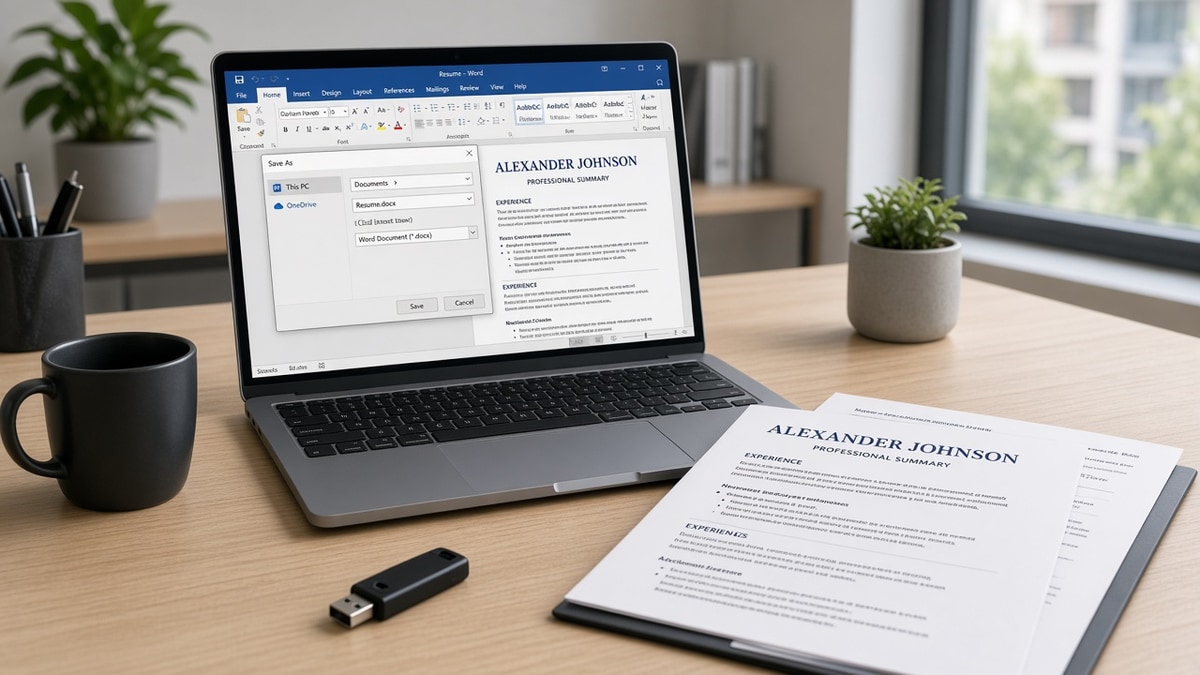
File, Save As, choose Word Document (*.docx). Close Word, re-open the saved file, select all, copy, paste into Notepad or TextEdit plain view. Employer names, dates, and bullets should appear in the order a recruiter expects. If Notepad scrambles order, fix structure before upload, not after rejection.
After Notepad passes, upload to the portal and open the parsed preview when Workday or Greenhouse offers one. Compare employer order side by side with your Word doc. If the preview drops a section, return to Step 4 and flatten remaining tables before you send another application tonight.
Copy-paste export checklist: File, Info, Convert if shown, then Review, Accept All Changes, then Select All, Calibri 11 pt, then move contact info into body, then File, Save As, Word Document (*.docx), embed fonts off, then copy full doc into Notepad to confirm order.
Before: Uploaded straight from a Canva Word export without Notepad test; parser dropped Education section.
After: Notepad paste matched visual order; Education parsed after Experience in portal preview.
Edge case: Mac Word vs Windows Word
Mac Word sometimes defaults to different embed font prompts. Run the same Convert, track-change, and Notepad paste test on the machine you'll export from before travel. If a recruiter receives Windows-only portal errors, export DOCX on Windows once for that application.
Before: Exported on Mac with Helvetica Neue embedded; Windows Workday upload garbled section headers.
After: Re-exported on Windows with Calibri and embed fonts off; headers parsed correctly.
Edge case: Google Docs exported to DOCX
Docs-to-DOCX exports often carry hidden tables and non-Word styles. Open the export in desktop Word, Convert if prompted, re-apply Heading styles, and run the Notepad test. Do not upload the raw Docs export to a Workday req without that pass.
Read Google Docs resume formatting issues after export when your fixes start in Docs instead of Word.
Export mistakes that survive spellcheck
Saving as PDF to avoid Word issues without fixing the source DOCX. A broken Word file often becomes a broken PDF. Fix Compatibility Mode and embed fonts first, then export PDF only when the posting requires it.
Leaving contact info in the header row. Many parsers skip headers entirely. You look uncallable even when body content parsed fine.
Using text boxes for side columns. Text boxes export as objects parsers ignore. One column, body text only, for ATS-targeted uploads.
Fancy bullets copied from web templates. Replace with standard round bullets or hyphens before Save As. Wingdings-style glyphs turn into question marks in iCIMS.
Multiple Save As copies with tracked filenames only. Recruiters receive Resume_FINAL_v7.docx with Compatibility Mode still on. Pick one canonical export after the checklist passes Notepad.
Skipping the portal preview after upload. Workday and Greenhouse show a parsed preview on many reqs. Open it. If employer order is wrong, re-export before you move on to the next application.
Relying on Word's Design tab templates without flattening. Many designer templates embed text boxes and shape layers that never reach the parser. Strip back to body text even if the visual polish drops slightly.
Read resume parsing preview: see your resume like an ATS when you want a second check after Notepad paste and before the next batch of uploads.
Verify DOCX export before you upload
Run the flattened DOCX through the free ATS checker with the posting pasted in. You'll see whether keywords landed in Experience or vanished when tables were removed. Fix export order first, then tune bullet wording.
If you're rebuilding from a broken template, Build your resume in a single-column layout, export DOCX, and run the same Notepad paste test before your next Workday upload.
Your export checklist tonight
DOCX export settings that improve US ATS parsing start with Compatibility Mode off, track changes accepted, embed fonts unchecked, and contact info in the body. Font choice matters after those fixes, not before. Paste into Notepad once. Upload once per req. Open the portal preview when it's offered.
Open your current Word file. Run the five steps above on the version you actually plan to send. Run the checker with the posting pasted in. Apply with that export before you tweak margins for the fourth time tonight.
Qualified candidates lose screens because parsers read legacy wrappers, not because they picked the wrong shade of bullet. Fix the hidden settings first. Then worry about wording.
Read more
Frequently asked questions
Follow the posting. When the portal accepts both, a clean DOCX with Compatibility Mode off and no embedded fonts often parses more predictably in Workday and iCIMS than a PDF exported from a design tool. When the posting says PDF only, export a text-based PDF from Word after you fix the DOCX settings here. Never upload a scanned image PDF pretending to be a resume.
Export settings matter more once you are already on Calibri or Arial at 10 to 12 point. Compatibility Mode, embedded custom fonts, and hidden track changes garble text in parsers long before font choice becomes the bottleneck. Fix those first, then confirm plain-text paste order in Notepad.
No for ATS-targeted files. Embedding fonts bloats the file and some US parsers drop or scramble characters tied to non-standard typefaces. Stick to Calibri or Arial already on the recruiter's machine and leave embed fonts unchecked unless a client brand guide explicitly requires it for a human-only handoff.
Open File, then Info. If you see Convert instead of a normal save path, the document is still in Compatibility Mode. Click Convert to upgrade the file to the current Word format, then Save As DOCX again. Re-check plain-text paste after conversion because headings and bullets sometimes shift one line.
Tables often break reading order in Greenhouse and Taleo even when the DOCX opens fine on your screen. Convert experience blocks to simple paragraphs with Month Year dates on the same line as employer names. If a template relies on a sidebar table for Skills, move skills into dated Experience bullets before export.