11 min read
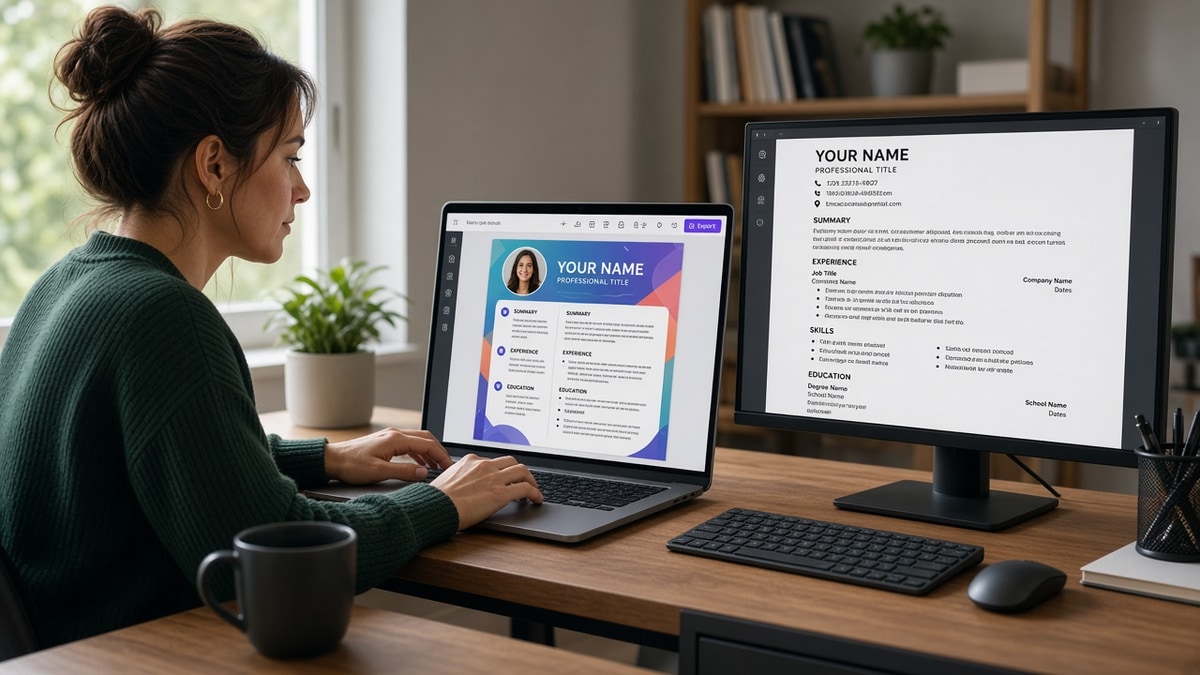
Your Canva export looks perfect as a PDF on your laptop, but text boxes often dump content out of reading order when Workday or Greenhouse imports the file. A Canva resume for US jobs that's ATS-safe isn't the prettiest template. It's the version you flattened to one column in Word before you exported PDF again.
You're not losing because your experience is weak. You're losing when the parser reads your sidebar Skills block before your current employer, or when a text box exports empty while the preview looked full. Don't trust the thumbnail until you paste all text into Notepad. Before you rebuild anything, check your resume for free with the posting pasted beside it. Confirm whether employer rows, Month Year dates, and bullets landed inside parsed Experience text.
Job searching while you're redoing a file you already styled in Canva is draining. This page won't ask you to throw away every design choice. It'll show which Canva layout habits scramble US imports and the Word flatten pass that fixes most of them without rewriting your bullets.
Below you'll see what a flattened export gets judged against, six before/after pairs across different roles, what broken Canva files share, and a copy-paste Word skeleton you can use tonight. When the portal also wants a letter, generate a cover letter that repeats the same employer names and dates from your flattened Experience block.
Quick Wins
- Copy all text from your Canva PDF into Notepad before you apply again.
- Paste unstyled content into Word and stack Contact, Summary, Skills, Experience, Education in one column.
- Move every bullet out of Canva text boxes into normal Word paragraphs.
- Export PDF from Word only after Notepad paste shows employers in top-to-bottom order.
What US parsers score on a Canva resume for US jobs
Canva sells balance: color blocks, icon rows, two columns, photo circles. US corporate parsers in Workday, Greenhouse, Lever, Taleo, and iCIMS read files in a straight line. They sort dated Experience rows by employer and Month Year. They don't reward the gradient behind your name.
The bar for an ATS-safe Canva handoff: one column, body text only, standard section headers, bullets in the main document flow. No text boxes, no floating shapes, no tables used as layout grids. The PDF preview can look identical to your Canva design while the text layer underneath reads sideways.
A composite operations analyst whose Canva PDF shows four roles on screen but imports with Adobe and Excel under Education while the current employer row is blank loses to a boring Word export where FinOps LLC, January 2021 to Present, and bullet one about forecast accuracy land in the order parsers expect.
Canva isn't the enemy. The export path is. When you flatten in Word first, you keep the same bullet wording while the parser finally reads employer lines before icon labels. Design-heavy roles still prove craft in Experience bullets, not in file chrome.
If you're ready to drop templates entirely, read design resume without visual template for US ATS strategy for the full Word rebuild path. This page stays on the Canva-to-Word flatten workflow when you want to keep editing in Canva but fix import order on upload.
Before and after: Canva layout pairs that fail US imports
Each pair shows the Canva export recruiters see fail in portal previews, then the flattened version that keeps the same content readable. Numbers inside sample bullets are illustrations of shape, not claims about your market.
Pair 1: Marketing coordinator, two-column Canva template
Before: Left sidebar holds contact icons and skill icons; right column Experience sits inside colored text boxes. Workday import lists HubSpot and Mailchimp under Education while Acme Corp dates vanish.
After: Single-column Word DOCX: contact lines, Summary, Skills as a comma list, then Acme Corp with March 2022 to Present and bullets in normal paragraphs. Same campaigns, same metrics, no shapes.
Pair 2: Graphic designer, icon skill bar in Canva
Before: Header band with photo circle; skill levels shown as filled bars; Experience bullets typed inside floating text boxes over a colored panel.
After: Plain Word file with portfolio URL under email; Skills line lists Figma, Adobe CC, and After Effects; Studio North, June 2021 to Present, with three bullets about brand systems in body text.
Pair 3: Project manager, Canva timeline blocks
Before: Horizontal timeline built from Canva elements shows five employers with icons; parser reads icon labels as random words and drops Month Year dates.
After: Reverse-chronological Experience with Bold Company, Month Year to Month Year headers and four bullets on budget, stakeholder, and delivery scope per role. Timeline story moves into bullet clauses instead of graphics.
Pair 4: Data analyst, colored section bands
Before: Each section sits inside a full-width colored rectangle with white text; Greenhouse paste shows section titles duplicated and SQL keywords missing from Experience.
After: Black text on white; section headers in bold only; FinServe Analytics, January 2020 to Present, opens with built Looker dashboards cutting ad-hoc report requests 11% in Q3 in bullet one.
Pair 5: HR generalist, Canva columns with Certifications rail
Before: Two-column Canva resume puts Certifications and Volunteer blocks in the left rail; parser attaches SHRM-CP to the wrong employer row.
After: Certifications section after Education; Volunteer one line if relevant; PeopleOps Co., August 2019 to Present, carries onboarding, ER, and HRIS bullets in order parsers can match to the posting.
Pair 6: Software engineer, skills cloud in Canva sidebar
Before: Skills displayed as word-cloud shapes in a sidebar; Experience typed in a narrow text box with manual line breaks that split employer names across lines.
After: Skills comma list after Summary; CloudScale Inc., September 2021 to Present, bullet one names Python, AWS, and Terraform in the first line with a shipped feature outcome.
Copy-paste block: Word flatten workflow after Canva
STEP 1: Export from Canva
Download PDF. Copy all text into Notepad. Note any section that appears before Experience.

STEP 2: Paste into Word as unstyled text
One column only. Re-type employer headers on their own lines. Delete empty text-box gaps.

STEP 3: Restack in this order
Contact | Summary | Skills | Experience | Education | Certifications

STEP 4: Format for parsers
11-point Calibri or Arial. Month Year dates. Standard bullets. Bold section headers only.

STEP 5: Export PDF from Word
Paste the new PDF into Notepad again. Employer order must match your Word file.

STEP 6: Upload to portal
Use the Word-flattened PDF or DOCX. Keep the original Canva file for human networking only.
Edge case: posting asks for PDF but you still edit in Canva
Treat Canva as your design draft and Word as your upload source. Edit bullets in Canva if that's faster, then paste unstyled text into Word, flatten, and export PDF from Word every time you apply. Never upload a Canva-native PDF without the Notepad paste test.
Before: One Canva PDF exported straight to Workday after each edit.
After: canva-draft.pdf for your eyes, word-flat.pdf for the portal, same bullet text in both so content never diverges.
Edge case: Canva table used to align dates and titles
Invisible grid cells split employer names from dates. Parsers read cells out of order even when the PDF looks aligned. Replace the table with a bold job title line and Month Year on the same row in plain text.
Before: Two-column table with company in cell one and dates in cell two for every role.
After: NexGen Systems | Senior Analyst | March 2020 to Present as one header line, then bullets below. See
why tables break US ATS parsing and alternatives
if table layout keeps sneaking back into your Canva template.
For font and spacing rules after flattening, read formatting mistakes that kill your resume with AI screening once your single-column export is done.
What weak Canva exports share on US uploads
Text boxes for Experience bullets. Canva lets you type inside boxes that look like body text. PDF exporters often dump that layer last or skip it. Move every bullet into normal Word paragraphs before you save DOCX or PDF.
Sidebars that import first. Skills icons in a left rail frequently paste before your current job. I've screened Canva stacks where Adobe landed under Education while the current employer row imported blank. Stack Skills after Summary in the main column instead.
Trusting the Canva PDF thumbnail. Preview mode shows layers your eye expects. Notepad paste shows what Workday reads. If order changes, flatten in Word before upload.
Exporting PDF before Word flatten. A Canva-native PDF keeps hidden reading-order problems. Word flattening forces one column and strips floating boxes most US parsers stumble on.
Headers and footers for contact info. Some systems ignore footer phone numbers entirely. Contact details belong in the first five lines of body text, not in a designed Canva band.
Skill bars and star ratings. Visual proficiency meters rarely export as text. Replace them with a comma list or weave tools into Experience bullets where you used them on paid work.
Decorative section names. My Journey or Creative Story instead of Experience confuses parsers trained on standard headers. Rename to Experience, Education, and Skills even when the Canva template used cute labels.
Uploading the same file to every portal without retesting. Greenhouse and iCIMS sometimes parse the same PDF differently. Paste test after every export, especially when you switch from DOCX to PDF on the same req.
This won't fix applying to senior roles when your scope was intern-level. It stops qualified candidates from losing to empty Experience blocks while the same metrics looked fine in Canva preview mode.
Test the flattened Canva export against the posting
After you restack sections in Word, run the same file against the req on your screen. You're checking whether employer names, Month Year dates, and posting keywords appear inside parsed Experience text, not only in a Canva layer you can see.
Copy all text from the Word-exported PDF into Notepad. If Acme Corp moves below Education, a text box or column is still hiding structure. Fix in Word, export again, paste again.
Upload your flattened file and the posting to HireFlow's free ATS resume checker . Confirm each employer row imported with bullets attached and that no role arrived with blank titles.
When you'd rather skip Canva repair loops entirely, build your resume with single-column sections baked in so you don't slide back into text boxes on the next edit.
Do this now: Paste your Canva PDF text into Notepad. Flatten any section that imported out of order in Word. Export PDF from Word and run a free ATS check before the next upload.
Flatten in Word tonight
A Canva resume for US jobs that's ATS-safe keeps your bullets and dates while parsers finally read them in order. The win isn't ugly paper. It's a file where Experience imports before icons and every role stays attached to its employer line.
Open your Canva export. Paste unstyled text into Word. Move bullets out of text boxes. Stack one column. Export PDF from Word, paste into Notepad to confirm order, then run a free ATS check before you upload to Workday or Greenhouse again.
- Copy Canva PDF text into Notepad before every new application.
- Flatten to Contact, Summary, Skills, Experience, Education, Certifications in that order.
- Replace icon skill bars with comma lists or Experience-embedded tools.
- Keep a human-facing Canva PDF only after the portal file parses clean.
- Re-test when you switch from DOCX to PDF upload on the same req.
And if a section still imports blank, assume a hidden text box is the cause before you rewrite bullet wording. Structure first, polish second.
Read more
Frequently asked questions
Only after a plain-text paste test proves employer names and dates stay in order. Canva PDFs often look correct on screen while text boxes export last or out of reading order. If Notepad paste scrambles sections, flatten in Word to one column first, export a new PDF, and paste again before you upload to Workday or Greenhouse.
Word is the safer repair path when your template uses columns, sidebars, or text boxes. Download or paste into Word, restack every section in a single column, then export PDF from Word if the posting asks for PDF. A Canva-native PDF keeps hidden layer order problems that Word flattening removes.
Templates with one column and no text boxes sometimes parse clean. Any template with a left sidebar, icon skill row, colored bands, or bullets typed inside boxes needs flattening. Copy the PDF text into Notepad. If Skills appears before your current employer, flatten before you apply again.
The portal file should be boring. Keep a separate Canva PDF for networking if you want color, but upload the Word-flattened export to corporate ATS. Parsers read linear text, not gradient headers. Your bullets and dates matter more than the template chrome on upload.
Paste all text from your final PDF into Notepad and read top to bottom. Run the same file through a free ATS check with the posting beside it. Missing job titles, blank Experience blocks, or skills listed under Education mean a text box or column is still hiding content from the parser.