6 min read · Design is not the same as parse order
You built a resume in Canva because it looked sharp in five minutes. Now you're wondering if that file survives corporate uploads. That's fair. Design tools optimize for eyes on a screen, not for parsers that read a character stream top to bottom.
Before you send another application, check your resume for free on the exact Canva export you plan to upload. Most failures show up as scrambled job titles, not missing keywords. You'll spot the break faster than you'd guess.
A Canva resume ATS friendly enough to submit is rare out of the box. It's possible after you strip the layout down to one column and prove the import order in a plain-text paste test. If you won't do that work, treat Canva as a portfolio tool and submit a boring Word file instead.
Job searching is already draining. You don't need a second guessing loop about whether your sidebar imported before your current title. Below you'll see what Canva puts in the file, when the honest answer flips to yes, fixes you can run tonight, traps that mimic keyword gaps, and how to test before the next batch of uploads.
Quick Wins
- Delete icons, skill bars, and sidebars. Parsers want words, not graphics.
- Export DOCX, open in Word, flatten to one column, then paste-test.
- Keep contact info as typed text, not phone or email symbols.
- Save Canva for handouts; submit the plain file that passed import preview.
What Canva puts in the file that parsers choke on
Applicant systems were built for forms, not magazine spreads. Greenhouse, Workday, Lever, Taleo, and iCIMS strip your upload to text and try to pair lines with fields. Canva's default resume templates fight that process on purpose.
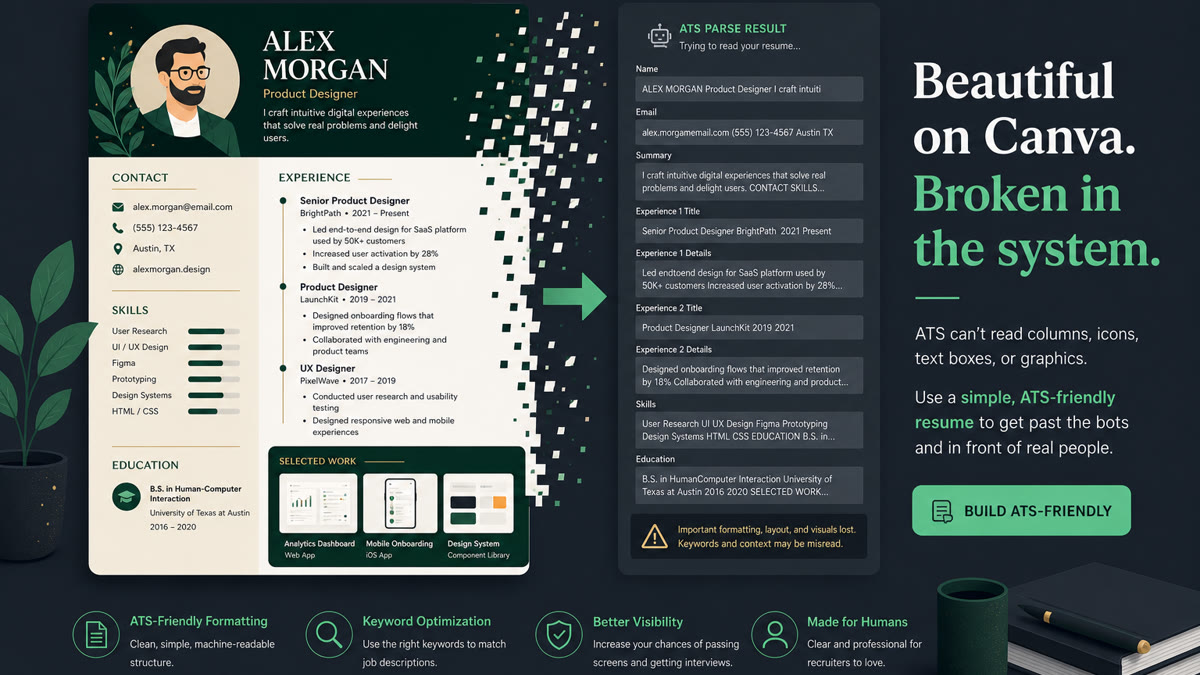
Two-column layouts reorder your timeline. Parsers read left column fully, then right. Your current role can land after older jobs. Dates may attach to the wrong employer. The PDF looks fine. The import does not.
Icons and skill bars import as blanks. A phone icon does not become a phone number. Progress bars do not become skill names. If contact details live inside graphics, the parser may never see them.
Text boxes break association. Employers and titles trapped in separate boxes often paste out of sequence. That is the same failure mode as tables in Word, just dressed up with color.
For layout rules that pair with this fix, see the safest resume layout for US ATS . Canva's prettiest templates violate most of those rules on the first slide.
Edge case: creative roles that ask for a designed PDF portfolio. Submit the plain parseable resume in the ATS portal and attach the visual PDF only when the posting explicitly requests design samples. Do not merge both into one scrambled upload.
When is a Canva resume ATS friendly enough to submit?
The yes case is narrow. You need a single column, standard fonts, no icons, no colored text blocks, and a DOCX path you cleaned by hand. Native Canva PDF alone rarely clears that bar.
Step 1: Pick the plainest template
Search "simple resume" inside Canva, not "creative" or "modern." If you see a sidebar, skip it. You are buying structure, not decoration.
Before: Two-column Canva template with icon row for email, phone, and location; skills listed in a colored sidebar.
After: Single column, contact line typed as text, skills moved into three bullets under the current role.
Step 2: Strip graphics and export DOCX
Delete every icon, line, badge, and background block. Switch fonts to Arial or Calibri. Download Microsoft Word format, not Canva's default PDF.
Open the DOCX in Word. Remove leftover text boxes. Confirm employer, title, and Month Year dates sit on readable lines. If the posting requires PDF, save PDF from Word after cleanup, not from Canva.
Before: Canva PDF upload; portal preview showed skills above the current job title.
After: Word-cleaned DOCX; paste test showed title, employer, then dates in order; PDF saved from Word matched the same order.
Copy-paste block: Canva strip-down checklist
Copy-paste checklist (run top to bottom)
[ ] Single column only; no sidebar or second column
[ ] Contact info typed as text, not icons
[ ] Skills live in Experience bullets, not icon bars
[ ] Fonts: Arial, Calibri, or Times New Roman only
[ ] Export DOCX; clean text boxes in Word
[ ] Paste test: title above employer, dates follow in order
[ ] If PDF required, save from Word after cleanup
Step 3: Run the paste test before you tailor keywords
Upload to the employer preview when you have it. Copy imported text into a plain editor. Read once top to bottom.
I've screened Canva exports in Greenhouse where the skills column imported before the job title, and the candidate spent a week swapping synonyms instead of deleting the sidebar.
Only after order is clean should you rewrite bullet one so a posting must-have lands in the first eight words. For export format forks, read PDF vs Word resume for ATS before you pick a file type per portal.
Traps that look like keyword gaps
Assuming PDF fixes design. Format choice does not repair columns. A broken layout stays broken in PDF and DOCX until you flatten it.
Keeping skill bars because they "show level." Parsers do not read bar charts. Name the tool inside a bullet with an outcome.
Re-uploading the same Canva file with new keywords. If paste order scrambles, synonyms will not rescue the import.
Before: Marketing coordinator file, 38 skills in a Canva sidebar, match score flat after three tailors.
After: Sidebar deleted, channels named in three bullets under the current role, paste test clean, match moved without adding tools.
This will not turn a stretch role into a fit. It stops a qualified file from dying because Canva's layout imported out of order.
Test the upload, then rebuild if needed
Run checks on the Canva export and on a plain Word rebuild. Pick the file with the cleaner paste test before you tailor bullets to the posting.
Use the free ATS checker on the exact DOCX or PDF you will submit. Parse errors belong in tonight's edit session, not after ten portal uploads.
If the layout is too far gone, build your resume in a single-column template and paste your Canva wording into plain sections. You keep the words. You lose the traps.
When the posting asks for a letter, run the cover letter generator after your plain resume passes the paste test, so you're not repeating a skills grid the parser never read.
Do this now: Paste-test your Canva export. If titles and dates scramble, strip the sidebar before you touch keywords.
What to do tonight
Is Canva resume ATS friendly? Not while columns and icons stay in the file. Strip to one column, export through Word, paste-test, then tailor bullet one. If the import still breaks, submit the plain rebuild and keep Canva for visuals humans choose to open.
You already spent time on the design. Spend twenty more minutes proving the parser reads it in order. That is the difference between a silent rejection and a human actually seeing your proof.
Read more
Frequently asked questions
PDF does not fix a two-column Canva layout. Native Canva PDFs often carry misaligned text layers and graphics parsers skip. If the posting allows PDF, export DOCX from Canva, clean the file in Word, save PDF from Word, then paste-test the import. Pick the file version the portal preview reads in order.
Pick the plainest single-column template you can find. Avoid sidebars, skill bars, icons for contact info, and colored text blocks. If the template still uses text boxes for dates or employers, rebuild those lines as normal paragraphs. A boring layout that pastes cleanly beats a polished design that scrambles titles.
Canva still works for visual one-pagers you hand to humans at networking events or attach when a recruiter asks for a portfolio PDF. For Workday, Greenhouse, Lever, Taleo, and iCIMS uploads, submit the plain Word or Google Docs version you paste-tested. Design and parse success are different tests.
Upload the exact file to the employer preview when available. Copy all imported text into a plain editor. Job titles should sit above employers, dates should follow in order, and contact lines should not land inside the skills block. If order scrambles, fix layout before you tweak keywords.