7 min read
Your file looked sharp five minutes ago. The employer site now shows Arial blocks, random line breaks, and skills parked above your last job.
That's unsettling, but it isn't always a death sentence. Most of the time the system rebuilt your resume for search, not for print.
Check your resume for free if preview scrambled employers or dates. You'll catch parser damage before you hit submit.
Job searching is already draining. A weird preview on top feels personal. It's usually mechanical, and you can narrow the cause in one sitting.
Keep your master file in DOCX for edits, then export PDF only after preview passes. Editing the PDF directly hides problems that return on the next upload.
Quick Wins
- Download or open portal preview right after upload.
- Note one symptom: missing dates, jumbled columns, or blank header.
- Flatten that layout piece in the source file before you apply elsewhere.
Why your resume looks different after you upload it
Applicant systems in Workday, Greenhouse, Lever, and Taleo ingest files by extracting text, not by honoring your margins.
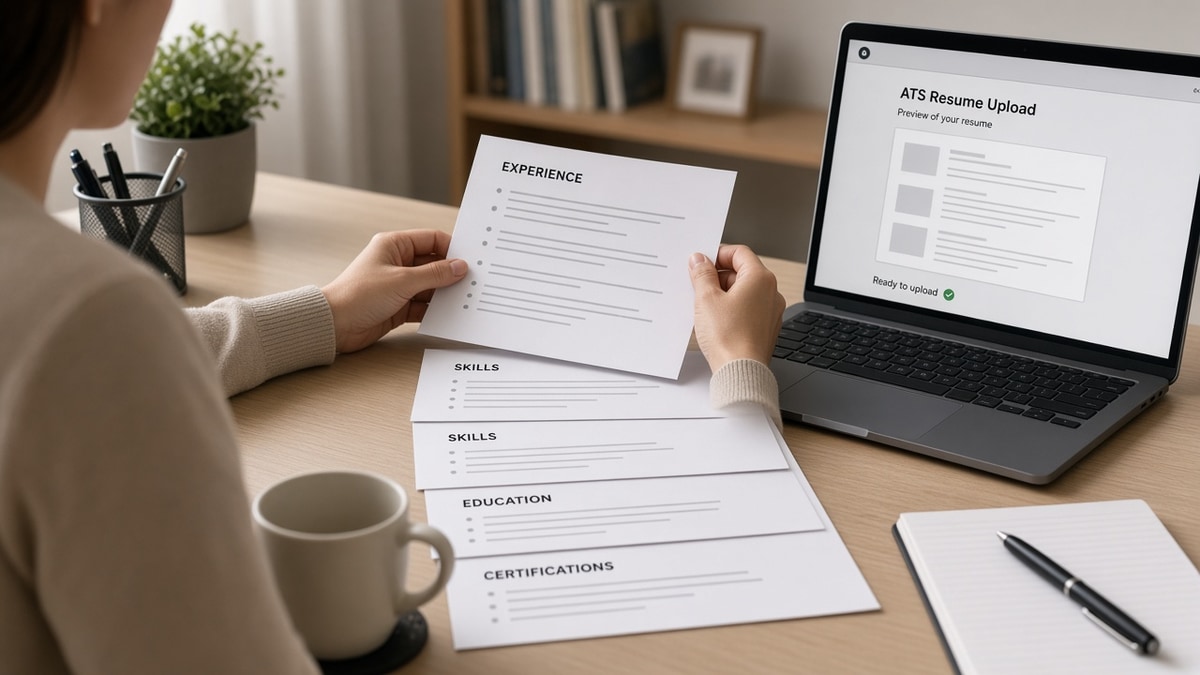
Preview is a rebuild. The portal view is what landed in the candidate record, which rarely matches your designed PDF pixel for pixel.
Symptom one: fonts snap to a system default. That's cosmetic. Symptom two: job titles sit on the wrong employer line. That's structural, and it changes how matchers read tenure.
Symptom three: whole sections vanish. That often means the parser never saw them because they lived in a header, footer, text box, or image.
Symptom four: bullets stack in the wrong order. Two-column and table layouts frequently read left column down, then right, which shuffles dates away from titles.
I've opened thousands of Greenhouse previews where the PDF was gorgeous and the parsed view put certifications above paid work. The candidate wasn't unqualified; the layout told the parser a different story.
Read how resume file type impacts screening when the same file behaves differently as PDF versus DOCX on one portal.
Greenhouse and Lever often show a side-by-side: original attachment plus parsed fields. Recruiters may never open your PDF if the parsed fields look complete.
When parsed fields are empty while the PDF looks fine, assume the parser choked on layout. That's the version keyword matchers use.
Color bars, skill meters, and profile photos drop out entirely. Don't rely on them to carry your name or title.
Spacing can compress so sections run together. Add a blank line and a clear header like Professional Experience so the break survives import.
Match the portal glitch to a layout fix
Work symptom first, not panic. Each pattern below points to one change in your source file.
When columns scramble
Before: Dates in a narrow left column; bullets in a wide right column.
After: One line per role: Company, Title, City | Month Year to Month Year, then bullets underneath.
Before: Skills rail beside experience in a Canva-style template.
After: Single column with Skills after Professional Experience as a short list.
When contact info disappears
Before: Phone and email in a Word header.
After: Plain lines under your name in the body, no header field.
When tables turn to soup
Before: Table rows pairing employer and dates in separate cells.
After: Stacked lines with standard section headers parsers recognize.
Copy-paste contact block for the body (not the header):
Alex Rivera
[email protected] | 555-010-2244 | Austin, TX
Target title: Revenue Operations Analyst

Professional Experience
Northwind Analytics | Revenue Operations Analyst | Jan 2022 to Present
• Built weekly pipeline dashboards in Salesforce, cutting manual reporting hours
Re-upload, then open preview again. If employers and dates stay paired, you've fixed the parser story even if fonts still look plain.
For section flow after flattening, see why resume order impacts screening so experience still leads once columns are gone.
When only part of a bullet imports
Before: Hanging indent with a custom glyph bullet pasted from a design site.
After: Standard round bullet in Word or Google Docs, one achievement per line.
Before: Bold job title inside a table cell with soft line breaks.
After: Title on its own line in plain text, then bullets starting on the next line.
When dates parse as words
Write January 2021 to March 2024 or 01/2021 to 03/2024. Avoid seasons alone, fiscal years without months, or date ranges split across cells.
iCIMS and older Taleo builds are picky about month tokens. Consistency beats clever formatting every time.
Save a version labeled flat-single-column before you strip design. You'll want to revert if one employer still asks for a print PDF by email.
Upload habits that make preview drift worse
- Submitting a scan or image PDF with no selectable text.
- Using icon fonts or custom bullets the parser replaces with question marks.
- Pasting from LinkedIn export without stripping hidden formatting.
- Trusting mobile Word preview instead of the employer portal preview.
- Editing only the PDF export while the DOCX source still has tables.
This won't fix applying to roles you're not qualified for. It stops a qualified file from dying because the portal read layout instead of accomplishments.
Fancy section titles like My Journey or Value Proposition sometimes fail to map to Experience or Summary. Rename them to standard headers parsers expect.
Hyperlinks may show as raw URLs or vanish. Spell the domain in text if the role cares about portfolio proof.
If you maintain two versions, name them by purpose: LastName-Role-Portal.docx versus LastName-Role-Print.pdf. Mixing them on upload night causes repeat surprises.
Preview like the portal does
Run one upload to a test posting or sandbox profile when you can. Compare preview to your PDF side by side on the same screen.
Read preview top to bottom aloud. If you hear your current title after three unrelated blocks, reorder the source file before you trust keyword scores.
Some portals let you edit parsed fields manually. Use that only to fix a one-off typo, not to rebuild experience you never typed into the body.
Run the ATS check on the flattened file so section headers still extract before you batch apply.
Generate a cover letter when preview strips your summary and you need scope stated in plain text elsewhere in the packet.
Treat preview as the real first impression
Why your resume looks different after you upload it comes down to parsers, not personal judgment. Plain fonts are normal. Missing employers are not.
Fix structure tonight, preview once, then move on. You don't need a prettier PDF; you need a readable record behind the apply button.
Screenshot your portal preview when it's wrong. That image helps you compare after each layout tweak instead of guessing from memory.
When preview is clean but silence continues, shift energy to fit and outreach. Parser health is the baseline, not the whole search.
A boring preview with correct employers is a win. Chase readability in the database view, not applause for layout on your laptop.
Read more
Frequently asked questions
No. Many systems restyle every file into a plain view on purpose. Worry when titles, dates, or bullets are missing or scrambled, not when fonts change.
Try the format the posting names first. If preview still drops sections, simplify layout in the source file and re-upload the other format only after a clean parse check.
Headers, footers, and text boxes often sit outside the body stream parsers read. Move phone and email into the main column as plain lines.
Yes. Flatten columns, remove tables used for alignment, and replace icon bullets with standard dots. Re-open portal preview before you submit.