10 min read
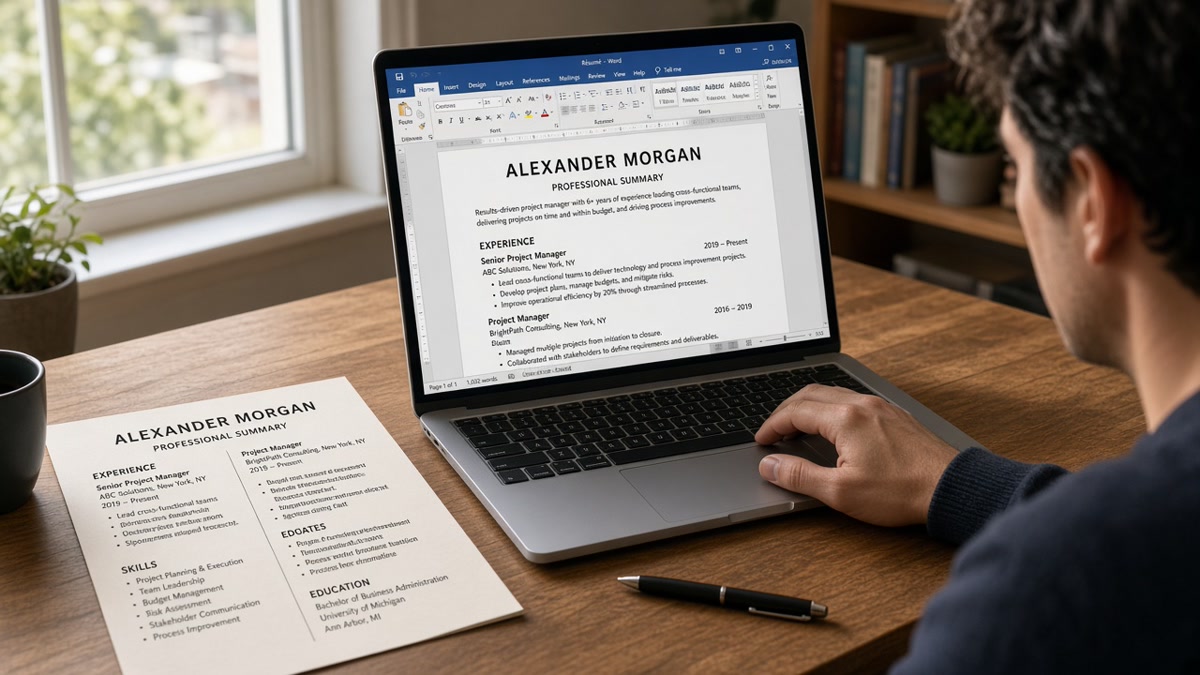
That old file still has your jobs and metrics. What it doesn't have is a layout today's parsers read in order. Two-column Canva exports, icon headers, and table-based contact blocks looked fine five years ago. In a Workday upload preview, they'll often scramble employer names or drop skills into the wrong field.
You don't need to retype ten years of work. You need a rebuild pass: paste, strip traps, align bullets to the posting, export once. Check your resume for free on the file you'll actually submit, not the vintage PDF sitting in your downloads folder.
Below you'll find what legacy layouts break on import, a five-move rebuild order using HireFlow's builder and checker, before-and-after paste fixes, and export rules that survive Greenhouse and Lever. When the converted file names the same tools as the req, use the cover letter generator for one paragraph that ties your latest role to the posting.
If you've been copy-pasting the same Word doc since your last promotion, you're not alone. Most people update bullets and ignore layout until applications go quiet. Tonight's job is structure first, keywords second.
Quick Wins
- Paste old text into Notepad first. If dates scramble, the parser will scramble too.
- Rebuild in a single-column builder with Experience, Education, Skills in standard labels.
- Export PDF or DOCX from the builder, then run a checker pass on that exact file.
What legacy layouts break on upload
Tables and text boxes change read order. Contact info in a left column often lands after your skills block in the parsed preview. The human eye sees name first. The bot sees a jumble.
Graphics and icon bullets drop characters. Fancy bullets become blank squares or vanish. Skills listed inside shapes never tie to a job title in the parser output.
Old functional layouts hide dates. Skills on page one and employers on page two read like incomplete history in iCIMS and Taleo imports. Reverse-chronological lines with Month Year on every role fix that without rewriting your story.
Header and footer fields lose phone numbers. Some portals skip footer contact lines entirely. Put email and phone in the body contact block the builder renders as plain text.
I've opened legacy uploads in Greenhouse where the callback files were boring one-column DOCX rebuilds, and the silent passes still had two-column Word art from 2019. Same years of experience, different parse preview.
Job searching with an outdated file is draining enough. You're not starting over. You're rehousing the same content in a layout the bot can read before a recruiter ever opens the row.
LinkedIn PDF exports are a common trap. They paste as one block with icons intact. Treat them like any legacy file: plain-text paste first, then rebuild inside the builder instead of uploading the PDF straight to a portal.
Academic CVs need a separate corporate cut. Publications and committees belong on a CV, not on a five-page upload to a corporate req. Pull relevant roles into a two-page Experience section and move long publication lists to a link or appendix only when the posting asks.
For format tradeoffs on export, read PDF vs Word resume for ATS: what actually works before you pick an extension for this week's applications.
How to create an ATS resume from an old resume automatically in five moves
Automatic here means the builder rebuilds section order and spacing. You still approve content. Block ninety minutes, open one target posting, and walk these moves in order.
Move 1: Paste into plain text and mark what broke
Open your old file. Select all, paste into Notepad or TextEdit. If job titles and dates split across random lines, your table layout is the culprit. Note every section that scrambled. That list is your strip list before import.
Before: Contact block in a sidebar table; skills in a colored text box.
After: Name, phone, email, city on separate plain lines at the top of the builder contact fields.
Move 2: Import into a single-column builder template
Open the free resume builder and pick a plain template with Experience, Education, and Skills labels the parser expects. Paste employer blocks one at a time instead of one giant wall of text. Match Month Year format across every line before you move on.
Before: "Professional Profile" and "Core Competencies" as custom section names.
After: Summary (two lines max), Experience, Education, Skills with standard headings.
Move 3: Strip layout traps the import kept
Delete icons, logos, photos, and text boxes. Break merged cells into simple bullets. Remove duplicate summary blocks left over from an old functional version. If a skill appears three times with no job line, cut two copies and keep the one inside a dated bullet.
See resume formatting errors that break ATS parsing when a line still vanishes after paste.
Move 4: Mirror posting tools in the first bullets
Highlight three required tools and three verbs from the posting. Rewrite the first bullet under your current role so one tool lands in the first eight words. Reorder the skills block to match the req, not alphabetical order.
Before: "Responsible for weekly reports and stakeholder updates."
After: "Built weekly churn dashboards in Looker, cutting reactive tickets 11% in Q3 after ops review."
Edge case: your old resume lists a vague internal title. Add a clarifier in parentheses on the employer line: "Business Analyst (Data Analytics)" so keyword search and human scan agree.
Edge case: you still have an objective paragraph from 2018. Replace it with two lines naming target role and one metric from the last three years. Long objectives eat space the parser could use for tools.
Move 5: Export, then checker pass on the upload file
Save text-selectable PDF or DOCX from the builder per the posting instructions. Upload that exact export to HireFlow's free ATS resume checker . Fix missing tools in dated lines before you tailor the next posting variant.
Edge case: the posting caps file size. Shrink margins slightly and drop optional sections like hobbies before you shrink font below 10.5 point. Tiny type parses but hurts human scan.
Copy-paste block: contact and section skeleton
Name
City, ST | phone | email | LinkedIn URL

Summary (two lines: target role + one proof metric)

Experience
Job Title, Employer | Mon Year – Mon Year
- Tool from posting in first eight words + outcome
- Second bullet with different tool + outcome

Education
Degree, School | Mon Year

Skills (ordered to match posting, not A–Z)
Tool A, Tool B, Tool C, Tool D
Keep a master converted file and duplicate it per posting. Change skills order and two bullets, not employer dates. That is how you create an ATS resume from an old resume automatically without rebuilding from scratch every Sunday night.
Section order for most corporate roles: contact in body, summary, experience, education, skills. Recent grads flip education up. Executives may add a board line. Do not rename Experience to Career Journey. Parsers map standard labels.
After Move 5, open the parsed preview if the portal offers one. Compare employer order to your builder file. If a role moved below education, a hidden table is still lurking somewhere in the export path. Re-export from the builder without copying back into the old Word template.
Tailoring for a second posting takes fifteen minutes when the master file is stable: reorder skills, swap two bullets, re-export, checker pass again. That's the automation win. You're not rebuilding ten years of history each time.
What auto-import still misses
Assuming import fixed dates. Builders paste text; they do not verify Month Year consistency. Scan every role line after import. Mixed "2021-2022" and "Jan 2021 – Mar 2022" on the same file confuses tenure math.
Leaving skills-only keywords. Twelve tools in a list with zero employer proof still reads like stuffing. Every top skill needs a dated line underneath.
Exporting from the old file instead of the builder. Saving your vintage Word doc as PDF does not remove tables. The checker must see the rebuilt export.
Before: Old two-column PDF saved again after a spell-check pass.
After: Single-column builder export with plain contact lines and standard section labels.
Running checker on a posting you will not apply to. Match the req you plan to submit this week. Generic scans waste a pass and send you fixing the wrong gaps.
Keeping parallel versions in different apps. One master in the builder, one "pretty" version in Canva, and an old Word file guarantees drift. Pick the builder export as source of truth and delete stale copies from your desktop so you don't upload the wrong one at midnight.
This will not fix applying to roles you are not qualified for. It stops a qualified legacy file from dying because the layout never updated. For section order reference, see the universal US resume template: what it includes .
Before: Skills cloud graphic with thirty terms, no experience bullets updated.
After: Eight skills in a plain list, each mirrored once in a dated bullet under the matching job.
Builder first, checker second
Import your old text into the free resume builder , fix section labels and bullets, then export once. That sequence beats toggling fonts inside the legacy file.
Upload the export and your target posting to check your resume for free . Confirm tools from the req show up under dated experience lines, not only in the skills block.
Export checklist for tonight
Your old content can pass today's parsers when it lives in a plain single-column file with standard labels, posting tools inside dated bullets, and an export you checked before upload.
- Paste into plain text and list every section that scrambled.
- Rebuild in the builder with Month Year on every role line.
- Run a free checker pass on the export you will submit this week.
Pick one posting on your list. Rebuild the file, export once, and run a free ATS check before you hit apply. Save the master file separately from posting-specific variants so dates stay stable while bullets change.
Updating a legacy resume is tedious work. A single checked export this week beats another month of sending a pretty file the parser never reads cleanly.
Read more
Frequently asked questions
You can import text into a plain resume builder and get a single-column layout fast. Automation handles structure, not judgment. You still pick which bullets stay, rename vague titles, and mirror tools from the posting. Treat the builder as a reformat engine, then run a checker on the export you plan to submit.
Follow the posting. When it is silent, a text-selectable PDF from a plain builder usually parses cleanly in Greenhouse and Workday. DOCX is fine when the portal asks for Word. The trap is not the extension. It is tables, text boxes, and headers that do not paste as plain lines.
Recruiters read plain files all day. They want employer names, Month Year dates, and bullets they can scan in ten seconds. A boring single column that parses beats a styled template that drops your phone number into a footer field the bot skips.
Keep every employer, date range, and metric you can verify. Cut graphics, skill clouds, and duplicate summary blocks. Merge overlapping lines from an old functional layout into reverse-chronological roles. If a bullet does not name a tool or outcome, rewrite it instead of copying it verbatim.
Keep one master ATS file with stable dates and employers. For each posting, swap the skills order and rewrite two bullets so posting tools land in dated lines. Re-run the checker when you change export format or section order, not after every synonym tweak.