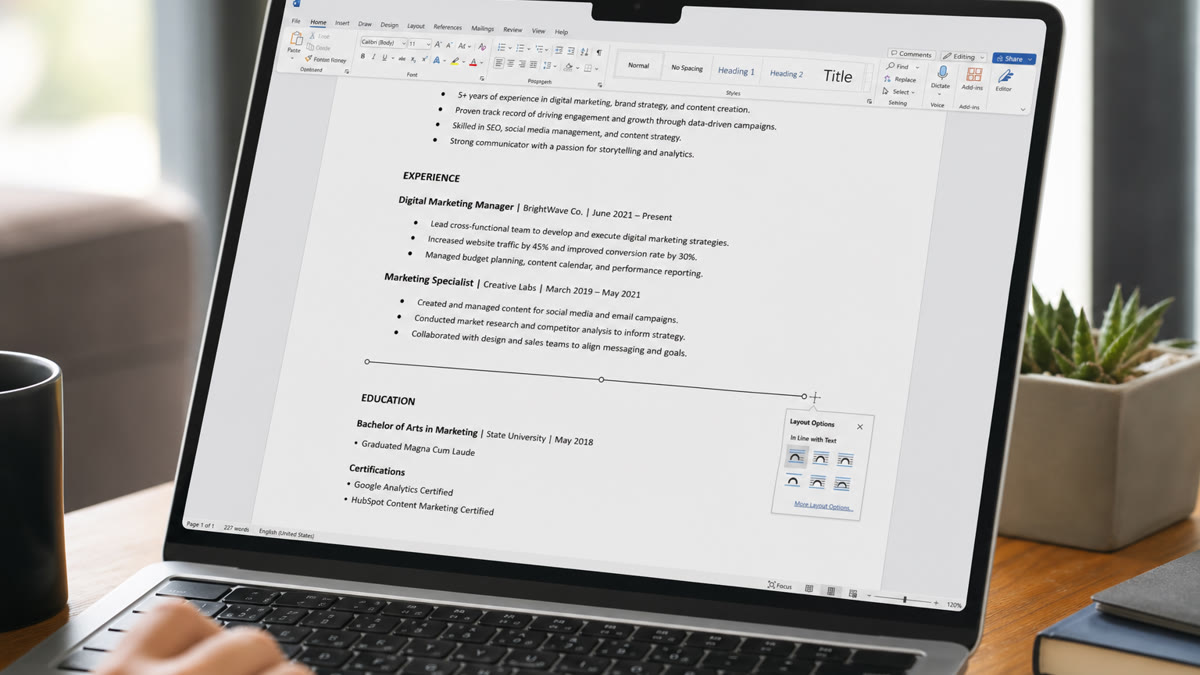
To add a line in Word for your resume, use a paragraph bottom border on section headers or a built-in horizontal rule—not shapes, text boxes, or table rows used as dividers. Those methods separate sections for recruiters while keeping your file parseable in Workday, Greenhouse, and Taleo without scrambling contact fields or job history.
A thin line under EXPERIENCE or SKILLS looks polished on screen and on paper. The wrong technique—drawing a line with Insert → Shapes or building a gray divider inside a table—can reorder your entire work history when you upload the PDF to a corporate careers site. This walkthrough shows exactly which Word tools to use, which to skip, and how to confirm your dividers survive ATS import.
Key Takeaways
- Paragraph bottom borders and horizontal rules stay in the text flow ATS reads
- Shapes, text boxes, and layout tables are the top causes of scrambled uploads
- Keep lines thin (0.75–1 pt), black or dark gray, and left-aligned in one column
- Never hide contact info in headers/footers just because a line looks better there
- Always save as PDF and test parsing in Workday, Greenhouse, or iCIMS before you apply
Why resume section lines matter—and when they hurt ATS
Recruiters spend seconds scanning a resume. A clear visual break between SUMMARY, EXPERIENCE, and EDUCATION tells the eye where one block ends and the next begins. White space alone can work, but many US corporate candidates add a subtle horizontal rule because it mirrors the clean layouts hiring managers see from internal referrals and agency submissions.
Applicant tracking systems do not "see" design the way humans do. They extract plain text and map it to fields: name, email, employer, title, dates, bullets. When a line is created as a floating shape or trapped inside a table cell, the parser may treat that object as content, skip adjacent text, or merge two sections into one unreadable block. That is why the method matters as much as the appearance.
The U.S. Bureau of Labor Statistics reports that millions of workers change jobs each year; most apply through online portals rather than email attachments. See BLS employment situation data for labor-market context—your resume line choice affects whether those portal uploads land in a recruiter queue or stall in a parsing error log.
Key Takeaway: lines are a scanning aid for humans; for ATS, only methods tied to normal paragraph text stay safe.
Borders vs horizontal rules vs shapes: what to use
Word offers several ways to draw a line. They look similar on your monitor but behave very differently when Greenhouse or SuccessFactors extracts text from your PDF.
| Method | How to create | ATS risk | Best use on resume |
|---|---|---|---|
| Paragraph bottom border | Home → Borders → Bottom Border on section header | Low | Under EXPERIENCE, EDUCATION, SKILLS headers |
| Horizontal rule (AutoFormat) | Type --- on blank line and press Enter | Low | Between major sections when you want a full-width break |
| Insert → Horizontal Line | Insert tab → Horizontal Line (classic menu in some versions) | Low–medium | Same as AutoFormat rule; confirm it stays inline after PDF export |
| Insert → Shapes → Line | Draw a free-floating line anywhere on the page | High | Avoid on any resume you will upload to ATS |
| Table row as divider | Single-cell table with bottom border or shaded fill | High | Avoid—Taleo and iCIMS often reorder table content |
| Underline characters (___) | Repeated underscores or dashes typed manually | Medium | Looks dated; use a real border instead |
Microsoft's own support documentation describes paragraph borders as formatting applied to text blocks—not separate drawing objects. Review Microsoft's border formatting guide to see how bottom borders attach to paragraphs. That attachment is exactly what ATS parsers expect: text first, decoration second.
Shapes sit in a different layer. When Lever imports your PDF, a shape line may not register as a divider at all—it may sit on top of your email address or push parsed fields out of order. Stick with borders and rules tied to paragraph marks.
Key Takeaway: if the line moves when you press Backspace on the paragraph above it, you are probably safe; if you select it separately from text, you are not.
Step-by-step: add an ATS-safe line in Microsoft Word
These instructions apply to Word for Microsoft 365 and recent desktop versions on Windows and Mac. Align them with broader Word resume settings for US ATS success so margins, fonts, and line spacing stay consistent.
Method 1: Bottom border on a section header (recommended)
- Type your section header in ALL CAPS (e.g., PROFESSIONAL EXPERIENCE) on its own line
- Select the header text or click anywhere in that paragraph
- Open Home → Paragraph group → Borders dropdown (square icon)
- Choose Bottom Border
- For a custom weight: Borders → Borders and Shading → set width to 0.75 pt or 1 pt, color Black or dark gray, apply to paragraph
- Set After spacing to 6–12 pt (Layout → Spacing After) so bullets do not crowd the line
Method 2: Horizontal rule between sections
- Place the cursor on a blank line between two sections
- Type three hyphens (---) and press Enter—Word converts them to a horizontal line
- Alternatively: Insert → Horizontal Line (if available in your build)
- Click the line, right-click, and adjust Format Horizontal Line if you need a thinner weight
- Delete extra blank paragraphs above and below so you do not waste vertical space
Method 3: Line under your name block
- Keep your name, phone, email, city, and LinkedIn URL in the document body—not the header area
- Select the contact paragraph (or only your name line for a shorter rule)
- Apply Bottom Border using the same 0.75–1 pt setting
- Add 12 pt space after the line before the summary begins
CareerOneStop, sponsored by the U.S. Department of Labor, stresses clear section labels and readable structure in application materials. Their resume guidance pairs well with these formatting steps—see CareerOneStop's resume guide for section-naming conventions that match what parsers and recruiters search for.
ATS-safe line checklist
- Single-column layout; no side-by-side contact columns under the line
- Section headers use standard labels (Experience, Education, Skills)
- Lines created with paragraph borders or horizontal rules only—no shapes
- Line weight 0.75–1.5 pt; color black or dark gray
- Contact block in document body, not Word header/footer
- No tables used purely as visual dividers
- File saved as text-based PDF (File → Save As → PDF)
- Upload tested in employer portal or parser before final submit
Key Takeaway: bottom borders on headers are the default choice for US corporate resumes—they look sharp and stay in the text layer.
Before-and-after: formatting fixes around section lines
Lines do not replace strong bullets, but messy formatting under a divider still hurts readability. These rewrites show how to clean content directly beneath a section header once your border is in place:
Financial analyst — experience block
- Acme Corp | Analyst | 2021–present (line drawn with Insert → Shapes; duties listed in two columns)
- Acme Corporation — Financial Analyst | Boston, MA | Jan 2021 – Present (single column under EXPERIENCE header with 1 pt bottom border; 4 quantified bullets follow)
Registered nurse — skills section
- SKILLS header inside a shaded table row with a thick shape line above it; skills split across table cells
- SKILLS header with paragraph bottom border; Clinical: Epic, IV therapy, ACLS | Operations: patient ratios, Joint Commission audits—all in plain bullet lines parsers read left to right
Project manager — summary under name line
- Contact info in footer with decorative line; summary begins on page 1 body without clear section label
- Name and contact in body; thin border under phone/email row; SUMMARY header with matching border; 3-line summary with PMP, SaaS implementation, and $2.4M budget scope for Workday upload
Notice the pattern: the "after" versions pair a safe line method with standard section structure. Compare your layout to modern ATS-compatible resume templates so dividers, fonts, and spacing stay aligned with what parsers expect in 2026.
Key Takeaway: fix the line method and the content structure together—one without the other still fails screening.
Common mistakes: tables, text boxes, and decorative lines
Candidates often add lines in ways that look fine in Word but break when uploaded. Avoid these patterns:
- Layout tables: A one-row table with a gray fill mimics a line but tells Taleo the row is a data field. Experience bullets inside adjacent cells may import before your contact block.
- Text boxes: Putting a section title or horizontal rule inside a text box removes that text from the main document stream. Greenhouse may show an empty SKILLS section while the real skills sit in an unparsed box.
- Header/footer contact rows: A line under your name looks elegant in the header, but Workday frequently skips headers entirely—recruiters see a line and no phone number.
- Multi-column breaks: Vertical lines between columns confuse parsers that read single-column text. Stay in one column for US corporate applications.
- Repeated underscore lines: Typing _______________ creates a visual rule from characters. Some parsers read those as literal underscores in your summary text.
- Heavy graphic borders around the page: Page-level boxes add noise to PDF extraction and shrink usable space on a one-page resume.
If you already built a resume with table-based dividers, rebuild the section headers as normal paragraphs with bottom borders. Copy text out of table cells into plain bullet lists, then delete the table. Follow Workday resume format rules for 2026 even when you apply through other systems—the same plain structure reduces risk in ADP Workforce Now and SuccessFactors too.
Mid-article: once you remove risky dividers, run your file through HireFlow's free ATS resume checker to see which fields extract correctly. A five-minute check beats discovering a scrambled phone number after you submit to a Fortune 500 Workday portal.
Key Takeaway: tables and text boxes are layout shortcuts that cost interviews—rebuild with paragraph borders instead.
Test your lines in Workday, Greenhouse, and Taleo
Visual proof in Word is not enough. Corporate ATS platforms rebuild your resume from the uploaded file:
- Workday: After upload, open the parsed preview. Confirm section headers still read as plain text and that no stray characters appear between jobs.
- Greenhouse: Check that horizontal rules did not insert blank rows between employer name and title. Re-export PDF if bullets merged with a rule line.
- Taleo: Notorious for table damage. If you ever used a table divider, expect to rebuild—even a correct border may not fix prior table artifacts until you start from a clean document.
- iCIMS: Keyword search runs on parsed text. Verify SKILLS keywords appear in the extracted view, not only in a shaded table row.
- Lever: Generally tolerant of simple borders; still avoid shapes and confirm date fields parsed as dates, not as line characters.
Save two versions: a Word source file (.docx) for edits and a PDF for upload. After you change a border weight or delete a shape line, re-export PDF—do not upload an old export from before the fix. Parsers read the PDF layer, not your live Word canvas.
When a portal strips formatting entirely, that is normal. ATS does not need your line to rank keywords; it needs uninterrupted text. A border that survives export is a bonus for human reviewers who open the PDF attachment after screening.
Key Takeaway: test every new line method with a real upload preview— Word and the employer portal are not the same rendering engine.
Frequently asked questions
Use a paragraph bottom border on your section header (Home → Borders → Bottom Border) or insert a built-in horizontal rule with the keyboard shortcut. Both methods stay in the text flow so Workday and Greenhouse can parse your sections. Avoid shapes, text boxes, and table rows used only as dividers.
Simple paragraph borders and standard horizontal rules usually parse fine. Decorative shapes, floating lines drawn with Insert → Shapes, and divider rows inside tables often scramble field order in Taleo, iCIMS, and SuccessFactors because parsers read layout objects as separate content blocks.
No—not for section dividers. Tables used for layout frequently reorder or drop text when uploaded to corporate ATS portals. If you need a visual break, put a bottom border on the section heading paragraph instead of building a one-cell table with a colored fill.
Keep borders at 0.5–1.5 pt in black or dark gray. Heavy lines (3 pt or more) waste vertical space on a one-page resume and can push content to a second page. Thin, consistent dividers look professional and do not interfere with PDF text extraction.
Yes—a bottom border on your name line or a single horizontal rule below your contact block is a common, ATS-tolerant pattern. Do not place contact details inside a Word header or footer with a decorative line; parsers often miss header/footer content entirely.
White space alone works for ATS, but a subtle line under each section header (EXPERIENCE, EDUCATION, SKILLS) helps human recruiters scan faster. Combine 6–12 pt spacing after the header with a 0.75 pt bottom border for a clean, parser-friendly layout.
Paragraph borders and built-in horizontal rules export cleanly to PDF when you use File → Save As → PDF or Export. Floating shapes may shift position or disappear in the PDF layer that ATS engines read. Always open the saved PDF and confirm the line appears in the correct place.
Avoid Insert → Shapes lines, text boxes with underline characters, multi-column section breaks with vertical rules, and tables whose only purpose is a gray divider row. These are the most common causes of scrambled uploads in Lever, ADP Workforce Now, and enterprise Workday instances.