13 min read

Why Putting Contact Info in Headers Breaks ATS Parsing

HireFlow Editorial Team
July 10, 2026

Contact info in headers or footers can vanish in Workday and Taleo. Put phone and email in the body so ATS systems can parse them. Check free with HireFlow.

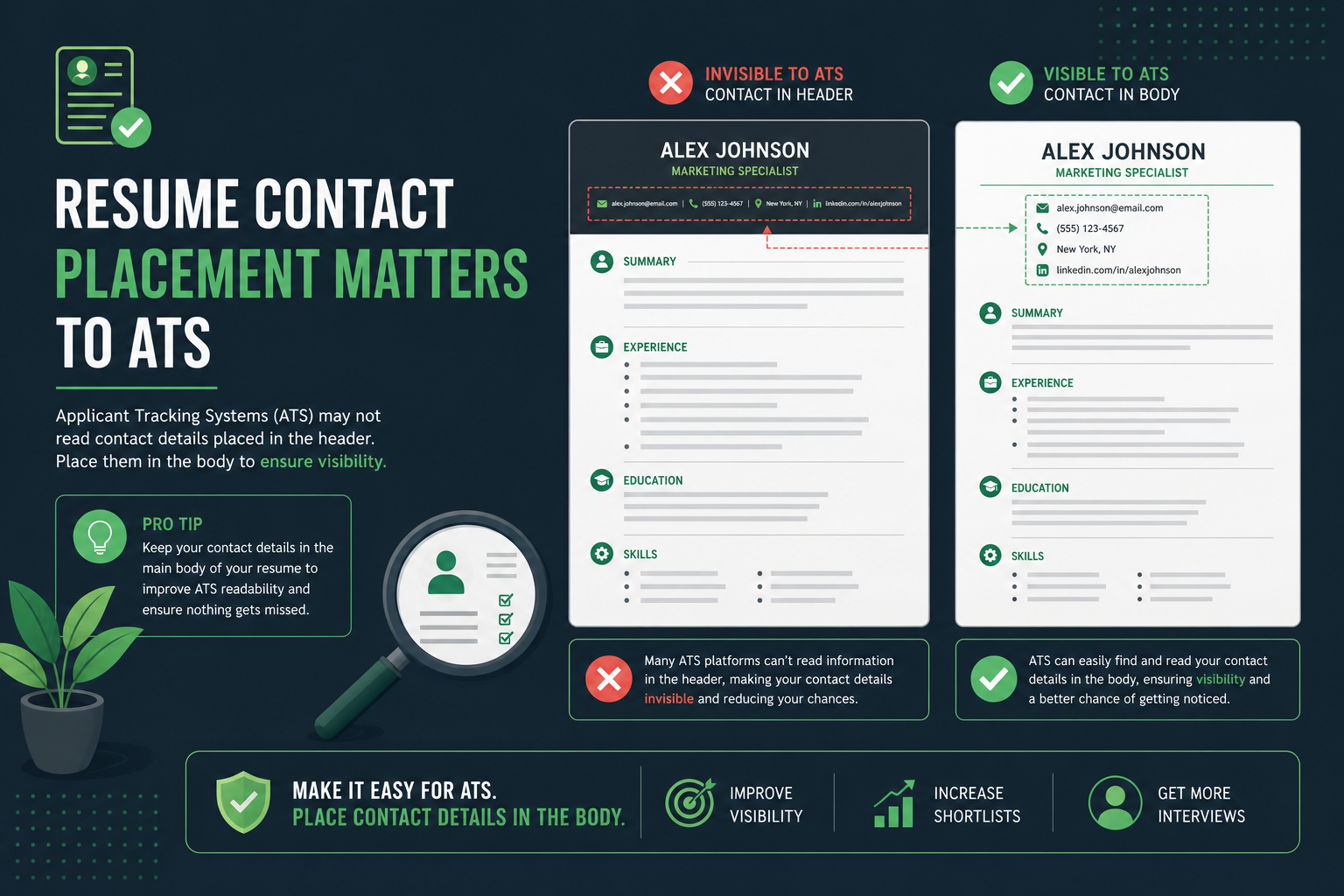
Before and after example of resume contact info moved from the header into the document body

Here is the problem, stated plainly: if your name, email, and phone number live in the header or footer of a Word or Google Docs resume, there is a real chance an ATS never sees them. Not "might look slightly off"—never sees them, as in the field is empty, the parsed text starts mid-sentence in your experience section, and a recruiter's system has your entire work history with no way to reach you.

This is not a rare edge case. Header/footer contact blocks are the default layout in a huge number of resume templates, because they look clean and they repeat automatically on every page. That repetition is exactly the feature that causes the failure: headers and footers are stored and processed as a fundamentally different part of the file than the text you can select and read, and a large share of ATS parsing code simply never reads that part.

This guide is narrowly focused on that one failure mode. It walks through why it happens at the file-format level, gives you an expanded before/after you can copy, and then splits the actual fix into exact click-by-click steps for Microsoft Word and for Google Docs—because the fix is different in each program. It ends with a verification method so you are not just trusting that the fix worked.

Key Takeaways

  • Headers and footers are stored in a separate part of the file, not just a different screen position
  • Many parsers only read the main body content by default and never open header/footer parts at all
  • The failure is silent—your resume renders correctly, but the extracted text can be missing your name and contact details
  • The fix is a cut-and-paste move, not a visual redesign—your layout can stay the same
  • Text boxes and tables carry related, easily overlooked risks worth checking at the same time
  • Why headers/footers are a separate data layer, not just a visual position
  • An expanded before/after, including what the extracted text actually looks like
  • Word-specific steps to move contact info out of the header
  • Google Docs-specific steps to do the same thing
  • A verification method using a copy-paste test and an ATS checker
  • Related silent failures worth ruling out at the same time

Why headers and footers are a separate layer, not just a screen position

Key Takeaway

A header or footer is a separate structural part of the file. Rendering always looks fine, so extraction failure is invisible until you check the raw text.

A header or footer is a designated region of a document that repeats automatically on every page, stored in its own part of the file rather than inside the main body text. It helps to understand what that actually means at the file level, because the reason this breaks ATS parsing has nothing to do with how it looks on screen and everything to do with how the file is structured underneath.

A modern .docx file is a small zip archive containing multiple XML parts. The main text you type into the body lives in one file inside that archive, typically document.xml. Headers and footers are not inside that file at all—they live in their own separate parts, commonly named things like header1.xml and footer1.xml, and the body only references them indirectly through a relationship link that tells Word "display this header on these pages." Visually, Word merges everything together seamlessly when it renders the page. Structurally, they are two unrelated files sitting next to each other in the same archive.

This matters because most ATS platforms do not open your resume in Word. They run it through a parsing library that reads the raw file structure and pulls out text programmatically. Many of those libraries are written to walk through the body content stream by default, because that is where resume content is expected to be. Reading header and footer parts requires calling a separate function or accessing a separate object entirely—a step that plenty of parsing implementations skip, either because it was never built, or because header/footer text is deliberately excluded to avoid duplicating repeated boilerplate like "Page 1 of 2" across every page of extracted text.

This behavior varies by platform in practice. Workday's resume parser has been widely reported to skip header and footer regions entirely when building a candidate profile, which is why work-authorization and contact fields can come back blank even when the resume looks complete. Greenhouse, running a more modern parsing engine, handles plain body text reliably but still treats header/footer content as a lower priority than the main flow—so a candidate's contact block is safest when it lives in the body regardless of which system is on the other end.

PDFs work a little differently but land in the same place. A PDF page is really just a sequence of drawing instructions—text positioned at coordinates, with no built-in concept of "this text is a header." If your PDF was exported from a Word or Docs file that used a real header element, some export paths preserve that header/footer distinction as metadata, and parsers that check for it will still skip it. Other export paths flatten everything into one stream of positioned text with no distinction at all, in which case extraction usually does work. The inconsistency itself is the danger: the same resume can extract fine on one platform and silently lose its contact block on another, and you have no way to tell from opening the file yourself.

Put together, three things are true at once:

  • Header/footer text is stored in a physically separate part of the file, not merely positioned differently on the page
  • A meaningful share of parsing implementations only walk the main body part by default, and never open the header/footer parts at all
  • Because rendering always shows the header correctly, there is no visual signal that extraction might be failing—the only way to know is to check the extracted text directly

Expanded before/after: what the file actually contains

Key Takeaway

Both versions can look identical on screen. The only reliable comparison is what a parser actually extracts as plain text.

A visual before/after only tells half the story, because both versions can look nearly identical on screen. The more useful comparison is what a parser actually pulls out of each version as plain text.

Before: contact info in the header

[Header region — repeats on every page, stored in header1.xml]

Jordan Rivera

[email protected] | (555) 012-3456 | linkedin.com/in/jordanrivera

[Body text starts here, stored in document.xml]

Experience

Senior Product Manager — Northwind Retail, 2021–Present

Simulated extracted text a header-blind parser would produce from that file:

Experience

Senior Product Manager — Northwind Retail, 2021–Present

Notice what is missing: the name, the email, the phone number, and the LinkedIn URL are simply absent. There is no error, no warning, no placeholder—the parsed resume just begins at "Experience" with a blank contact field somewhere upstream in the recruiter's ATS.

After: contact info in the body

[Top of body text — stored in document.xml, not a header]

Jordan Rivera

[email protected] | (555) 012-3456 | linkedin.com/in/jordanrivera

Experience

Senior Product Manager — Northwind Retail, 2021–Present

Simulated extracted text from the same parser after the fix:

Jordan Rivera

[email protected] | (555) 012-3456 | linkedin.com/in/jordanrivera

Experience

Senior Product Manager — Northwind Retail, 2021–Present

Nothing about the visual layout has to change. You can still bold the name, add a thin rule underneath, and center it at the top of the page—the fix is about which layer the text lives in, not how it is styled.

Step-by-step fix in Microsoft Word

Key Takeaway

This is a five-minute cut-and-paste fix, not a redesign—work directly in the file you plan to submit so the change carries through to your final export.

Follow these steps on the exact resume file you plan to submit, not a copy, so the fix carries through to your final export.

  1. Double-click anywhere in the top margin of the page where your name and contact details currently appear. If they are in a real header, Word will switch into header editing mode and gray out the rest of the page—that grayed out body is your confirmation this content is in the header layer.
  2. Select all of the contact text inside the header (click at the start, then Shift+Click at the end, or use Ctrl/Cmd+A while your cursor is inside the header box) and cut it with Ctrl/Cmd+X.
  3. Double-click outside the header area, or press Esc, to return to normal body editing mode.
  4. Click at the very top of your first line of body text and paste with Ctrl/Cmd+V. Add a line break afterward so your contact block sits above —not inside— your summary or experience section.
  5. Re-open the header (double-click the top margin again) and confirm it is now completely empty, unless you intentionally want page numbers there. An empty header/footer is fine and will not hurt you—it simply will not be relied on for anything critical.
  6. Check Layout > Different First Page and any per-section header settings if your resume spans multiple pages. Word can have a different header per section, so confirm you cleared contact info from every section, not just the first page's header.
  7. Re-export to PDF (File > Save As > PDF, or File > Export) and move on to the verification section below before you consider this done.

Step-by-step fix in Google Docs

Google Docs stores headers and footers as their own structural elements as well, so the underlying problem is identical even though the menus look different.

  1. Double-click directly on your name/contact line at the top of the page. If it sits inside a header, Google Docs will outline the header region and dim the rest of the page, the same tell as Word.
  2. Click at the start of the contact text, hold Shift, and click at the end to select the full block, then cut it with Ctrl/Cmd+X.
  3. Click the "Options" link that appears near the header, or click anywhere in the main page body, to close header-editing mode.
  4. Click at the top of your first body paragraph and paste with Ctrl/Cmd+V. Reapply any bold or size formatting, since pasting can sometimes carry over header-specific styling you do not want in the body.
  5. Re-enter the header to confirm it is empty. If Google Docs will not let you delete the header region entirely, that is expected—an empty header is harmless as long as no contact information remains inside it.
  6. Check Format > Headers & footers > Options for a "Different first page header" toggle if your document has one enabled, and confirm every page's header is clear, not just page one.
  7. Export with File > Download > PDF Document (.pdf), and also try File > Download > Microsoft Word (.docx) if you plan to submit a Word file, since the two export paths can package headers slightly differently.

How to verify the extraction actually worked

Key Takeaway

Never trust that a fix worked just because the file looks right in your editor— verify it against the actual extracted text.

Do not stop after moving the text—verify it. This is a two-minute check and it is the only way to be certain the fix took effect in the exact file you are about to submit.

The copy-paste test

  1. Open your exported PDF (not the Word or Docs editor—the actual file you will upload) in a PDF viewer.
  2. Click right before the first character of your name, then scroll to the end of the document and Shift+Click after the last character, selecting everything in one continuous selection.
  3. Copy the selection and paste it into a plain text editor, like Notepad, TextEdit, or a blank text field with no formatting.
  4. Read the first few lines of the pasted text. Your name, email, phone number, and LinkedIn URL should appear there, in plain readable text, before any section headings.
  5. If the pasted text starts with a section heading like "Experience" or "Summary" and your contact details are nowhere in the paste at all, they are still trapped in a header, footer, text box, or similar element—go back and repeat the fix steps above.

Confirm with an ATS checker

The copy-paste test approximates what a parser sees, but running the actual file through a real parsing pipeline is more reliable, since different tools implement text extraction differently. Upload your resume to HireFlow's ATS resume checker and look at the extracted text output specifically: confirm your name, email, and phone number appear near the top, in the correct order, with no missing characters. If the checker's extracted text matches what you expect to see, you have confirmed the fix from an independent extraction path, not just Word or Docs telling you the document looks fine.

Frequently asked questions

Many ATS platforms use parsing libraries that only read the main body content of a document by default. Headers and footers are stored in separate parts of the file (in a .docx, they live in files like header1.xml, distinct from document.xml), so a parser that never opens those parts never sees the text inside them, even though it displays correctly on screen.

Double-click near your name and contact block in Word or Google Docs. If the editor switches into a dedicated header-editing mode and dims the rest of the page, that content is in the header layer. You can also run the copy-paste test: select all text in your exported PDF and paste it into a plain text editor to see whether your contact info appears.

Yes, though inconsistently. If a PDF was exported from a document that used a true header element, some export paths preserve that distinction and a parser that skips headers will still skip it. Other export paths flatten everything into one text stream with no header distinction, in which case extraction usually works. Because you cannot tell which happened just by looking at the PDF, testing the specific file is the only reliable check.

No. You can keep the same visual position, bolding, and centering at the top of the page—the fix is about which layer the text lives in, not how it is styled. Cut the text from the header, paste it as the first line of your body content, and reapply any formatting.

Page numbers in a footer are usually harmless since they are not information a recruiter needs extracted. The risk is specifically when essential content—your name, email, phone, or LinkedIn URL—sits in a header or footer rather than the main body, since that's the content an ATS actually needs to populate a candidate record.

The copy-paste test is a strong approximation: open your exported PDF, select all the text, and paste it into a plain text editor. If your name, email, and phone appear at the very top before any section headings, the fix worked. For higher confidence, run the file through a real ATS resume checker and inspect the extracted text output directly.

Yes. Text boxes are anchored objects similar in principle to headers—many parsers skip them entirely. Tables are usually readable but the extraction order is not guaranteed, so content split across table cells can come out scrambled even though nothing was technically dropped. Both are worth checking at the same time as your header/footer content.

Done for you

Turn this advice into an interview-ready resume

Professional writers rebuild your resume for ATS + recruiters — unlimited revisions, interview guarantee.

Job match tool·Free builder

Tags

resume contact info header footer atsresume header ats problemats ignores headerresume contact info atsats parsing contact infoats resume checkerfree ats resume builder