9 min read

Why Resume Parsing Fails After Upload: Common Issues & Solutions

HireFlow Editorial Team
July 26, 2026

Discover why resume parsing fails after upload and how to fix it. Learn ATS errors, formatting issues, and best practices to ensure your resume uploads correctly.

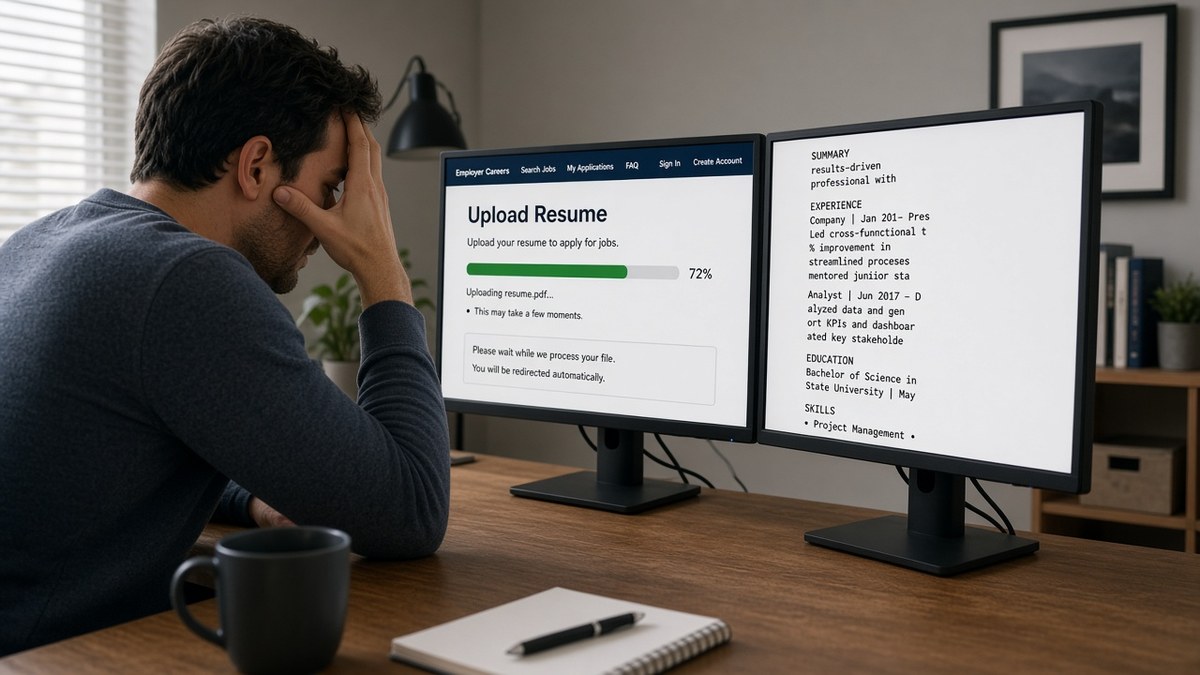
You've spent hours perfecting your resume, formatted it carefully, and uploaded it to a job portal or ATS system. But something goes wrong. The system can't read it. Your information doesn't populate correctly. Or worse—the application gets rejected before a human ever sees it. Why resume parsing fails after upload is a question thousands of job seekers ask every week, and the answer is usually simpler than you think.

Resume parsing is the automated process where an applicant tracking system (ATS) extracts information from your resume—your name, contact details, work experience, skills, and education—and converts it into searchable data. When parsing fails, your qualifications never reach the recruiter's dashboard. Instead, your application sits in a broken state, invisible and unreviewed.

In this guide, you'll learn:

  • What resume parsing is and why it matters
  • The most common reasons parsing fails
  • How formatting, file type, and structure affect parsing success
  • Step-by-step fixes to ensure your resume parses correctly
  • Best practices to avoid parsing failures in the future

Understanding Resume Parsing and Why It Matters

Resume parsing is the invisible gatekeeper of modern hiring. When you upload a resume to a job board, company career portal, or ATS, the system doesn't simply store your PDF or Word document. Instead, it runs parsing software that reads the file, identifies key sections, and extracts structured data. This extracted data is what recruiters actually search through, filter by, and rank.

If parsing fails, your resume becomes unreadable to the system. Your experience might not appear in recruiter searches. Your skills won't match against job requirements. Your contact information might be lost entirely. The result: your application is either rejected automatically or buried so deep in the system that no human ever finds it. Understanding why this happens—and how to prevent it—is essential for any job seeker in 2025.

Key Reasons Resume Parsing Fails After Upload

1. File Format and Conversion Issues

The file format you choose has a direct impact on parsing success. While Word documents (.docx) and PDFs are most common, they're not equally compatible with all ATS systems. PDFs created from design software, scanned documents, or image-based PDFs cannot be parsed at all—they appear as blank files to the system. Word documents with embedded fonts, unusual characters, or complex formatting often cause parsing errors.

Many job seekers don't realize that converting a beautifully designed resume to PDF can introduce parsing problems. Special characters, symbols, and decorative elements that look fine in a PDF may become unreadable to parsing software. The safest approach is to use standard fonts (Arial, Calibri, Times New Roman) and simple formatting in either .docx or .pdf format created directly from a text editor, not a design tool.

2. Complex Formatting and Layout Problems

Resume templates that look impressive to human eyes often confuse parsing software. Multi-column layouts, text boxes, tables, headers, footers, and creative spacing all cause parsing failures. ATS software reads resumes linearly, from top to bottom, left to right. When you use columns, the parser may read text in the wrong order or miss entire sections.

Graphics, icons, and decorative lines also break parsing. Many modern resume templates include skill icons, progress bars, or visual dividers that look professional but render as unreadable characters to ATS systems. The parser sees them as errors and either skips them or stops reading entirely. Resume formatting errors that break ATS parsing are one of the leading causes of application rejection.

3. Encoding and Character Recognition Failures

If your resume contains special characters, accents, or non-ASCII symbols, parsing software may fail to recognize them. This is especially common for job seekers with non-English names or those who include special formatting like degree symbols (°) or currency symbols (€, £, ¥). Some ATS systems simply cannot read these characters and either replace them with gibberish or skip the entire line.

Additionally, if your resume was created in a language other than English and then translated, hidden formatting codes may remain in the document. These invisible characters confuse parsers and cause extraction errors. Always save your final resume in UTF-8 or standard ASCII encoding to avoid this issue.

4. Missing or Poorly Structured Section Headers

Parsing software relies on recognizable section headers to organize your information. When headers are missing, unclear, or non-standard, the parser cannot identify where experience ends and skills begin. For example, if you use "Work History" instead of "Experience," some systems may not recognize it. If you skip headers entirely and just list jobs with dates, the parser may misclassify information.

The parser looks for standard headers like "Experience," "Education," "Skills," and "Contact Information." When these are absent or creatively renamed, the system defaults to guessing—and it often guesses wrong. This misclassification means your qualifications get tagged incorrectly, making them invisible to recruiter searches.

Common Mistakes That Cause Parsing Failures

  • Using a scanned or image-based PDF: Parsing software cannot extract text from images. Always use a text-based PDF created directly from your document editor.
  • Uploading a resume with a header or footer: Headers and footers are often skipped by parsers or cause formatting breaks. Remove them before uploading.
  • Including tables or multi-column layouts: Parsers read linearly and struggle with complex layouts. Use simple, single-column formatting with standard line breaks instead.
  • Adding graphics, icons, or decorative elements: Visual elements render as unreadable characters. Stick to text-only formatting for maximum compatibility.
  • Using unusual fonts or font sizes: Parsing software works best with standard fonts at 10–12 pt. Avoid decorative or script fonts entirely.
  • Leaving out standard section headers: Always use clear, recognizable headers like "Experience," "Education," and "Skills" so the parser can categorize your information correctly.

Best Practices to Ensure Successful Resume Parsing

  1. Use a simple, clean format: Single column, standard fonts (Arial, Calibri, or Times New Roman), 10–12 pt size. Avoid decorative elements, colors, and graphics.
  2. Save as .docx or text-based PDF: Both formats parse well when created from standard word processors. Avoid design software exports and image-based PDFs.
  3. Include standard section headers: Use recognizable headers like "Professional Experience," "Education," "Skills," and "Contact Information" so parsers can categorize your data.
  4. Use bullet points for clarity: Bullet points are easier for parsers to read than paragraph text. Each bullet should start with a strong action verb.
  5. Keep dates in a consistent format: Use MM/YYYY or Month Year consistently throughout. Avoid abbreviations or unusual date formats.
  6. List contact information at the top: Place your name, phone, email, and location in a clear header section. Avoid fancy formatting or unusual layouts.
  7. Avoid special characters and symbols: Stick to standard ASCII characters. If your name contains accents, consider a simplified spelling for ATS compatibility.
  8. Test your resume before uploading: Use free ATS parsing checkers to preview how your resume will be read by the system before submitting it.

Step-by-Step Guide to Fix Resume Parsing Issues

  1. Audit your current resume: Open your resume and identify any complex formatting, graphics, or non-standard elements. Note any headers that aren't standard (e.g., "My Experience" instead of "Experience").
  2. Create a clean version: Start fresh in a basic word processor (Microsoft Word, Google Docs, or LibreOffice). Use single-column layout, standard fonts, and simple formatting.
  3. Add standard section headers: Include clear headers for Contact Information, Professional Summary (optional), Experience, Education, and Skills. Use consistent formatting for all headers.
  4. Format dates consistently: Choose one date format (MM/YYYY or Month Year) and use it throughout. Be consistent with month abbreviations.
  5. Use bullet points for job descriptions: Replace paragraph text with concise bullet points. Start each with a strong action verb (e.g., "Developed," "Managed," "Implemented").
  6. Remove all graphics and decorative elements: Delete icons, progress bars, colored boxes, lines, and any visual elements. Keep text-only formatting.
  7. Save in the correct format: Save as .docx (Word) or export as text-based PDF. If exporting to PDF, use your word processor's PDF export function, not a design tool.
  8. Test with a parsing checker: Use free tools like ATS resume score checkers to see how your resume will parse. Review the extracted data for accuracy.
  9. Make final adjustments: If the parser missed or misclassified information, adjust your formatting or headers. Re-test until the extracted data is accurate.
  10. Upload and verify: When you upload to a job portal, check if your information populated correctly in the system. If not, go back and adjust formatting.

PDF vs Word: Which Format Parses Better?

The short answer: both work equally well if created correctly. PDF vs Word resume for ATS is a common question, but the format matters less than how it's created.

Word documents (.docx) created in Microsoft Word, Google Docs, or LibreOffice parse reliably because they're text-based and don't have encoding issues. However, Word documents with complex formatting (tables, text boxes, headers, footers) still cause problems. PDFs are equally compatible when created directly from a word processor using the "Export to PDF" or "Save as PDF" function. The problem arises when PDFs are created from design software (Canva, Adobe InDesign, Figma) or when they're scanned images. These formats are unreadable to parsers.

The safest approach: create your resume in Word with simple formatting, then save it as both .docx and .pdf from Word's native export function. This ensures compatibility across all systems. Always check the job posting to see if a specific format is requested.

Conclusion: Take Control of Your Resume Parsing

Resume parsing failures are preventable. By understanding why parsing fails after upload—and implementing the best practices outlined in this guide—you can ensure your qualifications reach recruiters every single time. The key is simplicity: clean formatting, standard fonts, clear headers, and text-based file formats.

Start by auditing your current resume. Identify any complex formatting, graphics, or non-standard elements. Recreate it in a basic word processor using the guidelines provided. Test it with a free ATS parsing tool. Then upload with confidence, knowing your resume will parse correctly and your application will be seen.

Your qualifications deserve to be read. Don't let formatting and parsing failures keep you from opportunities. Take action today, and watch your interview rate improve.

Frequently asked questions

A: After uploading, check if the system's confirmation page shows your extracted information accurately. Your name, contact details, job titles, and dates should appear correctly. If information is missing, garbled, or misplaced, parsing failed. Some job portals allow you to review and edit the parsed data before submitting. If you see errors, correct them immediately. For a more detailed check, use free ATS parsing tools that simulate how your resume will be read by hiring systems.

A: Not if you're uploading to an ATS. Design tool templates look beautiful but export as image-based PDFs that parsers cannot read. These templates often use complex layouts, custom fonts, and graphics that break parsing. Always use templates from Microsoft Word, Google Docs, or dedicated ATS-friendly resume builders. If you love a design template, recreate it in Word using simple formatting and standard fonts.

A: Follow the instructions exactly. If they ask for .docx, upload .docx. If they ask for PDF, upload PDF. If they don't specify, use .docx or a text-based PDF created from Word. Never assume a format preference. Some companies have specific ATS systems that work better with one format over another. Compliance with instructions also signals attention to detail, which recruiters notice.

A: No. Parsing software reads the entire document regardless of length. However, longer resumes may have more complex formatting, which increases the risk of parsing errors. Keep your resume to one page (for early-career professionals) or two pages maximum (for experienced professionals). Concise resumes are also more likely to be read by humans after parsing succeeds. Focus on quality content and clean formatting rather than length.

A: Yes, in many systems. After uploading, review the extracted data on the confirmation page. Most job portals allow you to edit parsed fields directly. Correct any errors, misclassified information, or missing details. Some ATS systems let you re-upload a corrected resume. If parsing is severely broken and the system won't let you edit, contact the company's support team or try uploading again with a reformatted resume file.

A: Different job boards and companies use different ATS platforms, each with its own parsing algorithms. What parses perfectly on LinkedIn might fail on a company's career portal. This is why using a simple, clean format is critical—it maximizes compatibility across all systems. What happens to your resume after submission depends entirely on the system receiving it. Test your resume on multiple platforms before finalizing it.

Done for you

Turn this advice into an interview-ready resume

Professional writers rebuild your resume for ATS + recruiters — unlimited revisions, interview guarantee.

Job match tool·Free builder

Tags

resume parsing failsresume upload issuesATS parsing problemsresume formatting errorsATS resume parsingresume upload not workingjob application parsing