9 min read
Your inbox is full of new listings, but you're still getting rejected before a human reads your file. That's not because alerts are useless. It's because most people treat them like a firehose instead of a short list of roles worth twenty minutes of tailoring.
If you want to use job board email alerts strategically in the US, you need two habits: tight email alert filters that surface real openings, and a resume you adjust before you hit apply. Don't guess whether your file will parse. Check your resume for free against the posting from tonight's alert before you upload it to Workday or Greenhouse.
This guide walks through job alert settings on large job boards, a same-day apply workflow, and resume tweaks that help you beat ATS filters. You'll set fewer alerts, apply faster on the right ones, and stop wasting evenings on roles you were never going to win.
Quick Wins
- Pause every broad alert and create one saved search per target title with salary and remote filters locked in.
- Open the strongest alert from today, highlight three required skills, and rewrite your top resume bullet to name one in the first eight words.
- Run the checker, then draft a matching letter with the cover letter generator if the application portal asks for one.
What does it mean to use job board email alerts strategically?
Strategic job alerts are saved searches on large job boards that email you when a posting matches narrow criteria you set: title, location, salary floor, experience band, and sometimes industry. The goal isn't maximum volume. It's a small stream of roles you can tailor for and apply to within a day while the recruiter's queue is still fresh.
Alerts are a trigger, not a finish line. The moment a relevant email lands, you compare the posting to your master resume, swap three to five terms in your summary and bullets, run a parser check, and submit one clean PDF. Skip the tailor step and you're just first in line with a generic file. ATS tools in Workday, Lever, and iCIMS still filter on keyword overlap before a recruiter opens anything.
What this is not: subscribing to every keyword you've ever typed, applying to thirty listings a night, or letting notifications replace a tracking sheet.
I've screened stacks of alert-driven applications where the candidate clearly copied the posting into a skills block but never proved those skills in experience bullets. The parser sometimes passes them. Recruiters don't. Pair alerts with tailoring and you get speed plus fit. Read why job boards favor early applicants when you're deciding whether tonight's alert is worth a same-day submit.
Your alert system should answer one question: which three roles this week deserve a tailored resume, not which thirty roles you could theoretically do.
Step-by-step: job board email alerts plus resume tailoring
Step 1: Split alerts by role bucket, not by mood
Most job seekers create one giant alert like marketing jobs remote. That pulls coordinator, director, and contract gigs into the same inbox. Instead, build one saved search per bucket you're actually pursuing this month.
Example buckets for a mid-level operations candidate: Operations Analyst in Chicago hybrid, Remote Supply Chain Analyst US-wide, and Senior Operations Coordinator in Illinois with salary at or above your floor. Each bucket gets its own email alert settings. You can always add a bucket when your search pivots. You shouldn't need twelve active streams at once.
Name each alert in your email filters so you can sort by label. When a message arrives, you already know which resume version is the base template.
Step 2: Tighten email alert filters before you add keywords
Open job alert settings on the board you use most and work top to bottom: location radius or remote only, full-time versus contract, experience level, and posted date when the board offers it. Salary filters cut noise fast even when ranges are estimates.
Add negative keywords in the title field where the board allows quotes or minus signs. If you're a data analyst, exclude sales analyst and business development from titles that pollute your feed. If you're an RN, exclude CNA and medical assistant unless you're pivoting.
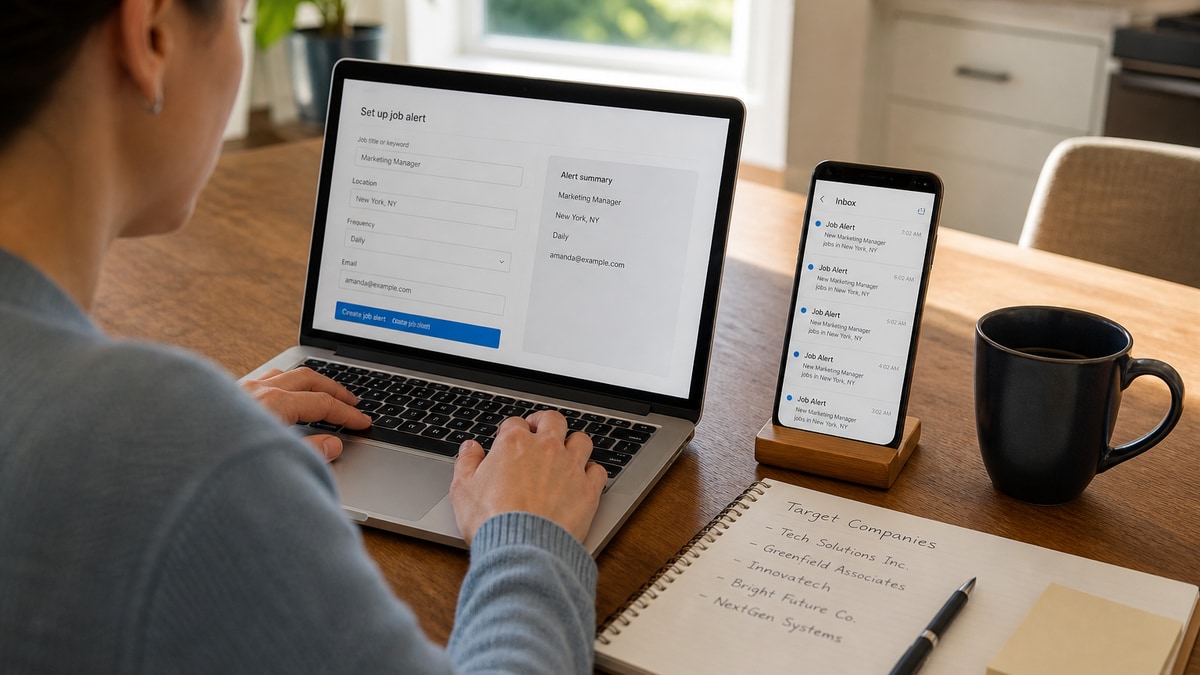
Set frequency to daily for active search weeks and twice weekly when you're employed but watching the market. Instant mobile pings help only if you'll tailor within a few hours. Otherwise they train you to ignore alerts.
Copy-paste alert setup worksheet
- Bucket name: _______________
- Exact title phrase: _______________
- Location / remote rule: _______________
- Salary floor: $_______________
- Experience band: entry / mid / senior
- Negative title keywords: _______________
- Base resume file name: _______________
Step 3: Run a 15-minute triage when an alert hits
Don't open the posting and apply in one tab. Use a short triage script so you don't burn an evening on a ghost listing or a role you're underqualified for.
- Read requirements, not perks. Circle three must-have skills.
- Check company and repost date. Skip if the same title has been up eight weeks with no edits.
- Confirm you can prove two of three must-haves in your latest role bullets.
- If yes, add the row to your tracker and start tailoring. If no, archive the email.
Read how to spot ghost job postings before you tailor for a listing that looks stale.
Step 4: Tailor the resume before you upload
Your master resume holds every skill. Your alert resume is the master plus three to five posting terms moved into visible places: headline, summary, and first two bullets on your current job.
Save as a new file name with company and date so you don't overwrite the master. Export a single-column PDF at 11 or 12 point Calibri or Arial. Fancy templates break parsers on many employer portals.
Before: Generic summary says results-driven professional. Skills list repeats Jira four times. No posting terms in the first half of the page.
After: Summary reads Operations Analyst with SQL and NetSuite reporting. Top bullet: Built weekly inventory dashboards in SQL for plant managers, cutting stockouts 14% in Q2.
That swap takes fifteen minutes when your master file is clean. It's the difference between an alert that wastes time and one that books a screen.
Composite example: customer success manager alert
Posting from your alert asks for SaaS renewals, Salesforce, QBR decks, and churn reduction.
Before: Resume title Client Success Associate. Bullets mention happy clients and weekly calls. Salesforce appears only in skills.
After: Headline Customer Success Manager (prior title Client Success Associate). Bullet: Led quarterly business reviews for 28 SaaS accounts in Salesforce, improving gross retention from 91% to 94% over four quarters.
Apply the same day if the triage checks pass. Early plus tailored beats late plus generic on most corporate reqs.
Composite example: registered nurse clinical alert
Alert surfaces Med-Surg RN, BLS, ACLS, Epic documentation, and night shift rotation.
Before: Duties included patient care and teamwork. Licenses listed at the bottom without unit context.
After: Med-Surg RN with Epic charting on a 32-bed unit; staffed rotating nights; maintained ACLS and BLS current; reduced patient fall incidents 22% through hourly rounding protocol.
Clinical alerts move fast. Have license numbers and shift availability ready in your tracker so you're not hunting credentials at midnight.
Step 5: Pair the application with a short cover letter when asked
Many alert-driven applications still have an optional letter field. Recruiters skim it when your resume already matches. Reuse posting language you proved in bullets, not a new list of skills.
Two paragraphs: why this team and one metric from your latest role that mirrors their pain. Generate a draft with the cover letter tool, then edit the first sentence so it names the company from the alert, not a placeholder.
Edge case: career change alerts pulling wrong titles
You're moving from teaching to instructional design. Your alert keyword instructional designer also surfaces curriculum coach roles in K-12 that want a teaching license you don't want to use anymore.
Split alerts: corporate instructional designer remote with minus teacher in titles, and a second alert for learning experience designer. Tailor a projects section on your resume with LMS tools the corporate postings name. Don't rename your teaching roles. Prove transferable work in bullets.
Edge case: overlapping dates and contract gigs
Alerts love contract titles. You might have two overlapping client projects on your resume. List each contract with Month Year dates and one outcome bullet per client. In triage, skip contracts that need a clearance or onsite mix you can't do. Your alert filters should include contract or full-time explicitly so you're not surprised by W2-only postings.
Edge case: title mismatch between alert and application form
The alert says Revenue Operations Specialist. Your employer called you Sales Operations Analyst. Use the posting phrase in your resume headline only if your duties align. Keep your official title and dates honest in the body.
Before: Application form title doesn't match resume header. Parser flags inconsistency.
After: Headline Revenue Operations Specialist with prior title Sales Operations Analyst in parentheses; bullets mention pipeline hygiene and forecasting terms from the alert posting.
Step 6: Review alert performance every Sunday
Open your tracker and tag each alert-sourced application: screen, reject, or ghosted. If an alert sent twenty jobs and zero passed triage, tighten filters. If another alert produced three screens from eight applies, clone its settings for a neighboring title.
Read how to build a US application funnel when you want a simple sheet structure for alert-driven applies.
Alert-to-apply script: (1) Triage posting in five minutes. (2) Swap three terms in summary and two bullets. (3) Export PDF. (4) Run ATS check. (5) Submit and log date. (6) Archive email with label Applied or Pass.
Common job alert mistakes that waste good openings
One alert for every keyword you've ever considered. You'll drown in irrelevant mail and start ignoring everything. Fix: three to five buckets max, each with title, pay, and location locked.
Applying from the email without opening the full posting. Mobile previews hide deal-breakers like travel, clearance, or hybrid mandates. Fix: always read requirements on the employer or board page before you tailor.
Same resume for every alert. Speed matters, but generic files lose keyword matches in Greenhouse and Taleo. Fix: fifteen-minute tailor per strong fit, not a mass upload session.
Chasing instant notifications you won't act on. Push alerts you ignore train your brain to swipe away job mail. Fix: match frequency to when you actually edit files, usually evening or early morning blocks.
No dedupe rule across boards. The same req posted on two large job boards can trick you into double applying. Fix: log company, title, and city before you submit.
Skipping the checker because the alert felt perfect. Postings use different spellings than your resume. Fix: upload once, fix the first missing term, then apply.
Use HireFlow when an alert deserves a real application
When triage says yes, paste the posting and upload your tailored PDF to HireFlow's free ATS resume checker . You'll see missing must-have terms, repeat issues, and formatting risks before the employer's parser gets the file.
Use job match score to compare your alert-tailored version against the description. If you're short on overlap, fix two bullets instead of sending a hopeful generic.
When the portal wants a letter, run the free cover letter generator with the same posting so your letter repeats proof you already show on the resume.
Do this now: Open today's best alert, tailor your summary line, upload to the checker, and apply once with a logged row in your tracker.
Job board email alerts strategically: what to do next
Alerts only help when they feed a short list of roles you'll actually tailor for. Volume without fit is just more rejection email.
- Run three to five tight saved searches with salary, location, and negative title keywords.
- Triage each posting in five minutes, then tailor summary and top bullets before you apply.
- Log every alert apply and kill filters that send noise for two weeks straight.
Open the strongest alert sitting in your inbox right now. Check your resume for free , fix the first gap, and send one tailored application tonight. That's how you use job board email alerts strategically in the US: fewer pings, better files, more screens.
Read more
Frequently asked questions
Start with three to five saved searches, each tied to one target title and location combo. More than eight alerts usually floods your inbox with duplicates. Retire any alert that sent junk for two straight weeks before you add a new one.
Yes when you genuinely fit the requirements. Spend twenty minutes tailoring first. A late generic file loses to an early tailored one on most corporate reqs.
No. Alerts find openings. Referrals get you past the pile. Keep two weekly outreach messages alongside your saved searches.
Dedupe by company, title, and city. Apply once through the cleanest portal, usually the employer site. Double submissions create duplicate ATS profiles.
You can prove at least two of three must-have skills in recent bullets. If not, pass. If yes, tailor and run the checker before you submit.