12 min read
You've got a PDF that's looked sharp since 2019. Two columns, a color sidebar, maybe a headshot. You upload it to Greenhouse tonight and the preview shows your skills block above your current employer, or Experience reads blank while Education fills the screen. You're not unqualified. The parser's reading your layout out of order.
Check your resume for free with the posting pasted in before you spend an hour retyping every bullet. You'll often see the checker flag missing employer lines that are sitting in your PDF but never landed in the parsed text. Fix structure first. Then sharpen bullet one.
Below: what rebuilt files are scored against, six before/after pairs across different roles and PDF problems, what weak conversions share, and copy-paste headers you can drop into a fresh DOCX tonight. Job searching's exhausting. This page is about what to change on the file, not a lecture on hustle.
Quick Wins
- Paste PDF text into plain Word and confirm employer names copy in order.
- Drop the sidebar. Single column, 11-point Calibri, Month Year dates.
- Rename sections to Experience, Education, and Skills so parsers map fields.
- Export DOCX first; save PDF only after text selects cleanly in reading order.
What your rebuilt ATS resume from an old PDF is judged against
Template blogs tell you to save as PDF and sprinkle keywords. Corporate hiring still runs through Workday, Greenhouse, Lever, and iCIMS parsers that read employer blocks before they score Skills rows. A converted file wins when Experience exports in order: company name, title, Month Year range, then bullets a recruiter can ctrl-f without opening the original design.
The standard your export is scored against: one column, standard headers, plain bullets, contact info in the body (not a header/footer layer), and bullet one under your current role that names scope plus an outcome. The PDF can stay your final upload. The source of truth should be a DOCX you rebuilt after you saw what the old file pasted as.
A composite operations coordinator uploaded a Canva PDF for twelve reqs. Greenhouse showed three employers as one run-on paragraph and dropped six months from 2023. She rebuilt in Word, kept the same bullets, and the next upload parsed four roles with correct dates. Same career story. Different file skeleton.
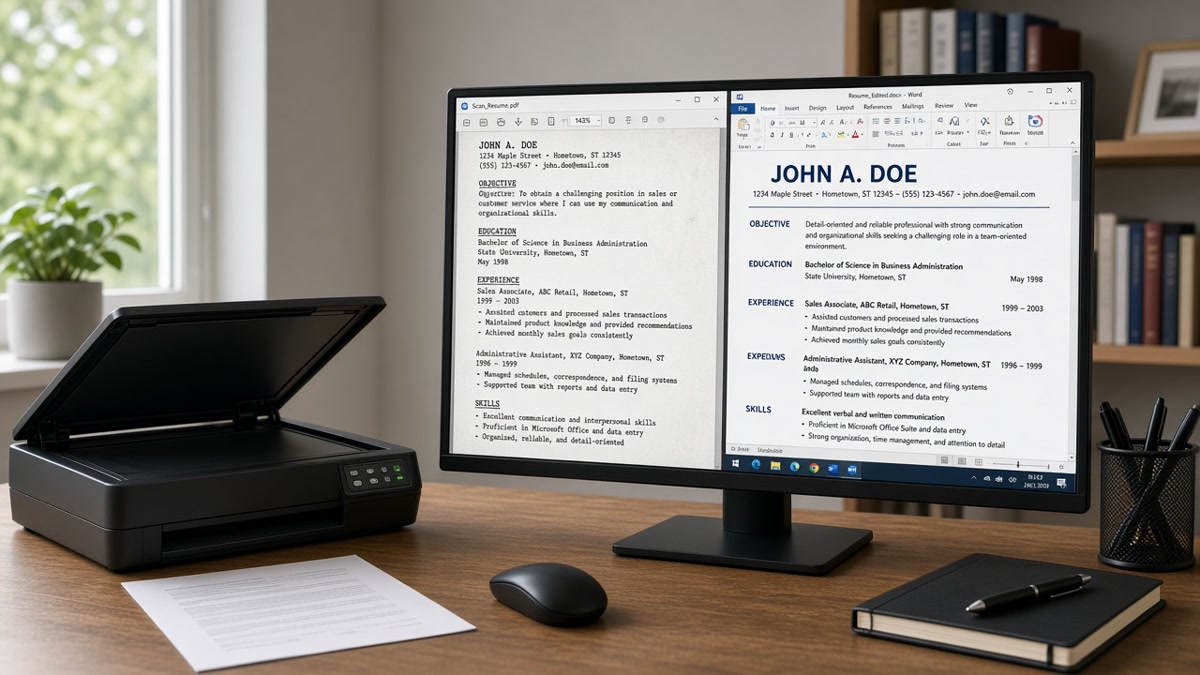
Edge case: you only have a scan from a printer, no digital original. OCR the pages or retype into DOCX. Parsers treat image PDFs like empty Experience. A plain one-page rebuild beats a pretty scan every time for first upload.
Edge case: the portal demands PDF but your rebuilt file is DOCX. Export PDF from Word after the DOCX parses clean. Never scan the printed rebuild. That puts you back at image-based failure.
Read resume rejected by ATS when silence hits after upload. Format fixes belong before keyword tweaks.
How to build an ATS resume from an old PDF: six before/after pairs
Each pair is a layout teardown, not a career rewrite. Swap company names and metrics for honest ones from your file. Minimal prose between pairs on purpose. That's how you spot whether your PDF problem is columns, tables, scans, or headers.
Pair 1: Two-column designer PDF (marketing coordinator)
Before: Canva export with teal sidebar holding Skills and contact; Experience in a narrow right column. Greenhouse import lists Adobe Creative Suite and Mailchimp above the current employer line.
After: Single-column DOCX. Header block: name, phone, email, city. Sections in order: Summary, Experience, Skills, Education. Same bullets, but bullet one now opens under Acme Corp, Jan 2022 to Present, before any skill keyword appears.
Pair 2: Scanned paper PDF (warehouse supervisor)
Before: Phone photo saved as PDF. Parser preview shows blank Experience and only Education from the bottom third of the page.
After: Retyped into Word from the paper copy. Employer lines with Month Year dates. Bullet one: Led inbound shift of 22 associates across 2 dock doors; cut mis-pick rate from 1.8% to 0.9% in Q1 2025 by barcode slotting and daily cycle counts.
Pair 3: Table-based experience (IT help desk)
Before: Three-column table per job: dates in column one, company in column two, duties in column three. Copied text interleaves dates and company names on one line.
After: Each role as a stacked block: Help Desk Technician, Northwind Health, Mar 2021 to Aug 2024, then four hyphen bullets. Ticket volume and SLA language sit in bullet one, not inside table cells.
Pair 4: Header/footer contact layer (accountant)
Before: Phone and email repeated in a PDF header that parsers skip. Recruiter view shows name only at top; no phone in parsed contact fields.
After: Contact line directly under the name in the document body: Jane Doe · (555) 234-8890 · [email protected] · Chicago, IL. No header/footer fields. Month Year roles follow immediately.
Pair 5: Skills cloud graphic (registered nurse)
I've screened PDFs where every clinical skill sat in a word-cloud image while Experience still said provided patient care. The parser sometimes matched keywords. The hiring manager never saw unit size or acuity proof in dated lines.
Before: Infographic Skills page with icons for Epic, ACLS, and ventilator management. Experience bullets generic.
After: Plain Skills list: Epic, ACLS, BLS, ventilator management. Bullet one under current hospital line: Precepted 4 orientees on a 32-bed med-surg unit; managed average census of 5 patients with 1:4 ratio on nights, documenting in Epic with zero MAR errors across 6-month review period.
Pair 6: Multi-page portfolio PDF (graphic designer)
Before: Page one resume, pages two to four full-bleed portfolio spreads. Upload truncates after page one or merges artwork into Skills.
After: One-page resume DOCX with portfolio URL in header. Bullet two names campaign scope: Redesigned product launch assets for a retail client; delivered 12 social sizes and 3 print ads adopted across 40 stores in Spring 2025. Portfolio link points to a separate site, not embedded PNG blocks.
Copy-paste section header block
Copy-paste this skeleton into a blank DOCX after you strip formatting from the old PDF paste. Replace bracketed lines with your data.
[Full Name]
[Phone] · [Email] · [City, ST] · [Portfolio or LinkedIn URL]
PROFESSIONAL SUMMARY
[Two lines: role target + strongest metric from last job]
EXPERIENCE
[Job Title], [Company Name], [Month Year] to [Month Year or Present]
- [Bullet one: verb + scope + tool + outcome]
- [Bullet two]
- [Bullet three]
SKILLS
[Comma-separated list echoed from bullets]
EDUCATION
[Degree], [School], [Year]
Copy-paste bullet upgrade after extraction
Copy-paste this line shape once your employers parse in order: "[Verb] [scope: team size, region, or system] using [tool from posting]; [outcome with number] across [timeframe]." Example fill after PDF cleanup: "Managed weekly P&L close for 3 business units in NetSuite; cut late adjustments from 14 to 4 per quarter between Jan 2024 and Jun 2025."
Edge case: PDF text copies out of order
Select all from the old PDF. If dates appear after bullets or employers land at the bottom, do not tweak fonts. Rebuild manually in DOCX using the header block above. Thirty minutes of retyping beats six weeks of silence from a scrambled parse.
Before: Pasted text shows 2022 employer under 2018 bullets.
After: Each role retyped as its own block with Month Year range verified before bullets attach.
Edge case: old PDF from a resume service you cannot edit
Treat the PDF as a read-only source. Paste into Word, clear formatting, rebuild sections. You do not need the original service file. You need a parser-safe skeleton and bullets you can update per posting.
See why weak bullet points get ignored after structure is fixed and you are deciding which extracted line becomes bullet one.
What weak PDF-to-ATS conversions still get wrong
Uploading the same PDF with a new font. Changing typeface without fixing column order does not reorder parsed employers. Rebuild the skeleton.
Keeping tables because they look organized. Tables paste as tab soup. Stack title, company, dates, then bullets every time.
Stuffing keywords into a text box. Parsers skip floating boxes. Put posting phrases inside Experience bullets under dated employers.
Trusting the ATS preview once. Test DOCX and PDF exports separately. Greenhouse and Workday previews differ. Plain-text paste is the honest check.
Skipping bullet rewrites after layout fix. A readable duty list still loses to a readable proof list. Promote your strongest metric to bullet one after conversion.
Re-adding icons, charts, or rating bars. Visual skill meters from the old PDF do not survive parsers. Plain commas in Skills, proof in Experience.
Verify the rebuilt file before you apply again
After you rebuild from the old PDF, run the DOCX through the free ATS checker with the posting pasted in. You are confirming employer lines and dates survived conversion, not just keyword density in a sidebar.
If you are starting from a blank page instead of a messy paste, use the free resume builder for a single-column template, then paste your cleaned bullets into Experience blocks. Export DOCX, then PDF only if the portal requires it.
When required terms still miss after layout fix, add them to the role where you used the tool, not in a fifteenth Skills comma. Match three phrases from the posting in bullet one and bullet two under your current employer.
If the req wants a letter, draft structure in the cover letter generator, then repeat the same metric from bullet one so the letter and rebuilt resume tell one story.
Rebuild from the old PDF, then upload once
How to build an ATS resume from an old PDF starts with what the file pastes as, not how it looks on your laptop. Single column, standard headers, contact in the body, Month Year employer blocks, and bullets that survive plain-text export. Your 2019 design can stay in a folder. Your application needs a parser-safe version.
Open the old PDF tonight. Paste into Word. If order breaks, retype the header block and six employer stacks from the copy-paste section. Rewrite bullet one with one metric. Run the free ATS resume check before you upload. This will not fix applying to roles you are not qualified for. It stops a qualified file from dying because Greenhouse read your sidebar as the whole resume.
And if you are keeping two versions, label them clearly: Portfolio PDF for humans after the screen, rebuilt DOCX and text-based PDF for applications. Same history, two files, fewer parser surprises.
Read more
Frequently asked questions
You can, but parsers often misread two-column PDFs, scanned images, and table layouts. Workday and Greenhouse may show blank Experience blocks or jumbled employer order even when the file looks fine on your screen. Extract text, rebuild in single-column DOCX with standard headers, then export a text-based PDF before you apply again.
Either works if you end with a single column, 11-point Calibri or Arial, and standard section names like Experience and Education. Word gives slightly more control over bullet styles parsers accept. Google Docs is fine when you paste plain text first and strip hidden formatting from the old PDF export.
Upload .docx when the portal allows it. Many corporate ATS still parse Word more reliably than PDF. If the form requires PDF, export from your rebuilt DOCX as a text-based PDF, not a scan. Open the export, select all text, and confirm employer names and dates copy in reading order before you hit submit.
Open the PDF and try to select a sentence in the Experience section. If you cannot highlight individual words, it is image-based and parsers will treat Experience as empty. Run OCR or retype from the printed copy into a plain DOCX. If text selects cleanly but pastes out of order, the layout is the problem, not the file type.
Yes, if the extracted text still reads like duty lines from 2016. Conversion fixes parser layout. Bullet one still needs scope and a metric under Month Year dates or you will pass parse and fail screen. Rebuild structure first, then rewrite the top two bullets under your current role to match the posting.