11 min read
You've probably sent a Greenhouse application that felt instant: upload, basic questions, confirmation email. The resume looked sharp on your laptop. What you didn't see is the parsed row recruiters use to filter before they open attachments, and that's where most silent rejections start.
Check your resume for free on the exact PDF or Word file you'll attach. If the checker flags missing employers or scrambled order, Greenhouse will show the same mess to a coordinator who's got forty other applies that afternoon.
This page maps Greenhouse resume formatting breaks to fixes: what the parser grabs first, which US layout habits cause it, and a plain header block you can paste tonight. No mystery about internal scoring; just the field view that decides whether your last role shows up at all.
Startups, mid-market tech, and plenty of enterprise teams run Greenhouse for US hiring. The apply flow is familiar; the parsing rules aren't obvious until something important disappears.
Quick Wins
- Delete the skills sidebar; weave tools into bullets under each job.
- Write dates as Jan 2022 - Present on one line under the title.
- Move phone and email out of headers into the first body lines.
- Export PDF from Word, not from Canva or a portfolio print view.
What breaks first when Greenhouse reads a US resume
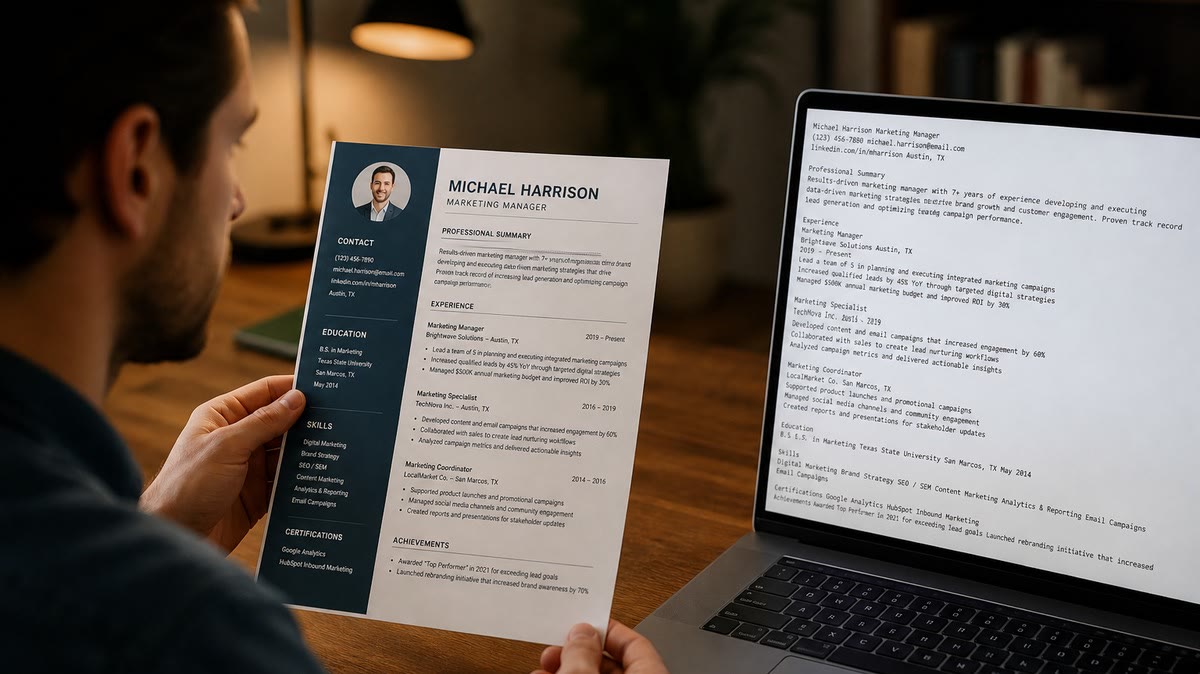
Symptom one: blank employer list. You used a template with a colored band and a photo circle. The parser treated the band as one line and skipped jobs sitting in a right column.
Symptom two: dates divorced from titles. You listed tenure in a table cell beside the company name. Greenhouse stores start and end in separate fields, so "2021-2024" can land without the job title recruiters search on.
Symptom three: skills without roles. You parked SQL, Salesforce, and Excel in a chip row. Keyword search might still hit them, but the recruiter grid shows tools floating above employment with no proof you used them recently.
Greenhouse is filling columns for coordinators: employer, title, location, dates, education. It is not judging your font pairing. A clean PDF that parses wrong still loses you in sort views where "current company" is empty.
US candidates often tuck LinkedIn and city into a footer on page two. If the footer strips on export, your location field goes blank while the PDF attachment still looks fine.
I've opened Greenhouse next to a candidate's PDF and watched a Fortune 500 client name show as "Unknown employer" because the logo sat inside a text box. The attachment was polished. The parsed row was empty, and that's what the team filtered on.
Cover letters uploaded separately do not repair a bad resume parse. Someone might read the letter later. The first pass still rides on whatever the resume upload extracted into structured fields.
Remote US roles use the same parser as on-site reqs. State abbreviations in a sidebar can parse as a random token while your full city-state line never reaches the location column.
Greenhouse resume formatting: fix by symptom
Cause: two-column or sidebar layout
Before: Name and contact left, skills and certs right, jobs in a narrow center column.
After: Single column top to bottom: contact, summary if you use one, experience, education, certifications, short skills list or none.
Put PMP, CPA, or AWS cert lines under Education with month and year, not inside an icon strip that parsers skip.
Cause: tables for employment history
Before: Four-column table with Company, Title, Dates, City.
After: Repeated blocks: employer on line one, title on line two, dates on line three, bullets below.
Example for a project manager role: "Regional health system, Boston · Senior Project Manager · Mar 2021 - Present" followed by bullets that name EMR rollout, budget band, and cross-functional partners you'd discuss on a screen.
Cause: slash dates and seasons
Use three-letter months and four-digit years: "Sep 2019 - Aug 2022" instead of 09/19-08/22. Slashes invite misreads and empty end-date fields.
Contract roles need the client or agency name on the employer line. "Consultant" alone does not tell Greenhouse which company to attach to the timeline.
Cause: PDF from design tools
Rebuild in Word or Google Docs with styles, not absolute positioning. Browser print-to-PDF from a personal site is a common failure mode for marketing and design applicants who still apply through Greenhouse.
Copy-paste block: plain contact header
Copy-paste resume header (edit brackets)
[Full name]
[City], [ST] | [phone] | [email]
LinkedIn: [plain URL]

Professional Summary
[Two sentences on scope: industry, function, level]

Experience
[Employer name]
[Job title] | [Mon YYYY] - [Mon YYYY or Present]
• [Bullet with tool or outcome keyword]
• [Bullet with scope: team size, revenue band, region as illustration only]
How to tell which cause is yours: paste the PDF text into Notepad on Windows or TextEdit in plain mode on Mac. Reading order there is close to what Greenhouse used. If skills appear before your first employer, your file order is wrong even when the PDF looks balanced.
Pair layout fixes with req language. Mirror the posting title in your top role line without renaming yourself into a job you have not held. For a deeper pass on ignored fields, see what ATS ignores on your resume and compare with the Greenhouse symptoms above.
Keep bullet verbs consistent. "Built weekly pipeline reports in Looker" beats a row of icons above the same sentence. Parsers drop the icons and sometimes drop the line.
File names help you more than the parser: "Greenhouse_PM_2026-10.docx" beats "resume_final.pdf" when you're juggling five similar applies in one night.
US layout traps that look professional but parse badly
Logo headers for every past employer. Brand marks become noise. Type the legal employer name you'd put on a background check form.
Skill meters and star ratings. They are shapes or images. Replace with a one-line list: "Python, SQL, Tableau, stakeholder workshops."
Before: "Curriculum Vitae" as a giant WordArt title.
After: Your name as the only large line, plain text.
Before: QR code linking to a portfolio in the header.
After: Plain URL on its own line if the req asks for work samples; no image-based codes parsers cannot read.
Volunteer lines rarely help parsing. If you keep one line for community work, place it after education so it cannot interrupt experience dates.
New grads sometimes list every course in a nested table. Hiring managers want degree and school once. Module tables choke parsers and bury internship bullets that prove relevant work.
Mixing "Client" and "Employer" without a company name breaks timeline reads. Say which agency or end client you supported on the employer line.
This will not fix applying to director roles with only intern titles showing. It stops qualified history from vanishing before anyone judges fit.
For upload-specific quirks, read Greenhouse resume upload issues US fixes that work alongside the formatting notes here.
Do not password-protect PDFs. Do not upload phone photos of a printed resume. Both fail quietly while the form still says received.
Test the file you'll attach before Greenhouse stores it
Layout work is guesswork until you run the same bytes through a checker. You want missing headings and garbled order flagged on your machine, not by a coordinator closing the req.
Paste the job description into score your job match after you tune bullets for the posting. Parsing gets you into the grid; aligned language gets you read.
Run the free ATS checker on the PDF or .docx you plan to upload. Fix structure first, then adjust keywords. Keyword stuffing in a sidebar still parses as sidebar junk.
Do this now: Export a single-column version, paste it into Notepad, and confirm your current employer appears before your university name. If it does not, reorder sections before you apply again.
Store two files if you want: a designed PDF for networking and a Greenhouse file for applications. Muscle memory at midnight is how the wrong one gets uploaded.
When a recruiter asks for Word after you sent PDF, send the same plain structure in .docx. Do not take that moment to reintroduce columns because Word "looks empty."
Tonight's Greenhouse formatting checklist
Greenhouse resume formatting is mostly subtraction. Remove columns, tables, and icons until a plain-text read still tells your career story.
- Single column, experience before education unless you're a current student.
- Month-year dates on their own line under each title.
- Contact lines in the body, not the header.
- Checker pass on the exact upload file.
Generate a cover letter when the role asks for one, then run the same file through the homepage checker on both attachments. Parsing and messaging should match the same title and employer names.
Save the plain export as your default. You can keep a designed PDF for coffee chats, but Greenhouse applications are not the place to win a layout prize.
When silence continues after a clean parse, the issue may be level or location filters, not formatting. At least you'll know recruiters saw the same employer line you see on paper.
Read more
Frequently asked questions
Use .docx when the form allows it, because headings and bullets often survive better than a designed PDF. If only PDF is accepted, export from Word or Google Docs with no password, no scan, and no multi-column template. Upload once, then check any employer preview of parsed fields before you submit the rest of the form.
The parser reads one vertical stream. A right-hand skills column or icon row usually appears before experience in plain-text order, so coordinators see tools without a job attached. Move skills under Experience as bullets, or place a short Skills section after your last role block.
They can. Contact details trapped in a Word header or footer sometimes never populate email or phone fields. Put name, city, phone, and email as normal body lines at the top. Keep headers empty and drop repeating footers that push page-two jobs out of order.
Page count is fine. Layout is not. Two pages with a sidebar still parse like one long column on page one, then experience on page two, which can split dates from titles. Stay single column on both pages and keep each job block together: company, title, dates, then bullets.