12 min read
Your Google Doc looks clean on screen. Workday imports a scrambled file. Skills land first. Your current title shows up under Education. You didn't write a bad resume. You exported one with settings parsers hate.
Google Docs resume export breaks ATS parsing when you use pageless mode, linked headers, or Download as PDF from a two-column table template. The fix isn't more keywords. It's page setup, a single-column body, and the correct download path. Before you apply again, check your resume for free and paste last night's PDF into Notepad. If employer order is wrong, change export settings before you rewrite bullets.
Job searching when every portal wants a different file type is already draining. You're not careless. Docs defaults and gallery templates often hide the choices that matter at export. I've seen the same Google Doc export cleanly to one employer and scramble dates at another because pageless mode was still on. This page walks the settings recruiters expect on US stacks in Workday, Greenhouse, Lever, Taleo, and iCIMS.
Below you'll get five export steps, before/after pairs for analyst and retail roles, two edge cases for gallery templates and DOCX uploads, common export mistakes, and a settings checklist you can run in ten minutes. When the posting wants a matching letter, generate a cover letter after your paste test shows job titles in order.
Quick Wins
- Switch from pageless to Pages with Letter size and one-inch margins.
- Move contact info out of headers into the document body.
- Delete two-column table templates before you export.
- Use File → Download → PDF Document, not Print to PDF.
What breaks at Google Docs resume export
Google Docs is a fine place to draft. The failure happens at export when hidden layout choices reflow text. Pageless mode stretches sections across one long scroll. Linked headers store phone numbers outside the body stream. Two-column gallery templates encode sidebars as tables parsers read cell by cell.
The parser reads the exported file, not your share link. Preview in Docs lies because you see design. Workday reads the PDF text stream. If that stream lists Skills before Experience, keyword matches attach to the wrong section even when the on-screen order looked correct.
A composite data analyst whose Docs file used pageless format and a first-page header still looked sharp in print layout. Greenhouse imported email from the header twice, skipped a 2022 employer, and attached 2024 bullets to the wrong company. Same content. Wrong export path.
Numbers inside sample bullets below illustrate shape, not market claims. The point is export settings, not inflating metrics on your file.
Docs also lets you collaborate in real time. Comments and suggestion mode do not break export by themselves. But tracked changes left unresolved can export stray markup characters into the PDF text stream. Accept or reject all suggestions before Step 5.
Offline editing is fine. Sync before export so the downloaded file matches what you see. An stale tab sometimes exports an older layout without your margin fix.
For section labels after export order is fixed, read ATS headings that work across US ATS platforms . Export fixes the stream. Standard headings route jobs into Experience.
Five-step Google Docs resume export workflow
Work through these in order. Each step fixes a different break point on import. Re-paste into Notepad after Step 5 before you upload anywhere.
Step 1: Switch from pageless to Letter with one-inch margins
Open File → Page setup. Under Format, select Pages, not Pageless. Set Paper size to Letter (8.5 × 11 inches). Set margins to one inch on all sides. Click OK and apply to the entire document.
If you started from a resume shared as pageless, every section may shift when you switch to Pages. Scan page breaks after the change. Insert a manual break only when Experience runs into Education without a clean split.
Pageless mode removes stable page breaks. Contact rows and date lines can shift on PDF export. Parsers then read reflowed order as if you moved sections manually.
Before: Pageless document with contact block floating mid-scroll after a page break disappears on export.
After: Letter pages with name and email as the first three body lines, Experience starting on page one below contact.
Step 2: Clear linked headers and footers
Click Format → Headers and footers. Delete phone, email, and LinkedIn from header fields. Uncheck Different first page if it isolates contact in a linked box. Put all contact lines in the body as plain text.
Linked headers export outside the main text stream. Workday may keep header email and drop body email, or duplicate both. Recruiters see mismatched contact on import.
Before: Name in body, phone and email in a blue header bar on every page.
After: Full contact block in body: Name, City ST · phone · email · LinkedIn URL on separate plain lines.
Step 3: Rebuild single column and drop table templates
Select any two-column layout from the template gallery and replace it with one column. Remove invisible tables used to align dates. Use tab stops or right-aligned dates on the employer line instead of table cells.
Parsers read table cells in grid order, not visual row order. A sidebar Skills table often imports before Experience even when it sits visually on the left.
Before: Gallery resume with left Skills table and right Experience column.
After: PROFESSIONAL EXPERIENCE heading, jobs stacked top to bottom, SKILLS as one comma line after Education.
Step 4: Set fonts, heading styles, and standard bullets
Select all body text. Set Arial or Calibri at 11 points. Apply Heading styles to section breaks: PROFESSIONAL EXPERIENCE, EDUCATION, SKILLS. Use Format → Bullets & numbering with standard round bullets or hyphens. Remove icon lists and emoji skill rows.
Decorative fonts and custom bullets survive on screen but strip or garble on export. Heading styles mark section breaks parsers recognize more reliably than bold Normal text.
Before: Mixed 10 and 12 point text, star icons for skill levels, bold lines without heading styles.
After: Uniform 11-point Arial, Heading 2 on section titles, hyphen bullets only.
Step 5: Export with File → Download → PDF Document
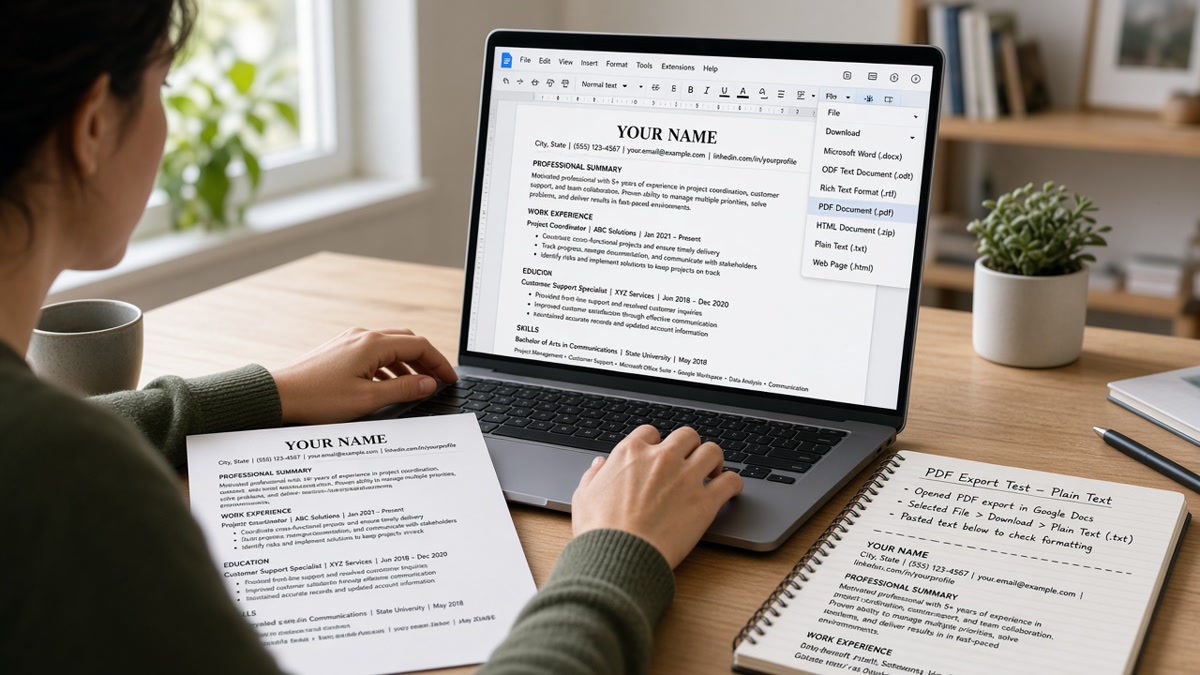
Use File → Download → PDF Document (.pdf). Do not use browser Print → Save as PDF. Do not use third-party merge or compress tools before upload. Open the downloaded PDF and confirm you can highlight individual words. If text is not selectable, the export failed before ATS ever runs.
Name the file Firstname-Lastname-Resume.pdf without spaces or special characters. Some portals truncate odd filenames and attach the wrong version when you upload from a phone. Keep one master Doc and one export folder so you never grab last week's PDF by mistake.
Paste the PDF into Notepad on Windows or TextEdit plain text on Mac. Read top to bottom. Employer names should appear once, in reverse chronological order, under Professional Experience. Contact should appear once at the top.
Before: Print to PDF from Chrome extension; Notepad shows blank squares where bullets were.
After: Native Docs PDF download; Notepad shows hyphen bullets and clean employer headers in order.
Copy-paste block: Google Docs export checklist
FILE → PAGE SETUP
  Format: Pages (not Pageless)
  Paper: Letter
  Margins: 1 inch all sides

CONTACT
  Body only (no header/footer phone or email)

STRUCTURE
  Single column
  PROFESSIONAL EXPERIENCE → EDUCATION → SKILLS
  No invisible date tables

EXPORT
  File → Download → PDF Document (.pdf)
  Open PDF → confirm selectable text
  Paste into Notepad → verify employer order

OPTIONAL DOCX
  File → Download → Microsoft Word (.docx)
  Only when portal requires DOCX; paste test still required
Before/after: retail supervisor with gallery template
Before: Swisss-style two-column Docs template. Skills icons in left table. Export via Print to PDF. Notepad lists every tool before Store Manager, Northwind Retail.
After: Single column rebuilt. Bullet one: Led 22-person floor team across POS and inventory audits with 14% shrink reduction in FY24. Export via Download → PDF. Parse check shows one employer stack in order.
Before/after: financial analyst with pageless and header contact
Before: Pageless doc, email in linked header, dates in a three-column table. iCIMS attached 2021 bullets to 2024 employer.
After: Letter pages, body contact, Financial Analyst, Apex Capital, Jan 2024 to Present on one block with tab-aligned dates. DOCX download accepted by portal; Notepad paste shows two employers, correct dates.
Edge case: portal requires DOCX instead of PDF
Some Taleo and SuccessFactors instances prefer DOCX. Use File → Download → Microsoft Word (.docx) after you complete Steps 1 through 4. Open the DOCX locally and paste into Notepad the same way. Table remnants from gallery templates survive in DOCX more often than in PDF. Delete tables before DOCX export when paste test still scrambles.
Edge case: resume longer than one page in Docs
Two pages is fine on Letter with one-inch margins. Avoid shrinking margins below 0.75 inch to fit content. Tiny margins clip text when recruiters print and when parsers misread edge-aligned rows. Trim bullet count before you shrink page setup. Insert a manual page break before Education if Experience fills page one cleanly.
Do not add a repeated header with your name on page two unless the portal asks for a CV. Repeated headers on a two-page corporate resume sometimes duplicate contact lines in Lever imports. Page two can start with the next employer block only.
Widows and orphans settings in Docs rarely affect ATS, but orphan headings at the bottom of page one can push your first job bullet to page two alone. Keep at least two lines of the first job on page one when you can without shrinking margins.
For file-type tradeoffs after export settings are clean, read how resume file type impacts screening . A clean DOCX from Docs sometimes beats a gallery PDF even when both look identical on screen.
Export settings that fail parse checks
Leaving pageless on because it feels modern. Scroll layout is fine for notes. Resumes need fixed pages so contact and Experience export in stable order.
Using Different first page header for design. First-page-only contact looks clean. Parsers often import it separately from body jobs and drop one of the two.
Downloading PDF from a shared view link. Share links are not exports. Always download from your editable copy with File → Download.
Compressing PDF before upload. Compression tools can flatten text layers. If highlight breaks after compress, re-export from Docs without compression.
Keeping text boxes for summary and skills. Floating boxes in Docs behave like sidebars on export. Inline headings and bullets only.
Exporting once and uploading to twenty reqs without re-paste. Every edit can re-break tables. Paste test after each export, not only the first time.
Assuming ATS Safe badges on third-party Docs add-ons. Badges are not parse tests. Notepad paste is.
Embedding charts or Smart Chips for skills. Docs lets you @-mention files and people. Those chips do not export as plain skill names. Type Salesforce as text, not as a linked chip, before PDF download.
Using narrow column width to mimic a design template. Format → Columns splits the body into side-by-side streams the same way table templates do. One column only for US corporate uploads.
This won't fix applying to roles you're not qualified for. It stops qualified Docs drafts from dying when pageless reflow pushed Skills ahead of Experience on export.
Verify export before upload
After Step 5, run the same export against the posting on your screen. You're confirming employer order, contact once at top, and keyword placement in parsed body text before you tune bullets.
Upload your downloaded PDF to HireFlow's free ATS resume checker . If job two still imports before job one, page setup or tables are not fixed yet.
When you'd rather not fight gallery templates again, build your resume in a single-column layout and paste your Docs bullets in after the paste test passes.
Do this now: File → Page setup → Pages → Letter → one-inch margins. Clear headers. Download PDF. Paste into Notepad before your next application.
Export once, test twice
Google Docs resume export is ATS-safe when you use Pages on Letter paper, body contact only, single column, standard headings, and File → Download → PDF Document. Pageless mode, linked headers, and two-column table templates break the text stream employers import into Workday and Greenhouse.
Run the five steps tonight. Paste the PDF into Notepad before you upload anywhere. Then run a free ATS check with the posting attached and confirm employer names appear once, in date order, under Experience.
- Turn off pageless and set one-inch Letter margins.
- Move contact out of headers into the body block.
- Delete table templates and export single column.
- Download PDF from File menu, never Print to PDF.
- Re-paste into Notepad after every edit and export.
And if a gallery template still scrambles on paste after all five steps, rebuild in a blank Doc with the checklist block above. You're fixing the export path, not chasing a prettier thumbnail.
Read more
Frequently asked questions
PDF from File → Download → PDF Document (.pdf) is the default for most US corporate portals when they accept both formats. DOCX can parse cleanly in Greenhouse when the file is single column with standard headings. Never use Print to PDF from the browser or a third-party extension. Either path can rasterize text or scramble table order. Paste the export into Notepad before you upload.
Yes for most US ATS uploads. Pageless documents remove fixed page breaks and can reflow contact rows, date lines, and section order on export. Switch to Pages format under File → Page setup, set Letter paper with one-inch margins, then re-export. If Notepad paste shows contact info mid-page after your last job, pageless reflow is the likely cause.
Different first page headers and linked header sections store contact info outside the main body stream. Parsers often import headers once, skip body contact, or duplicate phone numbers. Put name, phone, email, and LinkedIn URL in the top body lines only. Clear header and footer fields under Format → Headers and footers before export.
Only after you strip two-column tables, icon skill bars, and sidebar blocks. Many gallery templates use invisible tables for dates or split Skills into a left rail. Open File → Download → PDF, paste into Notepad, and confirm job titles appear in date order under Professional Experience. If Skills import before your current title, rebuild single column before you apply with that export.
Paste the PDF into Notepad and read top to bottom without looking at the designed file. Count employer names. Upload the same export to a free parse check with the posting attached. If sections swap or dates detach from titles, fix page setup and export path before you rewrite bullets.