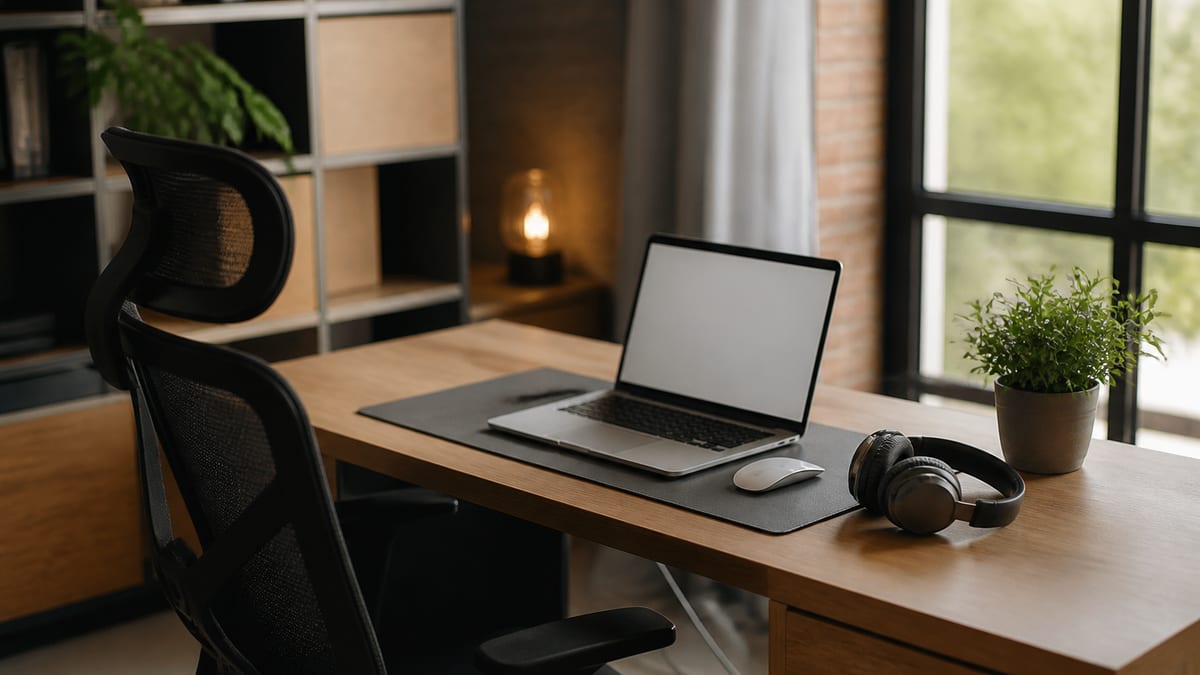
Buy in this order: a chair that supports your lower back, something to raise your screen to eye level, a separate keyboard, then a desk. Light from a window in front of you beats any lighting purchase, and the built-in webcam is fine. Most home office spending goes to the wrong things.
The setups that cause problems are not the cheap ones — they are the ones built in the wrong order. A laptop on a dining table produces neck pain within months regardless of how good the laptop is, and no monitor upgrade fixes a chair that offers no lumbar support.
Below: a priority order with budget tiers, the three ergonomic measurements that matter, what is genuinely not worth buying, before-and-after fixes for common setups, working in small or shared spaces, expense and tax considerations, and the video-call setup that matters if you are interviewing.
Key Takeaways
- A spending order, from what prevents injury to what is optional
- Three measurements that fix most posture problems
- Four things not worth buying, and what to buy instead
- Small-space setups that still allow you to stop working
- What your employer may already be willing to pay for
The spending order
Start Here
Buy top-down and stop when the budget runs out. Everything above the line you reach will matter more than everything below it.
| Item | Priority | Cheap version that works |
|---|---|---|
| Chair | Critical | Second-hand office chair; a cushion for lumbar support |
| Screen height | Critical | A stack of books under the laptop |
| Separate keyboard | High | Any basic one — required once the screen is raised |
| Audio | High | Wired earphones with a microphone |
| Light in front of you | Medium | Face a window; a desk lamp aimed at you |
| Desk at the right height | Medium | Any table; adjust the chair instead |
| External monitor | Nice to have | Genuinely helps for heavy screen work |
| Webcam, lighting kit | Skip | Built-in camera and a window are fine |
The chair is worth spending real money on, and it is the one item where second-hand is usually better value than new. Office clearances sell chairs that cost several hundred originally for a fraction of it, and a well-maintained one from a decent manufacturer will outlast anything at the same price new.
The keyboard row surprises people, so it is worth being explicit about why it sits so high. Raising your laptop to eye level makes the built-in keyboard unusable — your hands end up somewhere around chest height. The two purchases are a pair rather than independent choices, which is why a laptop stand bought on its own frequently gets abandoned within a week. Buy them together or do neither.
Three measurements that fix most problems
Key Takeaway
Posture problems from home working are mechanical and predictable. Three adjustments handle nearly all of them, and none requires buying anything specific.
Screen at eye level. The top of the display at or slightly below your eyes, about an arm's length away. A laptop on a table sits roughly 25cm too low, which forces your head forward and down for eight hours a day. This single adjustment prevents most home-working neck pain.
Elbows at about 90 degrees. Adjust the chair so your forearms are roughly parallel to the floor when typing. If the desk is too high and the chair cannot go higher, raise yourself and put something under your feet — a box works. Wrists should be straight rather than bent upward.
Feet flat, back supported. Feet on the floor or a footrest, lower back in contact with the chair. If the chair offers no lumbar support, a rolled towel behind the small of your back is genuinely effective and costs nothing.
Beyond the measurements, movement matters more than any of them. The best posture is the next one — a two-minute stand every hour does more than a perfectly configured desk you never leave. If you already have pain that persists, that is a matter for a doctor or physiotherapist rather than a furniture purchase.
What is not worth buying
Myth Busting
Most home office spending goes to visible upgrades rather than to the two things that prevent injury. These four are the usual offenders.
An expensive webcam. Meeting platforms compress video heavily, so the difference between a built-in camera and a good external one is largely lost in transmission. Lighting affects how you look far more than the camera does, and a window is free.
A ring light. These produce the distinctive ring reflection in your eyes and a flat, slightly clinical look. A lamp bounced off a wall in front of you is softer, cheaper, and looks more natural on camera.
A standing desk, as a first purchase. The benefit is changing position, not standing continuously, and standing all day causes its own problems. An hourly timer delivers most of the benefit for nothing. If you want one later, buy it after the chair.
Desk accessories generally. Cable management, monitor arms, and organizers are pleasant and change nothing about how the work goes. Buy them once the chair and screen height are sorted, if at all.
Before and after: three common setups fixed
Quick Win
Each fix below costs under fifty of your local currency, and two of them cost nothing at all.
The kitchen table
Before: Laptop flat on a dining table, dining chair, screen 25cm too low, back unsupported, everything cleared away at mealtimes.
After: Laptop on a stack of books, a basic separate keyboard, a rolled towel behind the lower back, and a second-hand office chair kept in the corner. Same table, most of the problem gone.
The sofa
Before: Working from a sofa with the laptop on a cushion, spine curved, wrists bent, and no separation at all between work and rest space.
After: A small fold-away desk in a corner of the same room, set up each morning and folded at the end of the day. The folding is the point — it is what makes stopping physical rather than a decision.
The bedroom desk facing a wall
Before: Desk against a wall with the window behind, so video calls show a silhouette and the room feels enclosed all day.
After: Desk turned 90 degrees so the window is in front. Free, takes ten minutes, and fixes both the lighting on calls and the sense of working in a box.
Job hunting from this desk? The video setup only matters once you reach an interview. Check what an applicant tracking system extracts from your resume first — free, no signup.
Run a free ATS resume check →Small flats, shared homes, and no spare room
Pro Tip
The dedicated room is the least important part. What matters is being able to close the setup, physically or symbolically, at the end of the day.
Most advice assumes a spare room, which a large share of remote workers do not have. The good news is that the two things that matter most — a supportive chair and a raised screen — take almost no space. A corner with a small fold-away desk and a chair you keep for the purpose covers the physical requirements entirely.
What a dedicated room genuinely provides is a boundary, and that can be replicated. Packing the laptop into a drawer, folding the desk, or simply turning the chair to face away all work as end-of-day signals. The mechanism is friction: making it slightly awkward to start again is more effective than deciding not to.
Sharing a space with another remote worker introduces one specific problem — overlapping calls. Agree in advance who takes the quiet space when both of you have something important, and treat headphones as a genuine solution rather than a compromise. Mentioning at the start of a call that you are in a shared space costs nothing and pre-empts any awkwardness.
If you are renting, avoid anything requiring drilling or permanent modification. Freestanding options exist for nearly everything, and they move with you.
Who pays for it
Do This Next
Most people buy their own equipment without ever asking. Ask first — a chair and a monitor are common approvals even where no formal scheme exists.
Ask your employer. Many organizations have a remote equipment budget that is not advertised, and some jurisdictions require employers to cover necessary equipment or expenses for remote staff. A short message asking what the policy is costs nothing and frequently returns a chair.
Ask about health and safety obligations. In several countries employers retain duties around workstation assessment even for home workers, and some run formal assessments on request. If you have existing back or wrist problems, raise them — that is precisely the situation those obligations exist for.
Tax treatment varies and has changed. Self-employed people can typically claim a proportion of home working costs; employees often cannot, or only under narrow conditions, and several countries tightened or altered their rules after the 2020 expansion of remote work. Check current guidance for your country and employment status rather than relying on what was true a few years ago, and take advice for anything substantial.
Keep receipts either way. Whether the route is reimbursement or a deduction, both require records, and reconstructing a year of purchases afterward is considerably harder than saving them as you go.
The setup that matters on video calls
Watch Out
Audio outranks video by a wide margin. Nobody remembers a plain background; everybody remembers being asked to repeat themselves three times.
Wired earphones with a microphone beat laptop speakers and beat most expensive headsets, because they sit close to your mouth and do not drop connection mid-sentence. Test on the actual platform being used — Zoom, Teams, and Google Meet handle microphones and backgrounds differently, and discovering that in the first minute of a call is a bad time.
Put the light in front of you and the camera at eye level. A window facing you does more for how you look than any purchase; a window behind you turns you into a silhouette. Raising the laptop for ergonomic reasons happens to fix the camera angle at the same time, which is a rare case of two problems having one solution.
If you are interviewing from this desk, one thing is worth knowing about the stage before the call. The interviewer is frequently not looking at your PDF — Workday and Greenhouse both build a candidate profile from the extracted text of your upload, and that profile is what appears on their screen, with Lever and iCIMS working the same way. If your dates parsed badly or a job title merged into the line above, you may be asked to clarify something your resume states perfectly clearly. Checking the extracted version with a free ATS resume check removes that surprise before it happens.
Bottom line
Final Word
Chair, screen height, separate keyboard, light in front of you. Ask your employer to pay. Make the setup closeable so stopping is physical rather than a decision.
The photogenic home office and the one that keeps you working comfortably for years are rarely the same thing. The second is mostly a good chair, a raised screen, and the ability to walk away from it — none of which photograph particularly well.
Do the free version today: put the laptop on some books, turn the desk so the window is in front of you, and put something behind your lower back. Then send one message asking what your employer will cover.
Looking for a remote role to use it for?
Remote postings draw hundreds of applicants and most are filtered before any interview. See exactly what an applicant tracking system extracts from your resume — free, no signup.
Run the Free ATS Resume CheckAlso useful: remote interview tips · remote vs office work
Frequently asked questions
A chair that supports your lower back, then whatever raises your screen to eye level. Those two prevent the neck and back problems that show up after six months of laptop-on-a-table working. Everything else — desk, monitor, keyboard, lighting — comes after and matters considerably less.
No. The benefit comes from changing position regularly, not from standing continuously, and standing all day causes its own problems. A timer that reminds you to move every hour achieves most of the same thing for nothing. If you buy one, use it for two or three short periods a day rather than as a default.
The top of the screen at or slightly below eye level, about an arm's length away. A laptop on a table is roughly 25cm too low, which is why laptop-only setups reliably produce neck pain. A stack of books plus a separate keyboard fixes it for nothing.
It depends on your country and whether you are employed or self-employed. Self-employed people can typically claim a proportion of costs; employees often cannot, or only under narrow conditions. Rules changed in several countries after 2020, so check current guidance for your situation rather than relying on advice from a few years ago.
Many will if you ask, and most people never do. Some jurisdictions require employers to cover necessary work equipment or expenses for remote staff. Ask what the policy is rather than assuming there is none — a chair and a monitor are common approvals even where there is no formal scheme.
Prioritize a dedicated chair and screen height over a dedicated room. A fold-away desk, a laptop stand and separate keyboard, and a corner you can leave set up will serve you better than a large desk you have to clear every evening. The psychological separation matters more than the square footage.
Expensive webcams, ring lights, mechanical keyboards for their own sake, and most desk accessories. A window in front of you beats any lighting purchase, and built-in cameras are fine for every meeting you will attend. Spend the money on the chair instead.
Make the setup physically closeable — a room you leave, a desk you fold, a laptop you put in a drawer. Boundaries held by willpower fail; boundaries held by friction hold. If the laptop stays open on the kitchen table, you will open it at nine in the evening.