11 min read
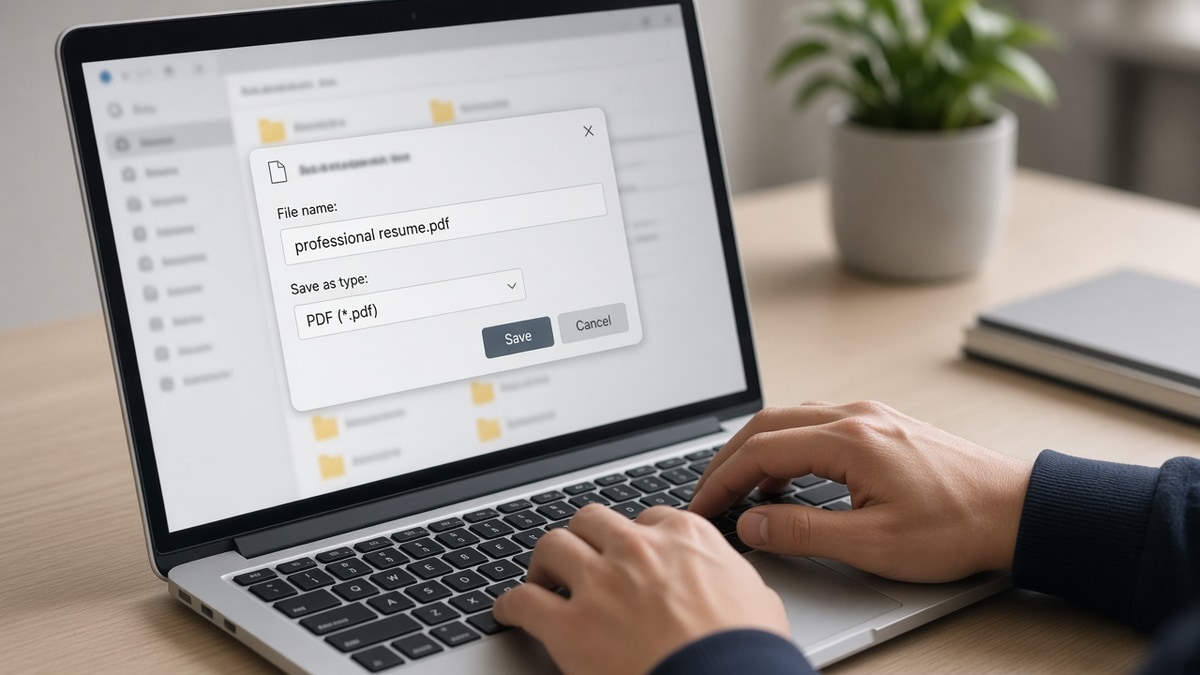
Name the file FirstName_LastName_Role.pdf. Not Resume.pdf. Not Final_v7. Not My_CV.docx. When a recruiter's inbox holds two hundred attachments for one role, ATS dashboards and humans sort by filename before anyone opens the file. Ambiguous names sink to the bottom. Specific names sit next to the job title in search results.
You're not decorating the file. You're making yourself findable on Monday when the hiring manager asks, "Pull every product manager who applied last week." If your export still says resume(3).pdf, you're invisible in that sort even when the bullets inside are strong.
Check your resume for free after you rename and re-export. You're confirming the parser still reads contact and employers in order, not chasing a filename trick. Below: why the name matters, the exceptions, examples by role, and what to rename in the next five minutes.
Job searching is draining enough without losing a qualified file to a lazy save dialog. This won't fix a skills gap or a missing degree. It stops your PDF from blending into a folder of identical Resume.pdf labels.
Quick Wins
- Rename to FirstName_LastName_Role.pdf before every portal upload.
- Drop version tags like final, v7, and new from the filename.
- Match the extension to the real file type the portal accepts.
Why recruiters and ATS sort on filename before opening the file
Corporate ATS tools attach every upload to a candidate profile, but recruiters still live in file lists. Workday applicant grids show filename columns. Greenhouse bundles downloads by requisition. Email referrals land with fifty PDFs and no portal metadata yet. In each view, the filename is the first sort key.
The sort rule: humans search their name, the role keyword, or the company. Generic files never match.
Parsers care about text inside the PDF. Recruiters care about which attachment belongs to which person when three screens are open. A clear filename answers that question in one glance. Resume.pdf answers nothing.
Version creep makes it worse. You save resume_final.pdf, then resume_final_v2.pdf, then resume_FINAL_use_this_one.pdf. Six months later you're rushing an apply and attach the wrong export. The filename chaos is how a stale bullet set reaches the portal while your best version sits in Downloads.
Read how to keep multiple resume versions organized if you're maintaining role-specific copies. This page is the label on the outside of each copy so you upload the right one.
Edge case: agencies and staffing firms forwarding your file to a client. They often strip cover letters but keep your filename visible in the forward. A professional name travels. Resume.pdf forces them to rename you manually or leave a vague label on the client inbox.
Edge case two: mobile uploads from a phone Files app. iOS loves auto names like Document.pdf. Rename on desktop before upload when you can. If you must upload from mobile, use a cloud folder where you've already saved FirstName_LastName_Role.pdf.
Desktop search is underrated. Hiring coordinators pull files from shared drives with Windows search. Your name in the filename is how you resurface when someone asks for "every analyst who applied in March." No name token means no hit.
Compliance and security scanners sometimes quarantine odd characters in filenames. Parentheses, ampersands, and percent signs trigger false flags in some enterprise mail gateways. Underscores and hyphens are boring. Boring clears filters.
Referral threads in Slack and Teams often paste filenames as plain text links. A clean label becomes the clickable preview your contact forwards to the hiring manager. Resume.pdf gives your advocate nothing to work with when they type "see attached candidate."
Bulk download ZIP files from older ATS exports unzip into alphabetical lists. Your surname in the filename controls where you appear relative to other applicants before anyone sorts by match score. Missing name tokens mean you sort under anonymous files at the top of the alphabet.
Resume filename examples that look professional (US)
Build every filename from three parts: your name, a short role token, and the correct extension. Optional fourth piece: Resume as a literal word when the role alone might confuse non-technical recruiters.
The base formula
FirstName_LastName_Role.pdf. Use underscores or hyphens, not spaces. Keep role to two or three words max. Spell role the way the posting spells it when you can.
Before: Resume.pdf
After: Jane_Doe_ProductManager.pdf
Before: john_smith_final_FINAL_v7.pdf
After: John_Smith_SalesAssociate.pdf
Copy-paste filename templates by situation:
FirstName_LastName_JobTitle.pdf
FirstName_LastName_JobTitle_Resume.pdf
FirstName_MiddleInitial_LastName_Role.pdf
FirstName_LastName_Role_Company.pdf   (direct email only)
FirstName_LastName_Role.docx          (when portal requires Word)
Examples by role
Software engineer targeting a backend req: Alex_Chen_BackendEngineer.pdf. Data analyst with Tableau focus: Priya_Nair_DataAnalyst.pdf. Registered nurse med-surg: Emily_Walsh_RN_MedSurg.pdf. Customer success manager: Marcus_Lee_CustomerSuccess.pdf.
Project manager PMP in filename is optional. Certifications belong in the resume body with dates. If you add PMP to the filename, keep it short: Lisa_Park_ProjectManager_PMP.pdf. Do not stack four credentials in the label.
Career changers: use the target title from the posting, not your old internal title, when the new title is truthful scope. A teacher moving to instructional design might use Dana_Fox_InstructionalDesigner.pdf while the last employer title was Classroom Teacher. The filename signals intent. The bullets must prove it.
When to add company name or date
Add company only for direct manager email or a named referral, never for standard portals. Example: Sam_Ortiz_ProductManager_Northwind.pdf when the VP asked you to send a PDF tonight.
Skip dates in the filename for portal applies. Dates create clutter and go stale. Track versions in a folder structure on your machine, not in the public label recruiters see.
Edge case: campus recruiting fairs collecting USB uploads. A graduation year in the filename can help overworked coordinators match you to a roster when name collisions are common. Use sparingly: Jordan_Lee_MechanicalEngineer_2026.pdf.
Edge case two: international candidates with diacritics in legal names. ASCII transliteration in the filename is safer for US portals than special characters that break upload validators. Keep accented spelling inside the resume body where humans read it.
Extension and export alignment
If you export PDF, the filename ends in .pdf. If the posting requires Word, save .docx and name it .docx. Mismatched extensions confuse both humans and automated virus scans.
Read how resume file type impacts screening when a portal accepts both PDF and DOCX. Filename and format should tell the same story.
Mac users: avoid hidden .pdf.pdf double extensions from Finder rename mistakes. Windows users: turn on file extension visibility once so you see what you're actually uploading.
Operations and supply chain roles: include the function, not every certification, in the token. Taylor_Brooks_SupplyChainManager.pdf reads cleaner than Taylor_Brooks_APICS_CPIM_SupplyChain.pdf in a narrow email preview column.
Design and creative roles sometimes attach portfolios separately. Keep the resume filename person-first even when a portfolio follows. Hiring coordinators pair files by matching name tokens across attachments.
Filename labels that disappear in crowded ATS folders
The pattern: strong resume, invisible filename, recruiter opens someone else's file first.
Resume.pdf, CV.pdf, and MyResume.pdf are the top three collisions in every req folder. You're not standing out. You're joining a pile where the first sort is random.
Version tags signal draft energy: final, v2, updated, use_this_one. Recruiters have seen too many "final" files that were not final. Drop the drama. One role, one clean name per tailored export.
I've opened Greenhouse download bundles where half the files were Resume.pdf and the coordinator had to rename candidates manually before forwarding to the hiring manager. That's time taken from reading bullets.
Special characters break paths. john#doe&resume.pdf and resume (1).pdf cause mail client warnings and sometimes failed uploads. Stick to letters, numbers, underscores, and hyphens.
Keyword stuffing the filename looks like SEO spam: Jane_Doe_Python_Java_SQL_AWS_Kubernetes_React.pdf. Put tools in bullet one, not in the label. Recruiters notice keyword walls in filenames and trust drops before page one.
ALL CAPS filenames read like shouting in attachment lists. Use standard capitalization: FirstName_LastName_Role.pdf, not JANE_DOE_RESUME.PDF.
Leaving the employer name from a copy-paste apply is a common miss. You tailored bullets for Acme but the file still says BetaCorp_ProductManager.pdf from yesterday's export. Double-check the label matches today's submission.
Cover letter filename mismatch hurts when recruiters save both files to one folder. Pair Resume naming with the same pattern: Jane_Doe_ProductManager_CoverLetter.pdf. If the portal allows a letter, generate a cover letter and name it to match the resume pair.
See resume formatting errors that break ATS parsing for layout issues that survive a perfect filename. Name gets you opened. Parsing gets you scored.
Photo or portfolio zip bundles named project.zip tell the recruiter nothing. If you must attach a portfolio, use FirstName_LastName_Portfolio.pdf with a table of contents page inside.
Shared Google Drive links with default "Untitled document" names fail the same test. Download, rename locally, upload the export the portal expects.
Verify content after you rename the file
Renaming does not fix a broken layout inside the PDF. Run the renamed export through a parser check before you batch apply.
Run a free ATS check on the file you'll attach. Confirm contact and employer order survived export. Then build your resume in a flat template if rename warnings are clean but parsing still fails on tables or columns.
Edge case: same filename uploaded twice to one portal. Some systems append (1) on download while keeping your original upload label. That's fine internally. For your outbound copy, keep the clean name without duplicate markers.
Rename the export before you click submit
Open your latest PDF in Downloads. If the name is not FirstName_LastName_Role.pdf, fix it now. Re-upload once per role with that label. Keep a master file with a boring internal name in your job search folder if you want. The outbound copy should always be recruiter-readable.
Resume filename examples that look professional (US) share one trait: you know whose file it is without opening it. No version theater. No generic Resume.pdf. No special characters that choke email gateways.
Batch five applications only after one renamed file passes a parser check. Wrong filenames multiplied across companies feel like rejection when it's a filing problem you can fix in ten seconds in Save As.
When a friend asks if filenames matter, tell them sort order matters. Inboxes are full. Search beats scroll. Your name in the label is how you get found before anyone reads word one.
Veterans and federal converts: keep MOS and clearance details inside the resume body. Filename is name plus target role, not a classification string.
Nurses and clinical roles: RN or license compact in the role token is fine when short. Put full license numbers in the body contact block parsers read, not in a twelve-word filename.
Freelancers with LLC names: legal name on line one of the resume, LLC in the body if needed. Filename stays person-first so coordinators can match you to LinkedIn and email threads.
Copy-paste nightly rename routine:
[ ] Export PDF or DOCX per portal rules
[ ] Rename FirstName_LastName_Role.ext (no spaces)
[ ] Remove final, v2, and copy markers from label
[ ] Confirm extension matches actual file type
[ ] Pair cover letter name to resume if attaching both
[ ] Run parser check on renamed file before batch apply
Teaching and adjunct candidates: keep course-heavy CV filenames distinct from one-page corporate exports. Dana_Fox_Resume.pdf for corporate portals, Dana_Fox_AcademicCV.pdf for department records, never the reverse upload.
Executive roles: board listings stay in the body. Filename is still FirstName_LastName_ExecutiveRole.pdf, not a three-line title string that truncates in email previews.
International students on OPT: US role token in the filename helps campus employer partners sort by function. Visa status belongs in the body or cover letter when asked, not in the file label.
Sales and account executive exports from CRM PDF printers often default to contact name only. Add role before upload: Chris_Bell_EnterpriseAE.pdf beats Chris_Bell.pdf when fifty Chrises exist in the CRM dump.
Two-screen recruiters keep a "maybe" folder during first-pass review. Your filename is the tab label. Make it searchable. That's the whole game for this step.
Save one minute before every submit: read the filename aloud. If you wouldn't know it's yours in a list of forty, rename again.
HR generalists juggling three reqs at once search candidate folders by last name first. Hyphenated last names work fine: Smith-Jones_DataAnalyst.pdf. Spaces do not. Underscores keep the token intact when the folder sorts alphabetically.
Reapply rules still apply. If you update bullets for a second submission to the same company, rename to reflect the new role target even when the portal remembers your profile. Coordinators compare file labels across submission dates when they audit duplicate applies.
Read more
Frequently asked questions
Only when you're sending directly to one hiring manager or a referral email. For Workday, Greenhouse, or Lever portals, skip the company name. Portals already tie the file to the employer. A filename like Jane_Doe_AcmeCorp.pdf becomes wrong the moment you apply elsewhere and looks like a copy-paste mistake if you forget to rename.
No for US corporate applies. It tells the recruiter nothing about whose file they're opening and sorts poorly in crowded folders. You are not the only person who named a file Resume.pdf this week. Use FirstName_LastName plus a short role token so search and sort work before the attachment opens.
Most ATS tools store the filename as metadata and display it in recruiter views. Parsing focus stays on file contents, not filename keywords. The filename's job is identification and sort order, not keyword stuffing. Put role keywords in experience bullets, not twelve words in the file name.
Match what the portal asks for. When the posting says PDF preferred, use .pdf in the filename and export PDF. When it says Word, use .docx. Do not upload a .docx file saved with a .pdf extension. The extension in the filename should match the actual file type you attach.
Add a middle initial or a short role token, not a gimmick. Maria_G_Rodriguez_DataAnalyst.pdf beats Maria_Rodriguez_Resume.pdf when three Maria Rodriguezes apply the same week. Do not add birth years, street numbers, or emoji. Recruiters filter on professional tokens, not creative strings.